Quick answer: a safe iPhone MP3 workflow
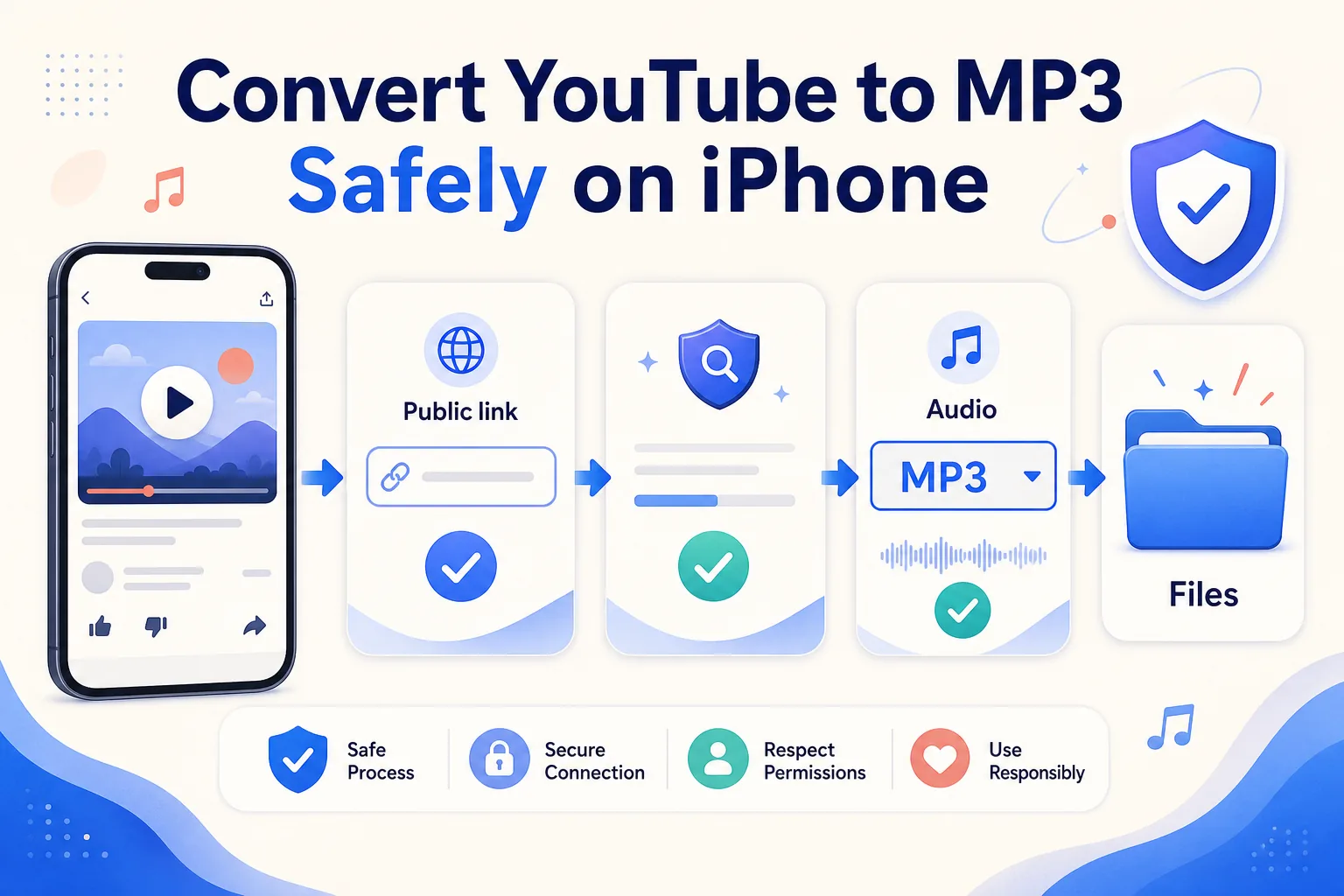
To convert YouTube to MP3 safely on iPhone, use only a public video you own, have permission to process, that is in the public domain, or that you may otherwise use lawfully. Copy the individual video link, open the HSK Download tool in Safari, confirm the analysis matches the intended source, select an available MP3 audio result, and save the completed file to Downloads in the Files app.
Choose quality for the real purpose rather than automatically selecting the largest number. Speech often needs less data than complex music. After downloading, play the beginning, middle, and end; confirm the duration, audio content, and filename; then move the file into a project folder. Keep the source URL and permission record with the project.
Decide whether MP3 is the right output
MP3 is useful when you need a broadly compatible audio file for an authorized interview review, your own spoken notes, a public-domain recording, or another permitted project. It plays in many apps and is easy to organize, transfer, and archive. It is not always the best preservation format.
Converting a compressed online video to MP3 adds another lossy encoding step. A higher MP3 bitrate cannot restore detail removed from the source. If you created the video and still have the original audio master, export from that master instead. If the source offers an authorized original audio file, prefer it over extracting audio from a delivery copy.
Also consider whether you need the whole file. If the goal is only offline listening within a platform and its official app provides an authorized offline mode, that can be simpler. If you need a separate file for an approved workflow, MP3 is practical when its compatibility outweighs the quality loss.
Confirm permission and protect the device
This guide does not grant rights to a video, music, performance, narration, or recording. Confirm ownership, a license, explicit authorization, public-domain status, or another lawful basis before processing the link. Permission to watch is not automatically permission to copy, edit, distribute, or publish.
The workflow does not cover defeating DRM, payment controls, private-video permissions, account controls, regional restrictions, or security measures. If the source requires special access, obtain the file from the owner or use the source platform's authorized export.
Use normal iPhone security judgment:
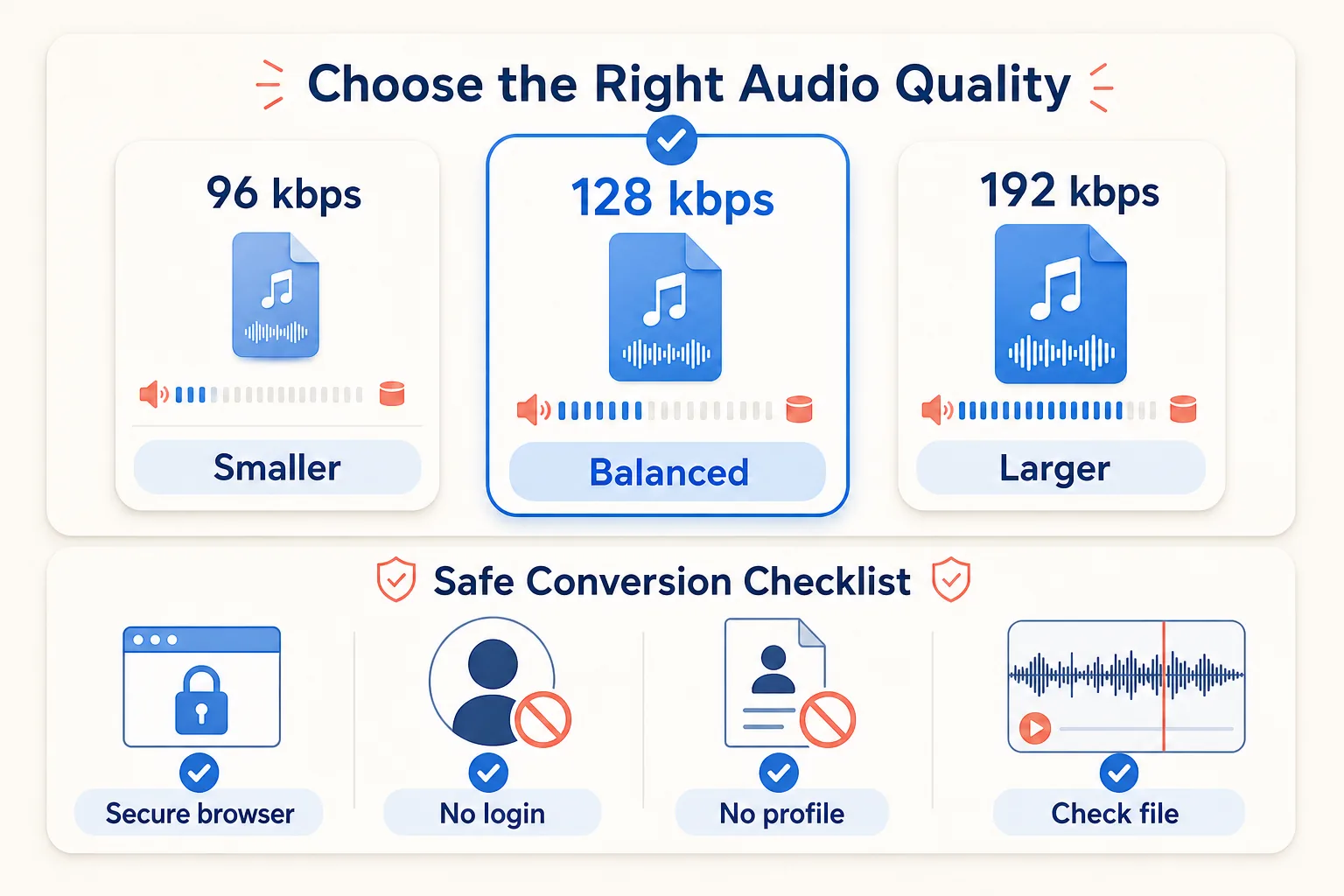
- Check that the address bar shows the expected HTTPS site.
- Do not enter source-platform credentials into an unrelated page.
- Do not install a configuration profile or app merely to save one eligible public file.
- Decline unrelated notification prompts.
- Stop if a page redirects repeatedly or the requested action changes unexpectedly.
These checks protect the device and also keep the workflow easy to audit.
Step 1: copy the correct public link
Open the individual video in its official app or webpage. Use Share and choose Copy Link. A valid starting point is the video URL, not a screenshot, channel homepage, search query, or playlist overview.
If you copied the address from Safari, paste it into Notes briefly and verify that it begins with https://. Remove accidental spaces. Do not shorten or rewrite unfamiliar URL parameters unless the link is visibly incomplete; an edited address can point to the wrong item.
Record the title and creator at this stage. When several source links produce similarly named audio files, that note helps prevent attaching the wrong audio to a project.
Step 2: analyze the source before choosing audio
Open the HSK Download tool in Safari, paste the public link, and start the analysis. Keep the tab open until the results appear. Confirm that the title or preview matches the video you selected.
Find the audio results rather than choosing a video format. Select MP3 only when it is listed as an available result. Review any displayed information about quality or size. If the source cannot be analyzed, confirm that it is public, complete, and still available. Do not try to turn account-controlled or restricted material into a public-link task.
An analysis result identifies available technical options; it does not determine copyright permission. Keep the rights decision separate from the format decision.
Step 3: choose a practical MP3 bitrate
Bitrate describes how much audio data is used per second. Within the same encoder and source, more data can preserve more detail but creates a larger file. The source quality sets the ceiling.
- 96 kbps can be sufficient for understandable speech when storage matters.
- 128 kbps is a practical balance for many voice recordings and general listening tasks.
- 192 kbps may better preserve complex audio, but it creates a larger file and cannot repair a poor source.
These are decision guides, not guarantees. A clean spoken source at 96 kbps can be more useful than a distorted source at 192 kbps. For music or critical production, use an authorized master whenever possible instead of relying on a converted online copy.
If the results offer only one MP3 option, use it when it meets the project need. Do not repeatedly re-encode that MP3 to different bitrates; every lossy conversion can reduce quality.
Step 4: download the MP3 to Files
Tap the chosen MP3 result and confirm Safari's download prompt. Safari may show a downward arrow near the address bar while the transfer is active. When it finishes, tap that indicator or open Files and browse to Downloads.
The Downloads folder can be under iCloud Drive or On My iPhone, depending on the Safari setting. iCloud Drive is helpful for access on another signed-in device. On My iPhone can be more suitable for a large temporary file when you do not want an immediate cloud upload.
Wait until the download is complete before renaming or moving it. If the file appears but will not open, it may be incomplete. Keep enough free storage for the download and any duplicate created when another app imports it.
Step 5: verify the finished audio
Open the MP3 in Files and listen to the first 20 seconds. Then move the playback position to the middle and close to the end. Check that:
- The audio belongs to the intended source.
- Playback reaches the expected ending.
- Speech or music is not silent, clipped, or unexpectedly distorted.
- The duration is plausible for the source video.
- The file opens again after Files is closed and reopened.
If spoken content matters, listen to names and numbers rather than testing only background music. If the file will be edited, import a copy into the destination app and test a short export before deleting any source material.
Understand quality versus file size
A rough file-size estimate can be made from bitrate and duration. At the same duration, a 192 kbps MP3 is about twice the size of a 96 kbps MP3. Metadata and encoding details add a little variation, so treat estimates as planning figures rather than exact promises.
For a one-hour speech recording, the smaller option can save meaningful storage while remaining intelligible. For dense music, cymbals, ambience, and stereo detail may reveal compression more easily. Listen on the headphones or speaker relevant to the final use.
Avoid judging quality from the bitrate label alone. An online source may already have been encoded several times. The truthful comparison is an actual listening test against the authorized source, not a belief that a larger number always means a better recording.
Name and organize the MP3
Files often arrive with a source-derived or generic name. Rename the completed file without changing the .mp3 extension. A useful pattern is project-speaker-date-128k.mp3. Use only details that help you identify the authorized source and version.
Create a folder containing:
- The MP3.
- A text note with the source URL and download date.
- The permission or license record.
- Any edit notes.
If you create an edited version, do not overwrite the first verified file. Add version labels such as original, trimmed-v1, and approved-v2. This prevents an accidental edit from becoming the only surviving copy.
Troubleshooting common iPhone issues
No MP3 option is listed. Use only the formats genuinely available in the result. Renaming another file to .mp3 does not convert its audio.
The analysis cannot read the URL. Copy the individual public video link again, confirm it opens normally, and retry once. If the source is removed, private, or unavailable, use the owner's authorized delivery method.
The download starts and then stops. Reconnect to stable Wi-Fi, verify free storage, and keep the Safari task active. Remove incomplete duplicates before retrying.
The file is much larger than expected. Check its duration and selected bitrate. You may have chosen a long source or a higher quality option than the listening task needs.
The audio sounds metallic or muffled. The source may already be compressed, or the selected bitrate may be too low for complex material. Return to an authorized original rather than repeatedly converting the MP3.
A page asks for a login or profile installation. Do not continue through that prompt for a public-link audio task. Return to the known tool address and verify the URL.
The MP3 cannot be imported into an editor. First confirm it plays completely in Files. Then check the editor's supported audio formats and copy the file into a simple local folder name.
A practical decision guide
Choose MP3 when broad compatibility and convenient file handling are the priorities. Use 96 kbps for compact speech when testing confirms it is clear, 128 kbps as a general balance, and 192 kbps when the authorized source contains more complex audio and the larger size is justified.
Keep the download in Files when you want transparent folder control. Import a copy into another app only after the MP3 has been verified. Preserve the authorized source or original master separately.
The safest workflow is deliberately boring: one verified public URL, one necessary output, no unrelated account login, no profile installation, a completed file check, and a clear permission record.
Responsible-use checklist
Before keeping, editing, sharing, or publishing the MP3, confirm that:
- You own the content, have authorization, it is public domain, or the use is otherwise lawful.
- The source URL is public and the selected audio belongs to the expected video.
- The bitrate fits the purpose and available storage.
- The file plays completely and opens in the destination app.
- Required credits, notices, and license terms are preserved.
- No DRM, paywall, private permission, account control, regional limit, or security measure was defeated.
HSK Download helps process eligible public links. It does not grant ownership, music rights, performance rights, or permission to redistribute a recording. When the license is unclear, ask the creator or rights holder before proceeding.