Quick answer: the iPhone 1080p workflow
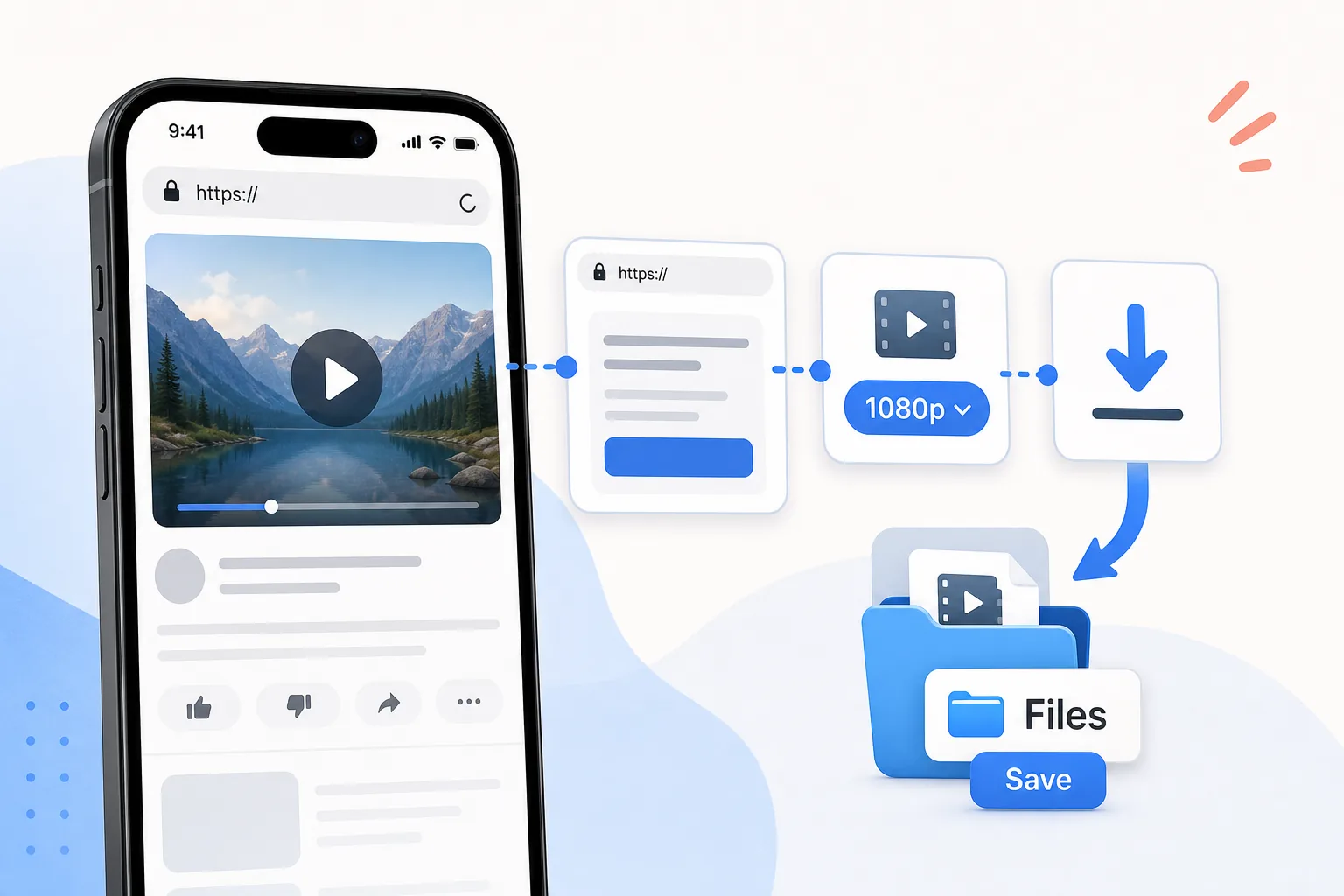
To download a YouTube video in 1080p on iPhone, first confirm that you own the video, have the creator's permission, or may otherwise lawfully save it. Copy the public video link, open the HSK Download tool in Safari, analyze the link, and choose a 1080p option only if the results actually list one. When Safari finishes, open the Downloads folder in Files. You can keep the video there or use the Share menu to save a compatible file to Photos.
The important detail is that “1080p” describes the frame size, not a guarantee that every source has the same visual quality. The source upload, bitrate, frame rate, codec, and any prior compression also affect the result. Verify the downloaded file before deleting your original or relying on it for an edit.
Before you start
Prepare four things before beginning:
- A stable Wi-Fi connection, especially for a long 1080p video.
- Enough free storage for both the download and any later copy placed in Photos.
- The complete public video URL rather than a screenshot, title, or search phrase.
- Clear permission to save and use the content.
This guide is for videos you created, videos you are authorized to download, public-domain material, or content you may lawfully use. It does not cover attempts to defeat DRM, paywalls, private-video controls, account permissions, regional restrictions, or platform security measures. A public link does not automatically grant reuse rights, so check the creator's license and the platform's rules for your intended use.
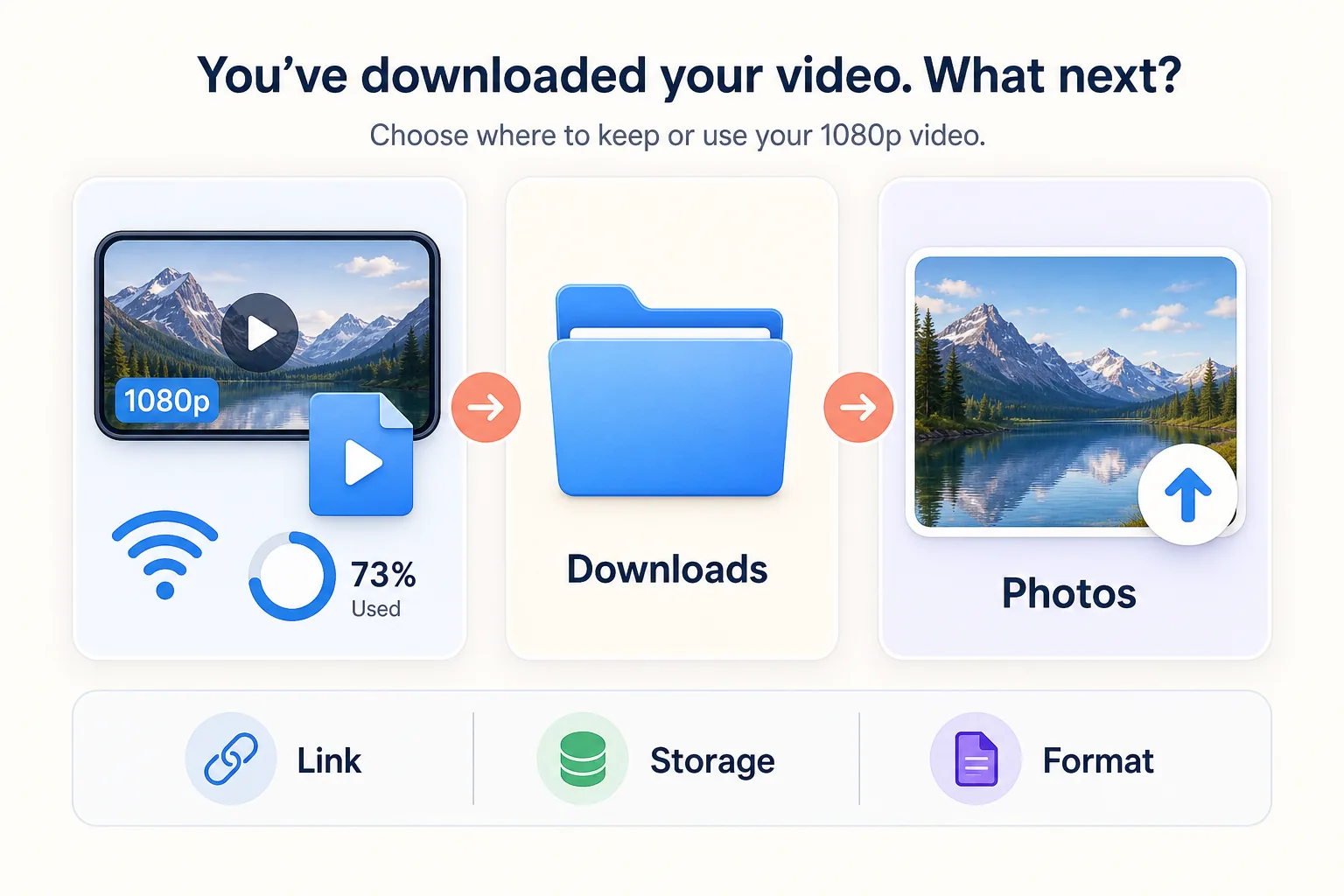
It also helps to decide where the finished file belongs. Files is better for deliberate folder organization, sending a file to another app, or transferring it to a computer. Photos is more convenient when you want the clip in the system media library for viewing or an authorized mobile edit.
Why a 1080p option may or may not appear
The tool can only show options made available by the source and the analysis result. If 1080p is absent, repeatedly refreshing cannot create resolution that the source does not provide. Common reasons include a source uploaded below 1080p, a version that is still processing, a restricted or unavailable link, or a format combination that is not offered for that item.
Do not choose by filename alone. When the results provide details, compare the resolution, container, estimated size, and whether audio is included. Some online video systems store high-resolution video and audio as separate streams. If the interface explicitly offers a combined result, select it. If it does not, do not assume a silent 1080p video is broken after the fact.
For ordinary iPhone playback, a compatible MP4 result is often the most practical choice. A different codec or container may be useful in a specialized editing workflow, but compatibility should be decided before downloading a large file.
Step 1: copy the correct public video link
Open the video in its official app or webpage. Use its Share control and choose Copy Link. If you copy from Safari's address bar, make sure the address points to the individual video rather than a channel page, search page, playlist overview, or account-only screen.
Paste the link temporarily into Notes if you want to inspect it. A complete web address should begin with https://. Remove any accidental spaces before or after it. Tracking parameters normally do not help the download, but you do not need to manually edit an address unless the pasted link is visibly incomplete.
Step 2: analyze the link in Safari
Open Safari and go to the HSK Download tool. Paste the public link into the input field and start the analysis. Keep the tab open while the result is being prepared. On an unstable connection, switching networks or repeatedly resubmitting the same URL can make it harder to tell which request is current.
Review the result rather than tapping the first large button. Confirm that the title or preview matches the video you intended to save. Then inspect the available formats and quality labels. Select 1080p only when it is explicitly shown. If you need audio in the same file, check the option description before continuing.
Avoid granting browser notifications, installing unrelated profiles, or entering platform account credentials into a download page. A public-link workflow should not require access to a private account. If the source is private or controlled by an account permission, use the platform owner's authorized export or sharing method instead.
Step 3: choose the right 1080p result
Resolution is only one part of a useful file. Use this short decision order:
- Confirm the result is the correct video.
- Confirm that the label says 1080p or 1920 × 1080.
- Prefer a container your destination app supports.
- Check whether the result includes audio when audio is required.
- Compare the estimated size with the free space on your iPhone.
If you only need to review spoken content, a smaller authorized copy may be faster and easier to manage. If you need readable fine detail for an approved edit, 1080p is more appropriate when available.
Step 4: download and find the file in Files
After choosing the result, confirm the download in Safari. Depending on your iOS settings, Safari may show a downward arrow in or near the address bar. Tap it to view recent downloads, or open the Files app and browse to the Downloads folder.
The Downloads location can be under iCloud Drive or On My iPhone. To check the configured location, open Settings, find Safari, and review its Downloads setting. Keeping large temporary downloads under On My iPhone can avoid an immediate cloud upload, while iCloud Drive is useful when you want the file to become available on your other signed-in devices.
Wait until the transfer is complete before opening, moving, or renaming the file. An incomplete download may appear in the folder but fail to play. For a large 1080p file, keep Safari active, maintain a stable connection, and avoid low-storage conditions.
Step 5: keep it in Files or move it to Photos
Open the completed file in Files and play several points: the beginning, a section in the middle, and the end. Confirm that the image is sharp, audio is present when expected, and playback reaches the final frame.
To organize the file in Files, press and hold it, choose Move, and place it in a clearly named folder. A useful naming pattern includes the project, date, and resolution, such as interview-2026-07-1080p.mp4. Good names matter when several versions look identical in a thumbnail grid.
To add a compatible video to Photos, open the file, tap Share, and choose Save Video if that action is available. If Save Video is missing, the container or codec may not be accepted by Photos, or the file may not have completed successfully. Keeping the file in Files is still valid; alternatively, use a trusted editor that supports the format for a lawful conversion.
Verify that the file is really useful
Do not rely only on the “1080p” text in a filename. Open the file's information panel in Files when available and review its size and type. Then inspect actual playback. Look for readable text, stable motion, synchronized audio, and a complete ending.
If you plan to edit the video, import a copy into the editor and test a short timeline before deleting anything. Some editors accept a file for playback but handle its audio, variable frame rate, or color differently during export. A one-minute test can prevent a much longer failed project.
For archiving, keep the original authorized source plus a note about its license or permission. Preserve the download date and source URL. That record is more useful than a vague filename if you later need to confirm where the media came from and what uses were allowed.
Troubleshooting common iPhone problems
The analysis says the link is invalid. Copy the link again from the individual public video page. Check for missing characters and confirm that the source still opens without private-account access.
There is no 1080p choice. The source or current result may not provide it. Choose the best genuinely listed option, or obtain the original directly from the owner. Upscaling a lower-resolution copy does not restore lost detail.
Safari starts but the download stops. Reconnect to stable Wi-Fi, keep enough free storage, and retry once. Do not create many simultaneous copies of the same large file.
The video has no audio. You may have selected a video-only high-resolution stream. Return to the result list and choose an option explicitly described as containing both video and audio, if one is available.
The file plays in Files but cannot be saved to Photos. Keep it in Files or open it with a compatible editor. The Photos library may reject an unsupported container or codec even though another app can play it.
The file is blurry despite a 1080p label. The original may have been soft, heavily compressed, or upscaled before upload. Resolution cannot recover detail that was never present in the source.
A practical quality and storage decision
Choose 1080p when the source truly provides it, the detail matters, and your device has enough space. Choose a smaller result when speed, mobile data, storage, or simple reference viewing matters more than fine detail. Keep the file in Files for controlled organization and broader app access; add it to Photos when you specifically need it in the media library.
The best workflow is not the one with the biggest number. It is the one that produces a complete, compatible file for an authorized purpose, preserves a clear record of the source, and avoids unnecessary duplicates on the device.
Responsible-use checklist
Before you keep, edit, share, or publish the file, confirm all of the following:
- You own the content, have explicit authorization, it is in the public domain, or your use is otherwise lawful.
- Your action follows the creator's license and the platform's applicable rules.
- The link is public and does not depend on bypassing an account or access control.
- You are not removing DRM, avoiding a paywall, or defeating a regional or security restriction.
- Any onward sharing is permitted, credited when required, and limited to the approved purpose.
HSK Download helps process eligible public links; it does not grant ownership or reuse permission. When rights are uncertain, ask the creator or use the platform's official offline or export option.