An iPhone can handle a YouTube download workflow when the source is public and you have the right to use it. The practical route is to analyze the link in Mobile Safari, choose an available asset, let the task finish, and then manage the result in the Files app. The important mobile-specific details are free storage, Safari's download handoff, and knowing when a file belongs in Files rather than Photos.
Use this walkthrough only for videos you own, are authorized to download, are in the public domain, or may otherwise use lawfully. Respect copyright, licenses, creators' rights, and YouTube's rules. HSK Download does not bypass DRM, paywalls, account controls, private-content permissions, regional restrictions, or security measures.
Decide whether the iPhone is the right endpoint
An iPhone is a sensible endpoint when you need one authorized clip, audio track, subtitle file, or cover image away from a computer. It is also useful for checking a file before sharing it or moving it into a project folder. Mobile Safari and Files can complete that focused workflow without a desktop.
The phone is less convenient for batches or detailed post-production. Before starting, decide whether you need a video reference, spoken audio, subtitles, or a cover; this prevents choosing the largest asset merely because it has the highest number.
Confirm your rights and prepare the public link
Open the video in YouTube and confirm that it is the public item you intended to use. Check the title, channel, duration, and any license or permission record relevant to your project. If the material is your own, keep the original project or channel record. If another party granted permission, retain that permission with your project notes.
Copy the public video URL using YouTube's Share control. Avoid copying a private studio address, an account-management page, or a link that depends on your signed-in session. The analyzer expects a supported public YouTube link; it is not a way to obtain private or restricted content.
Make room before Safari starts
Go to Settings > General > iPhone Storage and check the available space. You do not need an exact forecast, but leave comfortable headroom beyond the expected file size. iOS needs working space for the incoming download and normal system activity, so a nearly full phone may fail even when the listed file seems to fit.
If space is limited, remove an unnecessary local download or move older project files to approved cloud storage. Do not delete unprotected originals. Check Safari's destination under Settings > Apps > Safari > Downloads. It may be iCloud Drive or On My iPhone.
Analyze the link in Mobile Safari
In Safari, open the HSK Download tool. Paste the verified public YouTube URL into the link field and select Analyze video. The mobile page shown below places the language selector at the top, followed by the link field, the blue analysis button, and a Downloads area where task updates appear.
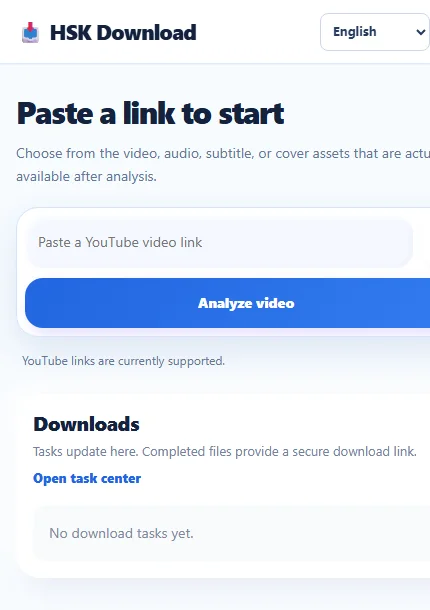
The screen says to choose from video, audio, subtitle, or cover assets that are actually available after analysis. That qualification matters: the result depends on what the public source exposes, so do not assume that every resolution, language, or file type will appear.
Choose an asset for phone use
Choose according to the job, not the most impressive label. A moderate video resolution is often easier to store, preview, and send from an iPhone. A higher-resolution asset can be appropriate when the phone is only an intermediate stop and a later edit genuinely needs the additional detail, but it costs more space and transfer time.
Select audio only when the authorized use is listening or sound review. Choose subtitles when you need timed text for accessibility, translation, or editorial checking. Common subtitle formats such as SRT or WebVTT are documents, not videos, and normally stay in Files. A cover image is suitable for visual reference only; it does not contain the video.
Follow task progress without duplicate submissions
After choosing an available asset, create the download task if the interface requests it. The mobile page's Downloads area states that tasks update there and completed files provide a secure download link. If sign-in is required for task creation, use your own account and normal access flow; do not attempt to circumvent account controls.
Keep the Safari tab open or return to the task center to follow progress. Network processing and file transfer are separate stages: a task can finish on the service before Safari has saved the result locally. Treat the completion link as the start of the device download, not proof that the file is already in Files.
Understand Safari's download handoff
When the task is complete, use its secure download link. Safari may show a confirmation prompt before starting. Accept it only after confirming that you are on the expected HSK Download page and that the task matches your selected asset.
Safari's Downloads button appears near the address bar while a transfer is active or recently completed. Open it to view progress. Do not close Safari immediately after tapping the link, switch networks repeatedly, or assume the screen has frozen just because a large transfer lacks a dramatic animation.
Find and organize the result in Files
Open Files > Browse and look in the destination configured for Safari. The usual locations are iCloud Drive > Downloads or On My iPhone > Downloads. If you changed the setting earlier, use that location instead of searching the entire phone.
Switch to list view when you need to compare names, dates, and sizes. Long-press the file and choose Rename to give it a project-safe name that preserves the extension, such as interview-reference-01.mp4 or approved-captions-en.srt. Do not erase or change the extension unless you are deliberately converting the file with a suitable tool.
Decide between Files and Photos
Files is the dependable default because it preserves a downloaded item as a file with a visible name and extension. Keep MP4, MP3, SRT, WebVTT, and other project assets there when you need to transfer, rename, attach, or archive them.
Photos is designed for media-library items rather than arbitrary project files. If iOS offers Save Video from the share sheet and you want the clip in the Photos library, use it only after verifying the authorized video. This creates or imports a library copy; it does not necessarily remove the original from Files. Check both locations before deleting anything to avoid keeping an unwanted duplicate or removing the only verified copy.
Verify playback and completeness on iPhone
Do not judge success from the presence of an icon alone. Tap the file in Files and confirm that it opens with an appropriate preview or app. For video, check the beginning, a point in the middle, and the final seconds. Listen briefly for expected audio and confirm that duration and orientation make sense.
For an audio asset, confirm that the duration is plausible and that sound continues beyond the opening. For SRT or WebVTT, use Quick Look or a text-capable app to confirm that the document contains readable timed entries. For a cover image, inspect its dimensions and visible content rather than treating it as a video replacement.
Plan offline use and transfer
Test offline access before leaving Wi-Fi. In Files, an iCloud item with a cloud indicator may not be stored locally yet. Long-press it and choose the option to download or keep it available when iOS presents one, then use Airplane Mode briefly to confirm that the authorized file still opens.
For another Apple device, use an approved iCloud Drive folder or AirDrop when appropriate. For a Windows computer, connect through the storage or transfer method your organization supports, or use an approved cloud service. After transfer, verify the destination copy before removing the phone copy.
Troubleshoot common mobile problems
Analysis does not start: confirm that it is a supported public YouTube URL, remove stray spaces, reload, and try once. Do not work around a private, deleted, or restricted item.
The desired resolution is missing: use an available asset or ask the owner for the original. The interface cannot manufacture missing source quality.
The task is complete but no file is visible: open the correct completion link, check Safari's Downloads list, and inspect the configured Files destination.
The transfer stops: check local or iCloud space and Wi-Fi, keep Safari active, and reuse the completed task link instead of creating a duplicate.
The file will not preview: confirm its extension and size, then try a compatible app. Subtitle documents do not behave like videos.
The video is in Files but not Photos: this is normal. Use Save Video only if iOS offers it and a Photos copy is useful.
Use the help center when the task state is unclear
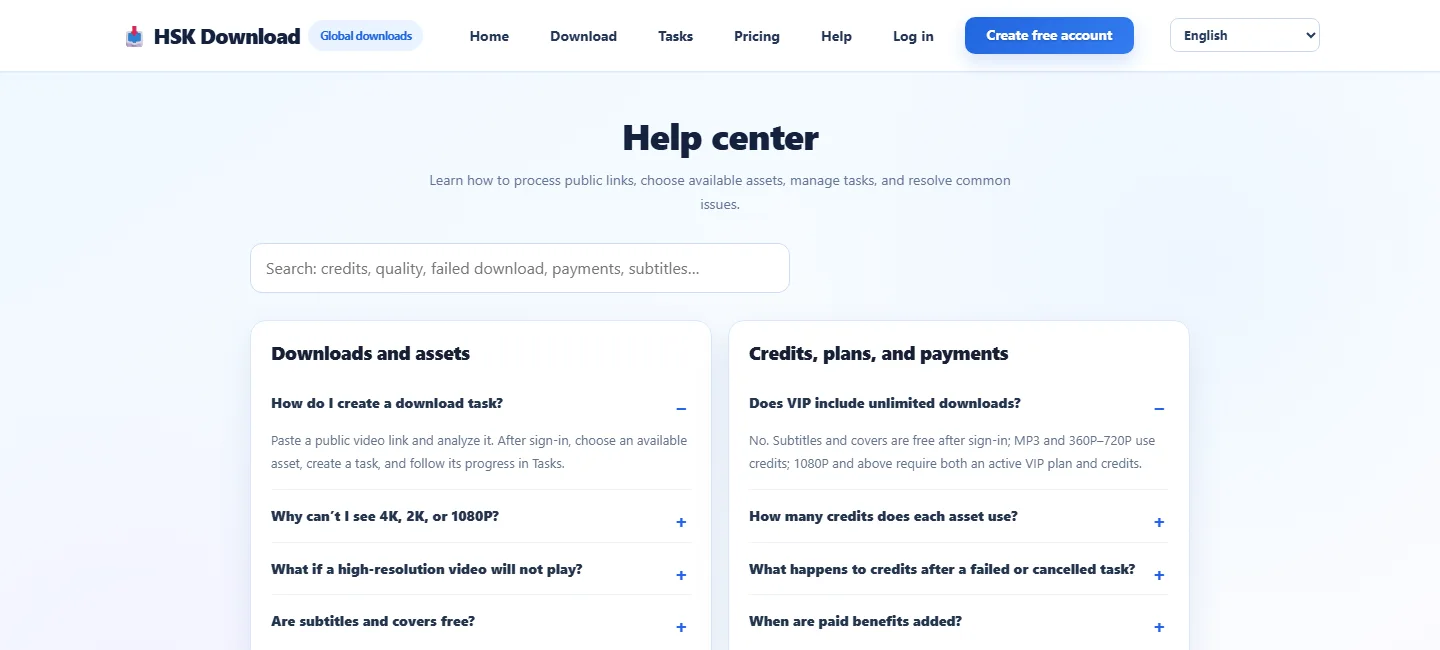
The Help center groups guidance under Downloads and assets and Credits, plans, and payments. Its expanded task-creation answer describes pasting a public video link, analyzing it, choosing an available asset after sign-in, creating a task, and following progress in Tasks.
Final iPhone checklist
Before you consider the workflow finished, confirm five things: you have the right to use the source, the URL was public and correct, the selected asset matches the purpose, the finished file opens through Files, and an offline or transferred copy has been verified if the project requires one.
Frequently asked questions
Can I download a YouTube video directly to an iPhone?
You can use this workflow for public material you own, are authorized to download, is in the public domain, or may otherwise be used lawfully. Analyze the public link, choose an available asset, complete the task, and save the result through Safari to Files.
Where does Safari put the completed file?
Check Files > Browse in iCloud Drive > Downloads or On My iPhone > Downloads, depending on Settings > Apps > Safari > Downloads and your iOS version.
Why is the downloaded video not in Photos?
Safari downloads normally go to Files. If iOS offers Save Video in the share sheet, you can add a compatible authorized clip to Photos after verification. Files remains the better home for project documents and subtitle assets.
Should I choose MP4, audio, SRT, or WebVTT?
Choose the asset that matches the task: MP4 for a video reference, audio for listening, and SRT or WebVTT for timed text. Only options actually available after analysis can be selected.
What should I do if 1080P or 4K is unavailable?
Use the best available asset that meets the need or request the original file from its owner. Do not assume the service can create a resolution the public source does not provide.
How do I keep an iCloud Drive file available offline?
In Files, make sure the item has downloaded locally, using the available long-press download or keep-offline control. Test it without a network before travel.
Why did the download stop even though the task completed?
Task processing and Safari's device transfer are separate. Check storage, Wi-Fi, Safari's Downloads list, and the configured destination, then reuse the correct completed task link rather than submitting duplicate tasks.
Can this process bypass private-video access, DRM, or regional restrictions?
No. It is not for bypassing DRM, paywalls, account controls, private-content permissions, regional restrictions, or security measures. Use only public sources you are entitled to process and follow the platform's rules.