If you need an offline copy of a video you own, have permission to save, or may lawfully use, the safest iPhone workflow is simple: use the complete public link, review only the options the source makes available, wait for the task to finish, then save and check the file in the Files app. The important part is not finding a shortcut. It is knowing where iPhone stores the file and how to confirm that it plays before you leave the page.
This guide explains that workflow for Safari on iPhone. It does not grant rights to third-party material, and it does not describe ways to work around private links, account controls, DRM, paywalls, or platform restrictions.
Check that the video is appropriate to save
Start with the rights question, not the download button. A useful offline copy might be a video you uploaded yourself, a work your organisation owns, a creator's file you have explicit permission to save, or material made available under a licence that permits your intended use. A public link alone does not automatically create permission.
Open the original video and make sure it is still available to you normally. If it is private, deleted, account-only, region-limited, or otherwise unavailable, do not try to force the process. Return to the owner or the original platform instead. This check prevents wasted time and makes the rest of the steps easier to diagnose.
Copy a complete public link on iPhone
In the YouTube app or Safari, use the Share control and copy the full video link. A complete link gives the analyser the best chance to identify the public source correctly. Avoid copying only a title, a cropped screenshot, or an address that has been cut off in a message.
If you received a link in a chat, open it first and confirm that it goes to the intended video. For your own course, meeting recording, or authorised client asset, this is also a good moment to verify that you are using the current version rather than an old upload.
Open the tool in Safari and review the first screen
Safari is usually the clearest place to manage the resulting file because it works directly with the Files app. Open the HSK Download page, tap the link field, and paste the public URL. The screen below shows the mobile link field and the start of the normal browser workflow.
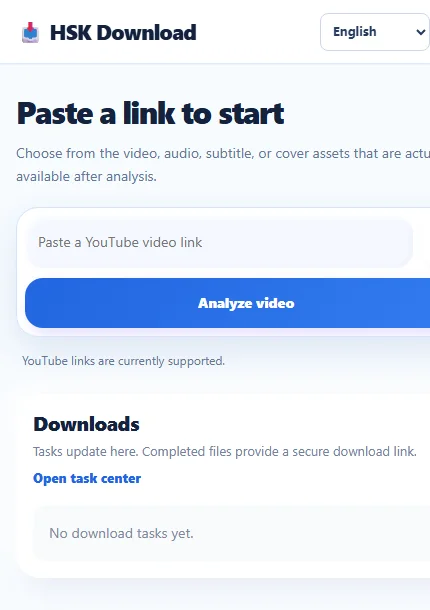
Tap the analysis control and wait for the result. Do not assume that every resolution, audio format, subtitle, or cover option will appear for every source. The available choices depend on what the public source actually exposes. If the page reports that the link is unavailable, first check the original link and its public availability before trying again.
Choose a file type for the way you will use it
Choose video when you need the picture as well as the sound. An MP4 option can be practical for a presentation, a class reference, or a personal archive when the source offers it. Choose audio only when listening is the goal, such as an authorised lecture, an interview you own, or a spoken reference. Subtitles and cover images are separate assets when the result page offers them; they are not promises that every video includes them.
For a small iPhone screen, the highest-looking option is not always the best choice. A larger file takes more storage, more time on mobile data, and may be less convenient to transfer. Check the shown filename, quality, and size information before creating the task. If an option is not listed after analysis, treat it as unavailable instead of selecting a different-looking label elsewhere.
Create one task and let it finish
After selecting an available option, create the task and keep the page open until its status updates. A longer video, a larger file, or a source with separate video and audio streams may take longer than a short clip. Starting several copies of the same task rarely helps and can make it harder to tell which file is the finished one.
Use the task view to distinguish between queued, processing, completed, and failed states. If the task fails before it completes, read the message and return to the original source link. A public source can change after you copied it, and an unavailable option cannot be restored by refreshing the browser repeatedly.
Save the completed file to Files
When the task is complete, use the provided file action in Safari. iPhone may show the download in Safari's download indicator before it appears in Files. Open the Files app and check Browse, then look in Downloads under iCloud Drive or On My iPhone. The exact folder depends on your Safari and Files settings.
Give the file a meaningful name if you are saving more than one authorised item. A date and short source label are usually more useful than leaving several files with similar automatic names. If you plan to move the file to a project folder, do that after you have confirmed that the first saved copy opens correctly.
Verify video, audio, and storage before leaving
Open the file once from Files. For video, check that the picture and sound begin as expected and that the duration is plausible. For audio, listen for the first few seconds and confirm that the file opens in the player you normally use. If you saved subtitles, open the text file separately; it may not automatically attach to a video player.
Also check free storage. A file can appear to download successfully but fail to copy, move, or play well when the phone is nearly full. In iPhone Settings, review available storage before repeating a large task. Keep the original source link available until you have verified the local file, because task download links may be time-limited.
Fix a file that you cannot find
First, look in Safari's download indicator and then search for the filename in Files. Check both iCloud Drive and On My iPhone, because the browser's download location can differ from the folder you use most often. If a cloud folder is still syncing, wait for that process to finish before assuming the file disappeared.
If you can see the file but not open it, identify the file type and try a compatible player. Do not rename an extension merely to make it look like a different format; that does not convert the file. Instead, return to the completed task, review the option you selected, and use an available alternative only if it fits your authorised use and your device supports it.
Fix playback, link, and expiry problems
No sound can indicate a player limitation, an incomplete transfer, or a source option that differs from what you expected. Start by opening the same file from Files, then test it with a compatible player. For a video that will not open, verify that the download completed and that your iPhone has enough free storage.
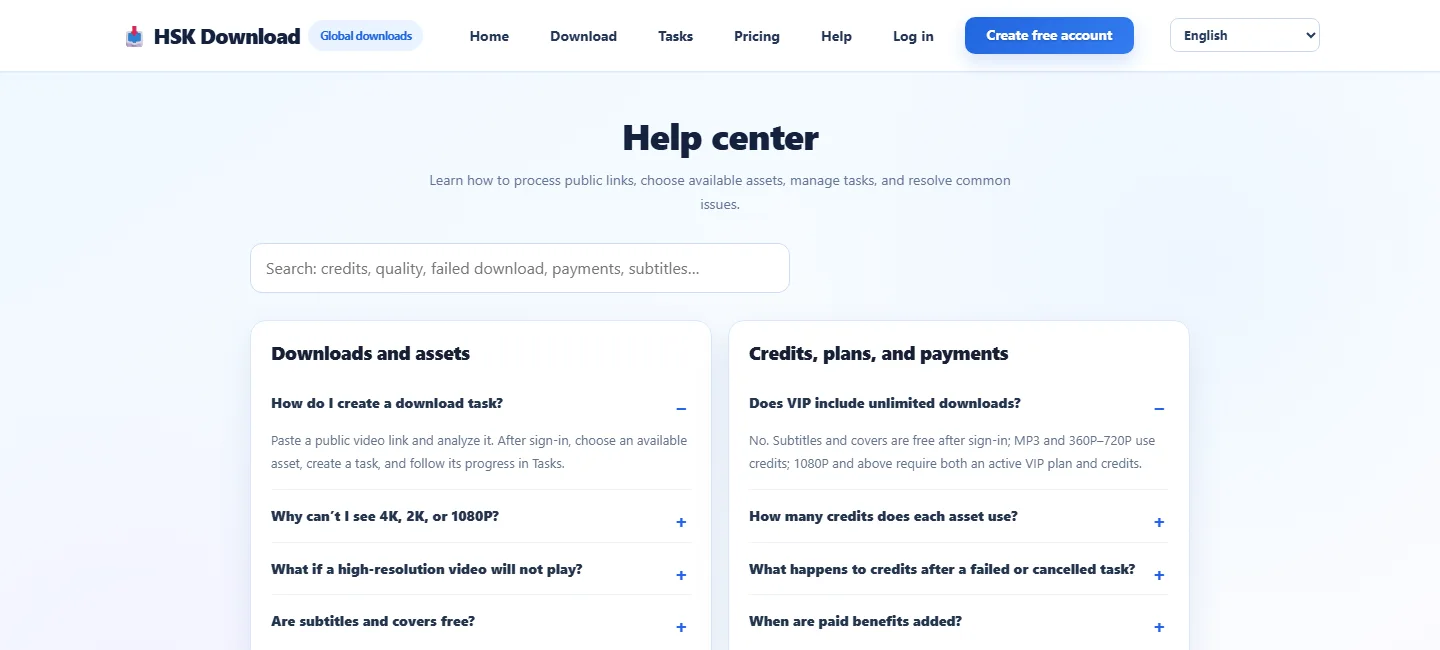
For an expired file link, do not rely on an old browser tab. Return to the original public link, analyse it again, and create a new task if the source and your permission are still valid. If the source itself is unavailable, private, or restricted, stop there rather than trying to bypass that restriction.
Use a repeatable iPhone workflow
Once you know the path, the process is repeatable: confirm rights, copy a complete link, analyse it in Safari, choose an actually available asset, wait for the task, save through the browser, and verify it in Files. You can open the HSK Download tool when you are ready to start with an authorised public link.
Keeping this sequence consistent is more reliable than chasing a particular format label. It also makes support simpler: when something goes wrong, you know whether the issue started with the source link, the available options, the task, Safari's download location, or local playback.
Frequently asked questions
Where does an iPhone download usually go?
Safari downloads are commonly found in the Files app under Browse and Downloads, either in iCloud Drive or On My iPhone. Your device settings can choose the location, so use Files search if you are unsure.
Can I save any public YouTube video?
No. Save only content you own, are expressly authorised to save, is public domain, or is otherwise lawfully available for your intended use. A public URL is not by itself a permission grant.
Why is the quality I expected not listed?
The available choices depend on the source and the analysis result. Do not assume that a particular resolution, audio type, subtitle, or cover is available for every link.
Should I save to Photos or Files?
Files is the most predictable initial destination for a browser download. You can move a verified compatible video later if Photos is the right place for your own workflow.
What should I do if the download link has expired?
Return to the original public source, confirm that it is still available and appropriate to use, analyse it again, and create a new task. Save the finished file promptly after completion.
Why does the file have no sound or not play?
Check that the transfer completed, confirm the file type, test a compatible player, and make sure the phone has enough storage. Do not change the file extension as a substitute for conversion.