To complete a YouTube download on Windows reliably, start with a public link you are authorised to process, analyse it, choose only an asset the result actually offers, follow the task to completion, and then verify the saved file in Windows. The important part is not merely seeing a file in Downloads. You need to know that it matches the intended source, has the expected format and duration, opens in a suitable player, and is stored with a clear name.
Use the workflow only for videos you own, have explicit permission to use, that are in the public domain, or that you may otherwise process lawfully. Public visibility does not grant copying or redistribution rights. Respect copyright, licences, creator attribution, institutional policies, and platform terms. Do not attempt to bypass DRM, a paywall, account controls, private access, regional restrictions, or security measures.
Define the lawful purpose before opening the browser
Write down why you need the file and what permission covers that use. A creator archiving their own upload, a teacher working with licensed course media, and a researcher using public-domain footage may all have valid but different limits. Permission to keep a personal reference copy does not automatically include permission to edit, publish, or share it.
Decide what information must survive. If the meaning depends on slides, demonstrations, sign language, diagrams, or visual timing, choose video. If you need listening material and the rights permit it, an available audio asset may be enough. If text search or accessibility is the real objective, an authorised subtitle or transcript may be more useful than media.
Prepare Windows and the destination folder
Update your browser, confirm that the Windows clock is correct, and make sure the drive has enough free space. A stable connection matters more for a long video than raw peak speed. Avoid beginning while Windows is about to restart or while a corporate VPN is repeatedly reconnecting.
Open File Explorer and identify the folder your browser uses for downloads. In a standard setup this is often Downloads, but browser settings, organisation policies, or a previous “Save as” choice can change it. Create a project subfolder with a plain name such as Course-Audio-April if you expect several related files. Do not use a protected system directory as a working folder.
Copy and validate the authorised public link
Open the intended video page and copy its complete public URL from the address bar or the platform’s share control. Watch for a copied link that points to a playlist, search page, short preview, unrelated advertisement, or private workspace instead of the specific video.
If the page requires access you do not have, stop. Do not look for a workaround. Obtain permission or ask the rights holder for an authorised copy through an approved channel.
Analyse the link and inspect the actual result
With the public URL ready, open the HSK Download tool, paste the link, and start analysis. Check the returned identity details before choosing anything. A title, thumbnail, duration, or creator mismatch is a reason to return to the source and copy the correct link.
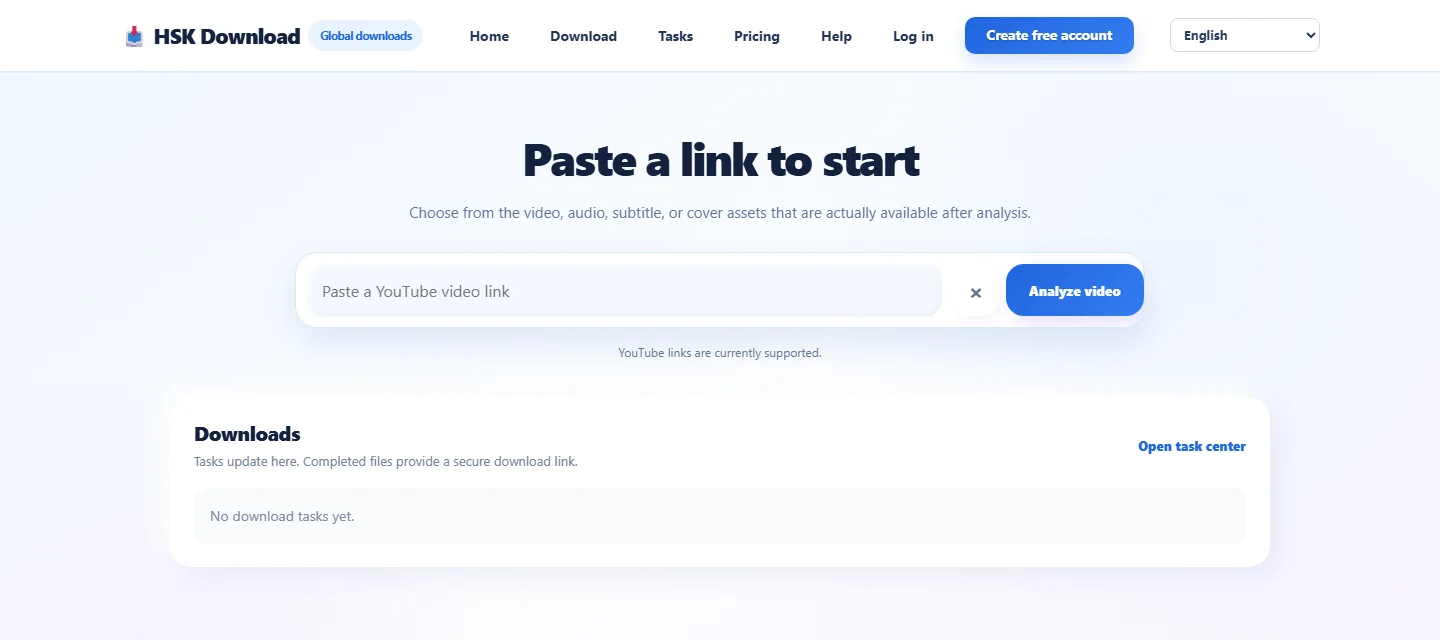
*The real desktop page shown here has a field labelled for a YouTube video link, an “Analyze video” button, and a Downloads area that says tasks update there and completed files provide a secure download link. The empty state says there are no download tasks yet, and an “Open task center” link is visible.*
Read that interface literally. It says to choose from video, audio, subtitle, or cover assets that are actually available after analysis. It does not promise that all four categories or every quality will exist for every source. If the needed asset is absent, recheck the intended public link and the visible result rather than inventing a hidden option.
Choose a format and quality for the real task
Match the asset to the purpose. Keep video when visuals carry meaning. Choose an available audio-only asset for authorised listening when the picture is unnecessary. Use an available subtitle asset for text review or accessibility, and a cover only when the displayed image itself is the authorised item you need.
For video, use the lowest available resolution that remains readable on the destination screen. A lecture with small on-screen text may need more pixels than a talking-head reference. For audio, test intelligibility or musical detail on the device that will actually play it. A larger number cannot recover information already missing from the source.
Create the task and monitor its state
After sign-in where required, select an available asset and create the task. Keep the browser tab open long enough to confirm that the task appears. The page’s Downloads area can show updates, while the visible navigation also provides Tasks and an Open task center link.
Track the task by source title, chosen asset, and creation time. Avoid clicking repeatedly when progress seems slow; duplicate submissions make it harder to identify the correct result and may consume resources. If the state is still changing, let the current task finish. If it explicitly fails or is cancelled, read the current message before deciding whether one controlled retry is appropriate.
Completion in the task interface is not yet completion of your Windows workflow. Use the provided download action, wait for the browser transfer to finish, and then inspect the local file.
Save the finished file without losing track of it
When the browser prompts for a location, select the project folder you prepared. If it saves automatically, open the browser’s download list and use Show in folder or the equivalent command to reveal the exact file. Do not rely on memory when several similarly named files are present.
A transfer still in progress may have a temporary extension or may change size. Wait until the browser reports completion before moving, renaming, or opening it. If Windows warns that a file with the same name exists, compare date, size, and source rather than appending random copies indefinitely.
Use clear Windows filenames and preserve the extension
A useful filename identifies content, version, and purpose without becoming a paragraph. For example, project-topic-authorised-2026-07.mp4 is easier to audit than video (7).mp4. Windows does not allow these characters in ordinary filenames: < > : " / \ | ? *. Avoid trailing spaces or periods and reserve enough path length for the project folder.
Keep the real extension, such as .mp4, .mp3, .srt, or .vtt. In File Explorer, enable View > Show > File name extensions when you need to verify it. Changing .webm to .mp4 or .vtt to .srt does not convert the contents and can confuse players.
Verify the file in Windows before calling it finished
Right-click the file, open Properties, and check Type of file, size, and timestamps. Compare its duration in a suitable media player with the analysed source. A small difference caused by container timing may be harmless, but a file that ends minutes early is not complete.
Play the first minute, seek to at least two middle positions, and play the final minute. Confirm that seeking works, audio stays in sync, expected channels are present, and the picture orientation is correct. For subtitles, inspect the beginning, a later cue, and characters with accents or non-Latin scripts. For audio, listen to speech, a loud or complex passage, and the ending.
Troubleshoot common Windows outcomes
The wrong source appears after analysis. Return to the intended public page, copy the complete URL again, and compare title, creator, thumbnail, and duration before selecting an asset.
The needed resolution or format is missing. Use only what analysis actually returns. Choose another suitable available asset, retain the authorised source, or request an approved original. Do not bypass access or protection controls.
The browser says complete but the file is absent. Open the browser’s download history and reveal the saved location. Check whether your browser uses a custom folder or whether security software quarantined the file; follow the organisation’s approved review process.
Playback is black, silent, or unsupported. Confirm the extension and file size, try a reputable player that supports the actual format, and test another known-good file on the same device. A codec or device limitation is different from an incomplete transfer.
The file stops early. Compare duration, play the final minute, delete the partial duplicate, verify free space and connection stability, and perform one controlled retry if the task and rights still permit it.
Use the help centre instead of guessing
The public help centre has a search box and separate areas for downloads and assets, and for credits, plans, and payments. Its visible download guidance describes pasting a public video link, analysing it, choosing an available asset after sign-in, creating a task, and following progress in Tasks.
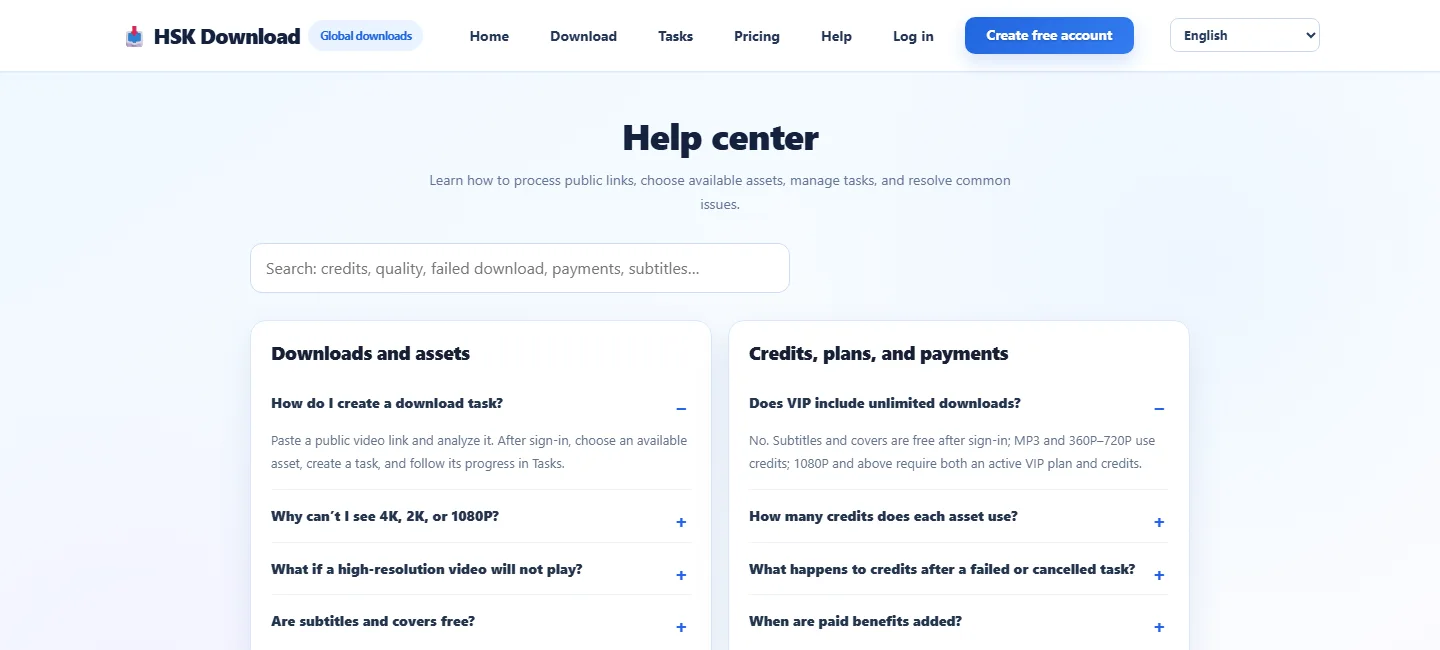
*The real page shows questions about unavailable 4K, 2K, or 1080P options, high-resolution playback, subtitles and covers, credit use, and failed or cancelled tasks. Consult the current answer relevant to your situation rather than assuming a rule from an old screenshot or a filename.*
Apply the final verified-file checklist
Before marking the work complete, confirm that the rights and intended use are documented; the public link and analysed identity match; the chosen asset was genuinely offered; the task completed; the browser transfer finished; the file is in the intended folder with a clear name and unchanged extension; size and duration are plausible; beginning, middle, end, seeking, channels, picture, and any subtitles have been checked; and all licence, attribution, sharing, retention, and deletion conditions are being followed.
Frequently asked questions
Where did my browser save the completed file?
Open the browser’s download history and choose its command to show the file in its folder. The default is often Windows Downloads, but browser settings or a previous choice may point elsewhere.
Can I change a downloaded file’s extension to make it compatible?
No. Renaming the extension does not convert the encoded media. Keep the real extension and use software that supports the actual format, or obtain an authorised compatible asset.
Why is the resolution I expected not listed?
The analysis displays assets actually available for that source and context. Verify the public link and choose among the returned options; do not assume an unlisted quality exists.
How do I know a video download is complete?
Confirm that the browser transfer finished, compare the duration, play the beginning and final minute, seek through middle sections, and check that audio, picture, and expected channels remain intact.
Should I retry a failed or incomplete task repeatedly?
No. Read the current task message, verify the link, free space, and connection, remove partial duplicates, and make at most one controlled retry when appropriate.
May I share the verified file with someone else?
Only when the rights holder, licence, institution, and platform rules permit sharing. Permission to make or keep an authorised personal copy does not automatically permit redistribution.