A Windows download workflow is reliable when you treat the completed file as something to verify, not merely something to click. For a video you own, have permission to save, or may otherwise lawfully use, start with the complete public link, select only an option that the source actually returns, and confirm the finished file in the Windows Downloads folder before you close the browser.
This guide is about organising and checking an authorised download on a Windows PC. It does not give permission to use third-party work, and it does not explain how to defeat DRM, paywalls, account requirements, private content, geographic limits, or other platform controls.
Establish the source and your right to save it
Before opening a download tool, identify what the file is for. A sensible offline copy may be your own upload, a client asset you were asked to retain, an organisation's training video, a public-domain work, or material for which the creator granted a clear saving permission. A video being visible in a browser does not make every use lawful or authorised.
Open the original page in Windows and confirm it still works normally. If the page is private, deleted, account-gated, or unavailable where you are, do not look for a workaround. Contact the owner or use the platform's permitted option instead. This first check also avoids building a Windows filing workflow around a link that cannot be processed.
Copy the complete public video link
Copy the full address from the browser's address bar or the source's Share control. A complete address is less ambiguous than a title, a partial URL pasted from a document, or a thumbnail image. When a team has several versions of a recording, open the link before copying it and check the title, channel, and date.
For project work, record the source and the permission context in the same place you keep the finished file. That can be a project note, a rights register, or a folder readme. It is a small habit that prevents a downloaded file from becoming an unexplained item months later.
Analyse the link in a Windows browser
Paste the complete public address into the HSK Download field and start analysis. The desktop screen is designed to show the link field, available result choices, and task controls in one browser workflow.
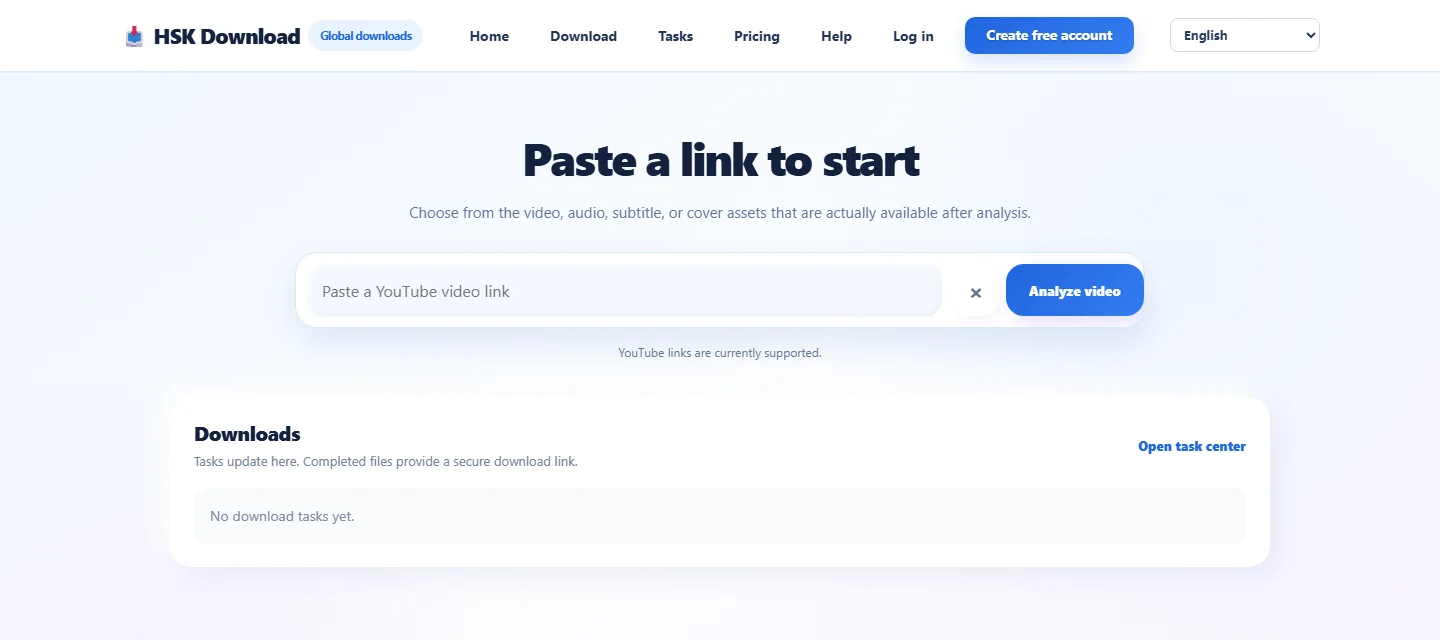
Wait for the result before deciding on a file. The result may offer video, audio, subtitles, or a cover separately, but those are source-dependent choices rather than universal promises. If the analysis reports that the source is unavailable, revisit the original page and confirm the address is complete and public. Repeatedly submitting the same unavailable link does not make it available.
Select the option that suits the Windows job
Choose a video file when you need picture and sound together, such as a permitted presentation reference or an owned archive. Choose audio only when listening is the purpose, for example an authorised lecture or an interview you produced. Subtitle and cover options, when shown, are independent assets and should be named and stored with the video if they belong to the same project.
Do not choose a format solely because its label looks larger or more technical. The visible file size, expected storage use, playback software, and later transfer needs are practical constraints. A high-resolution source can take substantially more disk space; a small office laptop may not need the largest option for a short internal reference. Select only an option that the analysis actually lists.
Create one traceable task
Create one task for the selected asset and watch its state rather than opening several duplicate browser tabs. Large files and longer recordings can take more time, and some sources expose media in a way that needs additional processing. The task status is a better signal than an optimistic browser tab title.
When the state becomes completed, use the provided file action. A task that has failed or been cancelled is not the same as a downloaded file, even if an earlier attempt left a partial browser entry. Read the failure message, then check the original source or choose another genuinely available option only when it fits your authorised use.
Locate the browser download on Windows
Most Windows browsers save files in Downloads by default. Open File Explorer, select Downloads in the left navigation, and sort by date if the folder is busy. Chrome, Edge, and Firefox also have a download list that can reveal the filename or open its folder. If you changed the browser's download location, use that setting rather than assuming every file goes to the same place.
Avoid judging completion from a filename alone. A browser can show a temporary or partial transfer while it is still working. Check that the transfer indicator has finished and that the file size in File Explorer is plausible for the selected option. If a file is unexpectedly tiny, return to the task state before deleting or sharing it.
Give the completed file a useful name
Rename a verified file with information you will understand later: a short project label, recording date, version, and file type are often enough. Keep the extension unchanged. Renaming video.mp4 to video.mp3 does not convert it; it only makes Windows and players less able to identify it correctly.
For a set of authorised materials, use a simple folder structure such as Project > Source copies > Video, Audio, and Subtitles. Put a subtitle file beside the matching video when your playback or editing workflow expects that. This makes it easier to distinguish a finished file from a temporary download and helps collaborators find the correct asset.
Verify the file before you rely on it
Open the saved file directly from File Explorer. For video, check the opening picture, sound, duration, and whether the playback position can move normally. For audio, listen briefly in the player you intend to use. For subtitles, open the text file and confirm it contains the expected timing format; it may not attach automatically in every player.
Windows playback can vary by installed player and codec support. A file that does not play in one application is not automatically corrupt. First make sure it completed, then try a compatible player that supports the file type. Do not attempt to solve a compatibility problem by changing an extension or claiming that the source supplied a different format.
Check disk space and transfer destinations
Before downloading a large authorised video, inspect available space on the target drive. File Explorer's This PC view makes it easy to see whether Downloads is on a nearly full system drive. If your project belongs on an external drive or a managed work location, save the verified local copy first, then move it after confirming the transfer finished.
Network drives and cloud-synced folders can introduce their own delays. Wait for sync or copy indicators to finish before removing the original local file. If an office security policy controls where media can be stored, follow that policy instead of moving a file into a personal or unapproved location.
Recover from a missing, expired, or unplayable file
If you cannot find a completed download, start with the browser's download list, then search File Explorer by the filename or date. Check Downloads and the browser's configured destination. If the item is still transferring, allow it to finish rather than starting a duplicate task.
The help workflow below is useful when the issue is the task state, a timed download link, or a file that did not arrive as expected.
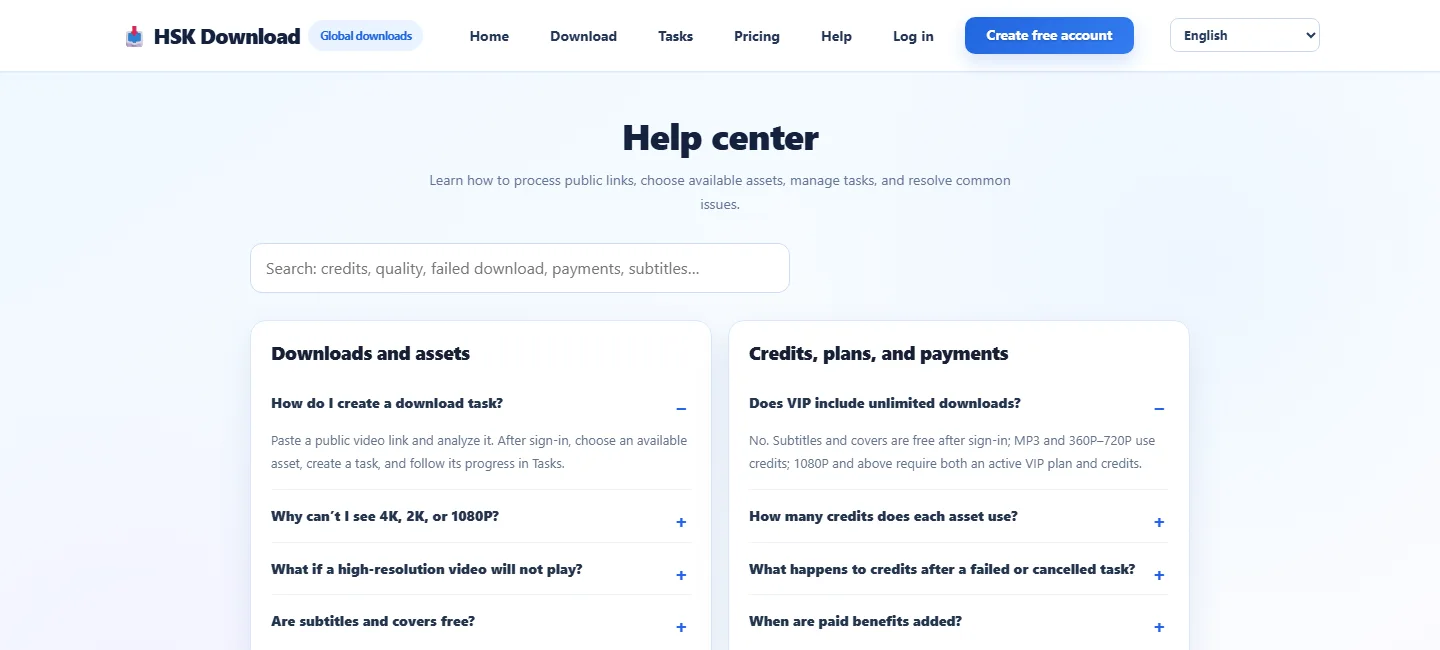
For an expired link, return to the original public source, confirm that the source remains available and that you still have the right to save it, then analyse it again. If the original source is now private or restricted, stop there. For playback trouble, test the completed file in a compatible player and confirm available disk space before making another authorised attempt.
Keep the workflow repeatable
The dependable Windows sequence is: confirm rights, copy a complete link, analyse it, choose an option actually returned by the source, create one task, save the completed file, name it clearly, and verify playback. When you have an authorised public link ready, open the HSK Download tool.
This approach makes the result easier to find, explain, and use. It also makes troubleshooting specific: you can separate a source problem from a task problem, a browser destination problem, and a player compatibility problem instead of treating every failed playback as the same issue.
Frequently asked questions
Where does a browser download usually go on Windows?
Most browsers use the Downloads folder in your Windows user profile unless you selected another destination. The browser download list can open the exact folder.
Can I save every public YouTube video?
No. Save only content you own, are authorised to save, is public domain, or is otherwise lawfully available for your intended use.
Why is the resolution I want not available?
Available choices depend on the source and the analysis result. Do not assume every link offers a particular resolution, subtitle, audio type, or cover.
How can I tell whether a download really finished?
Check the completed task, the browser transfer indicator, and the file opened directly from its folder. A filename alone is not proof of a finished transfer.
Why will the file not play in my usual player?
Confirm the file completed and try a compatible player. Some players do not support every file type or codec; renaming the extension does not convert the file.
What should I do when a file link expires?
Return to the original public source, verify availability and permission, analyse it again, and create a new task if appropriate.