Most YouTube download problems become manageable once you identify the stage that failed. A link that will not analyze is a source-input problem; a missing resolution is an asset-availability question; a completed task with no local file is a transfer problem; and a file that exists but will not play is usually a device or player problem. Start with the symptom instead of repeating the whole workflow.
This guide is only for public videos you own, are authorized to download, that are in the public domain, or that you may otherwise use lawfully. Respect copyright, licenses, creators' rights, and YouTube's rules. HSK Download does not bypass DRM, paywalls, account controls, private-content permissions, regional restrictions, or security measures. A restricted source should not be treated as a technical puzzle to defeat.
Capture evidence before changing anything
Record the public source URL, video title, channel, duration, asset type, expected format, device, browser, and the stage where the failure appeared. If a task exists, note its identifier and current state. For a downloaded file, record its exact name, extension, size, and save location.
This small snapshot prevents an important mistake: changing the link, asset, browser, network, and player at the same time. Change one variable, repeat one controlled test, and compare the outcome. Do not include passwords, cookies, payment details, or private links in notes or support requests.
Symptom: the link will not analyze
First confirm that the input is a supported public YouTube video URL. Open it in a normal browser tab without relying on a private Studio page or account-management route. Compare the visible title and duration with the item you intended to use.
Remove spaces, punctuation accidentally copied from a message, and line breaks. Then open the HSK Download tool, paste the clean link once, and select Analyze video. If nothing happens, reload the page and retry the same clean URL once. Multiple rapid submissions make the result harder to diagnose.
Symptom: analysis works, but the asset is missing
Successful analysis does not promise every resolution, audio choice, subtitle language, or cover. The result reflects the assets actually available from the public source. If 4K, 2K, or 1080P is absent, another button cannot create source detail that was not offered.
Recheck the purpose before deciding this is a failure. A moderate MP4 may be sufficient for review, an audio asset may fit a listening task, and SRT or WebVTT may be the correct deliverable for timed text. A cover image is a visual reference, not a substitute for the video.
If the required asset is genuinely unavailable, use the best available option that meets the project specification or request the original from the rights holder. Do not rename a lower-quality file to imply a resolution or format it does not have.
Symptom: no task is created
After analysis, select an available asset and follow the normal task-creation flow. If the interface requests sign-in, use your own account. A missing account session should be resolved through the standard login process, not through attempts to bypass account controls.
Confirm that the selection is still active, that the page did not display an inline validation message, and that a single submission was made. Then open the task center and look for the video title or chosen asset. A task can exist even if the original page did not show a dramatic confirmation.
Symptom: the task appears stalled or expired
A running task and a device download are different things. Leave enough time for the service stage to update, then refresh the task center rather than repeatedly creating new jobs. Compare the task identifier and asset before assuming that a different entry is the one you started.
If a task is marked failed or canceled, note that state and use the relevant help guidance. If it completed earlier but its secure link no longer works, return through the normal task flow. Do not alter the URL, reuse another person's task, or attempt to defeat an expiration control.
Symptom: the task finished, but no file arrived
The desktop download page separates link analysis from task delivery. It visibly includes a YouTube link field, an Analyze video button, a Downloads area, and an Open task center link. The Downloads message says completed files provide a secure download link; completion on the service is therefore not the same as a file already saved on your device.
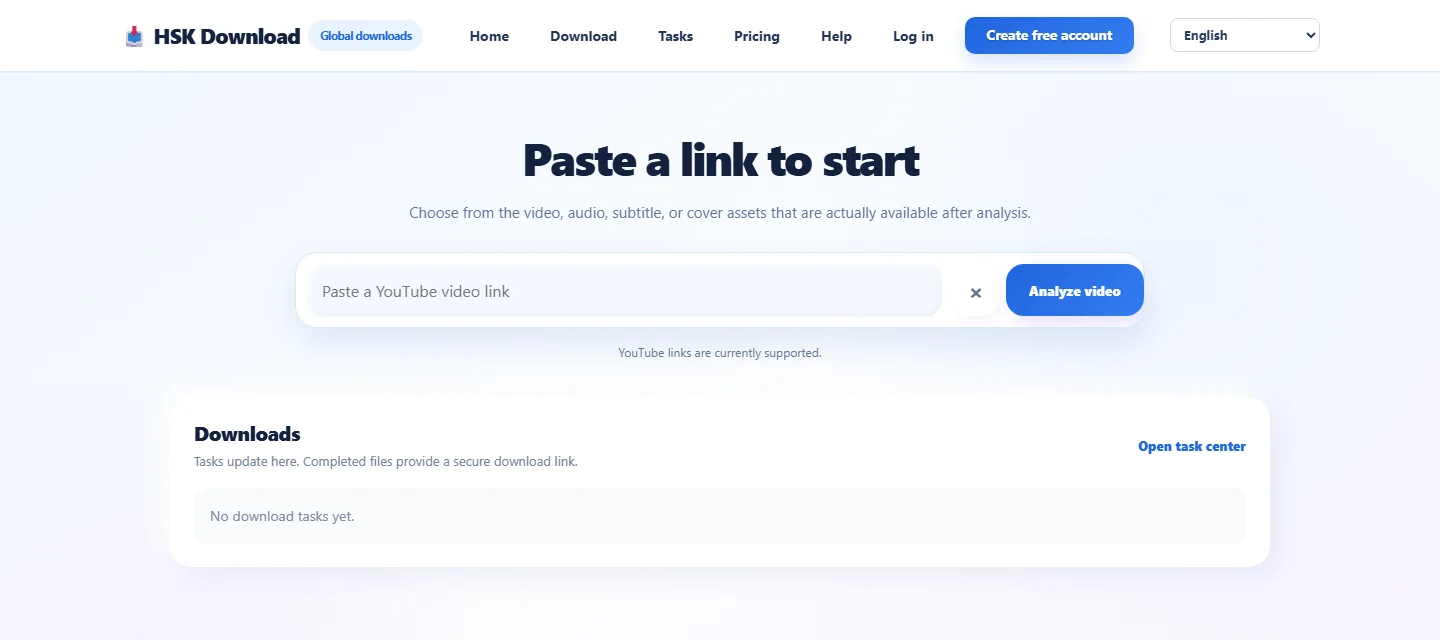
Open the correct completed task and use its secure link. Next, inspect the browser's downloads panel for progress, a confirmation prompt, a blocked download, or a chosen destination. Search the configured Downloads folder by recent date and file size instead of guessing the filename.
If the browser transfer stopped, check the network and available storage, then retry the same valid completion link. Do not create a duplicate processing task merely because the local transfer did not finish.
Symptom: the file is incomplete or unexpectedly small
A filename is not proof of completeness. Compare the local size with any size shown for the chosen asset. A zero-byte item, an implausibly small video, or a file that ends early indicates an incomplete transfer.
Preserve the original extension. Changing .mp4 to another suffix does not convert its media streams, and changing .srt to .mp4 does not turn subtitles into video. Real conversion requires a suitable tool and a valid source file.
Symptom: the video has no audio
Start by determining whether you selected a combined video asset or a video-only asset. Do not infer audio from the MP4 extension alone; a container name does not describe every stream inside it. Return to the analysis result and read the available asset labels carefully.
Then test the file in another compatible player and verify that the device is not muted, the volume is audible, and the correct audio output is selected. Check a point beyond the opening in case the source begins silently.
Symptom: the file exists but will not play
Separate transfer integrity from player compatibility. Check that the file has a plausible size, retained its extension, and completed downloading. A cloud placeholder or partially synchronized file may appear in a folder before all bytes are local.
Try a player that supports the container and codecs, but do not promise that every device handles every file. An older browser, phone, television, or editing application may reject media that plays elsewhere. When the file works in a second player, the download is likely intact and the first player is the variable to address.
Symptom: subtitles or cover files seem wrong
SRT and WebVTT are timed-text documents. Open them with a text-capable app and confirm that they contain readable cues and timing lines. They will not play as videos, and some media players require subtitles to be loaded separately or named to match the video.
A cover file is an image. Inspect its visible content and dimensions; do not expect motion or audio. If the wrong language or cover is selected, return to the analysis result and choose another option only if it is actually listed.
Symptom: storage or cloud space blocks the transfer
Check both the destination and the working space. A browser may need temporary room while receiving a file, and a cloud-backed Downloads folder also depends on the cloud quota. Leave meaningful headroom beyond the expected asset size.
On a phone, confirm whether downloads go to local storage or a cloud folder. On a computer, confirm the browser's download location and available disk space. Remove only dispensable files or move verified items to approved storage; never delete the sole copy of an original.
Use the help center for the correct failure stage
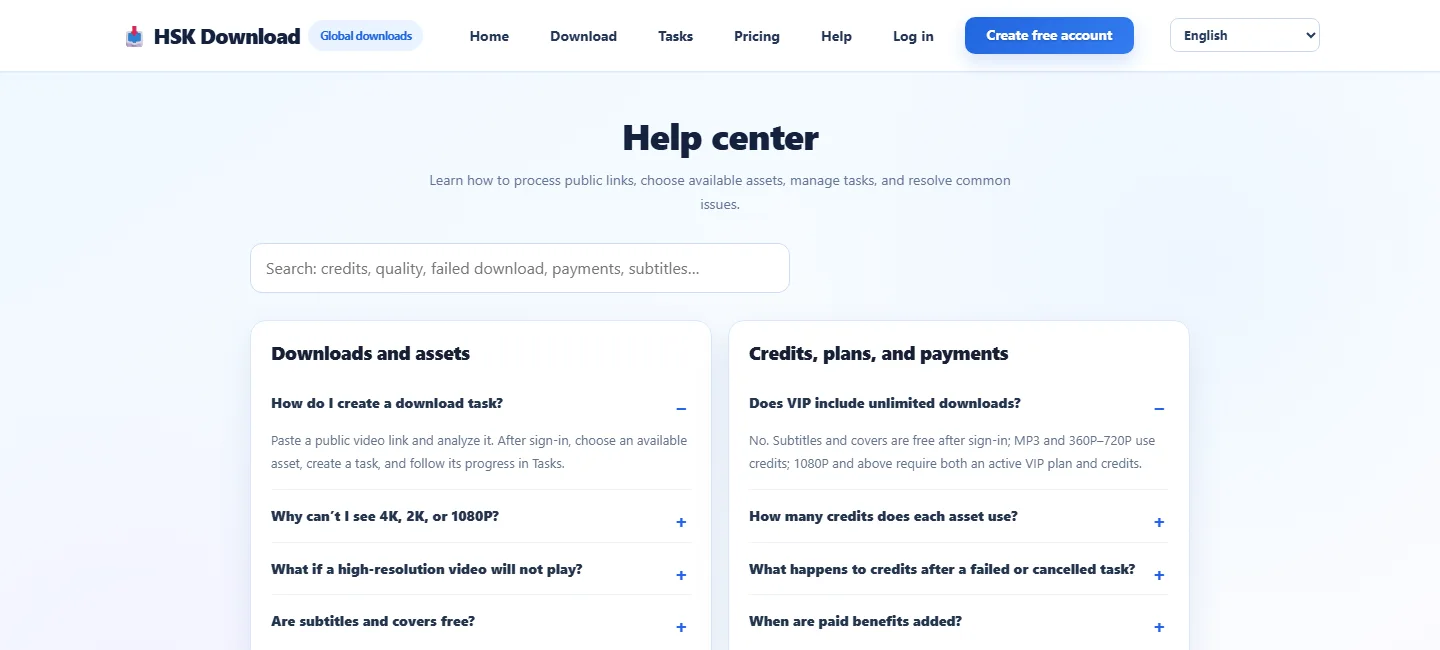
The Help center groups guidance into Downloads and assets and Credits, plans, and payments. Visible topics cover creating a download task, unavailable 4K/2K/1080P options, high-resolution playback, subtitles and covers, credits, and failed or canceled tasks.
Decide whether to retry, change the asset, or stop
Retry the same completion link when processing succeeded but the browser transfer failed. Choose a different available asset when the current format or resolution does not meet a legitimate device need. Start a new task only when the previous task failed, was canceled, or can no longer provide a valid result.
Stop when the source is not public, authorization is missing, or the requested result would require bypassing a restriction. Also stop repeated retries when the evidence points to a player limitation; test a compatible player or request an appropriate original instead.
Final diagnostic checklist
Confirm the public URL, permission, selected asset, task state, secure completion link, browser transfer, destination folder, file size, extension, and compatible player—in that order. Testing these stages separately turns a vague failure into a specific decision.
Keep the verified result under a clear project name and remove failed duplicates only after the good copy is confirmed. Retain permission and task records according to your organization's policy.
Frequently asked questions
Why does a valid-looking YouTube link fail analysis?
It may contain copied punctuation or spaces, point to an unsupported page instead of a public video, or refer to private, deleted, or restricted content. Clean and verify the public URL, then try it once.
Why is 1080P or 4K missing?
Analysis shows assets actually available from the public source. Use an available option that meets the need or request the original from the rights holder; the interface cannot invent missing source quality.
Why is there no file after the task says complete?
Service completion and browser transfer are separate. Open the correct secure completion link, inspect the browser's downloads panel, and check the configured destination and available storage.
Why does my MP4 have no sound?
The selected asset may not contain an audio stream, or the player or device output may be the issue. Check the asset label, volume and output, then test a compatible player.
Can changing the extension fix playback?
No. Renaming an extension does not convert the file. Verify transfer completeness and use a compatible player or a properly converted authorized source.
Why will an SRT or WebVTT file not play?
They are timed-text documents, not videos. Inspect them with a text-capable app and load them as subtitles in a compatible player when needed.
Should I create a new task when the browser download stops?
Usually not. If the service task completed and its secure link is still valid, fix the network or storage issue and retry that link rather than duplicating the task.
Can troubleshooting bypass DRM, private access, or regional controls?
No. Troubleshooting must not bypass DRM, paywalls, account controls, private-content permissions, regional restrictions, or security measures. Use only public material you are entitled to process.