If you own the video, have the creator’s permission, or may otherwise use it lawfully, the iPhone workflow is straightforward: copy the public video link, open the web tool in Safari, confirm the analysed result, choose an available MP3 option, approve the download, and open the completed file from Safari’s download list or the Files app. Before relying on it, check its beginning, middle, end, duration, and filename.
This guide is only for authorised material. Public visibility does not automatically grant permission to copy, edit, share, or republish. Do not attempt to bypass DRM, a paywall, an account requirement, private access, a regional restriction, or any platform safety measure. Use YouTube’s and the rights holder’s authorised options whenever those controls apply.
Decide whether MP3 is the right output
MP3 is useful when the valuable part of an authorised video is its audio: your own spoken lesson, a permitted interview, a public-domain speech, or a recording provided under a licence that allows your intended use. It is widely playable, easy to organise, and usually smaller than video.
Audio is the wrong output when meaning depends on slides, diagrams, sign language, demonstrations, captions embedded in the picture, or precisely timed on-screen steps. Keep an authorised video or original production files in those cases. A permitted transcript or subtitle file may be better when quotation search or accessibility review is the main goal.
If you created the recording and still have the original audio master, export from that master. Converting a compressed distribution copy adds another lossy step, and a larger MP3 cannot restore removed detail.
Confirm permission before copying the link
Process only content you own, have explicit permission to use, that is in the public domain, or that you may lawfully use under the applicable licence and law. Read creator notes, institutional terms, licence notices, and any limits on storage or sharing. Keep evidence of permission when the file will enter coursework, research, a team archive, or a published project.
Permission must cover the actual purpose. Authorisation to watch is not necessarily permission to download, and permission for a private study copy may not allow redistribution. Ask the creator or rights holder when the scope is unclear.
Prepare Safari and a destination in Files
Open the authorised video on its official page. Confirm the title, creator, duration, and content, then play one section near the start and another later. Conversion cannot repair speech, clipping, or background noise that is already missing or damaged in the source.
Safari downloads normally appear in its configured Downloads location, commonly within iCloud Drive or On My iPhone in Files. Choose iCloud Drive when you want access from another signed-in Apple device, or On My iPhone for a local copy. For important material, create a folder such as Course > Week > Audio and leave enough free space for the download plus any copy made by another app.
Step 1: paste the authorised link on iPhone
Copy the complete public URL from the official YouTube page or app. In Safari, open the HSK Download tool. The real mobile page shown below presents a visible source-link field and an on-page action for starting analysis. Paste the complete authorised link, check it for missing characters or spaces, and start the analysis.
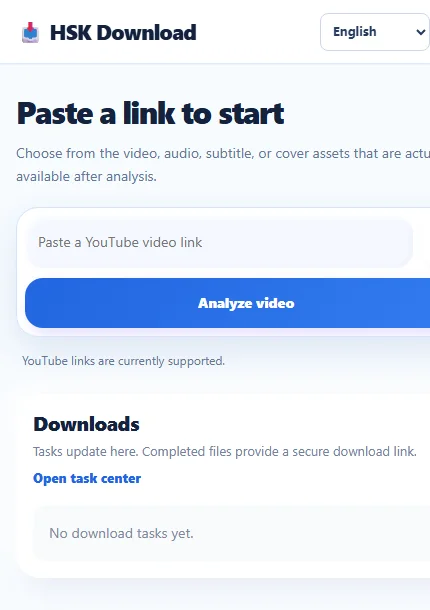
*The real public mobile interface places the source-link field and analysis action on a narrow screen. The interface can analyse a submitted link; it does not establish your rights to use the source.*
Keep Safari on that tab while it works. If the address opens a channel page, search result, or playlist overview rather than the intended individual video, return to the official source and copy the single-video link again.
Step 2: inspect the result and choose audio deliberately
After analysis, compare the visible title, thumbnail, duration, and creator or channel name with the authorised source whenever those details appear. This catches a link copied from the wrong tab or a similarly named recording before you save it.
Choose audio or MP3 only when it is offered and audio alone preserves the information you need. Do not assume that the first, largest, or highest-numbered option is best. A moderate setting often suits speech. Music, pronunciation training, or sound-design examples may benefit from a higher available option, but only a listening test can show whether the difference matters.
The result identifies technical choices; it does not decide copyright permission. Keep the rights decision separate from the format decision.
Step 3: download through Safari and find the file
Tap the selected MP3 option and approve Safari’s download prompt if it appears. Safari may show a downward-arrow indicator near the address bar. Let the transfer finish before renaming a partial file, clearing browser data, or switching repeatedly between apps.
A long recording needs stable Wi-Fi, adequate battery, and free storage. If the transfer stops, check the connection and space before one controlled retry, and remove incomplete duplicates. Do not install a configuration profile, provide unrelated credentials, or accept unexpected notification requests merely to save an eligible public file.
After completion, tap Safari’s download indicator or open Files and visit the configured Downloads folder. Check both iCloud Drive and On My iPhone if you are unsure which location Safari uses. A partial file may appear before all data is available, so confirm completion before opening, renaming, or moving it. Keep the .mp3 extension unchanged.
Choose quality for speech, music, and storage
Bitrate represents roughly how much audio data is stored each second. More data can preserve more detail, but it also creates a larger file. The source remains the quality ceiling: increasing MP3 bitrate cannot restore missing frequencies or repair unclear speech.
For a clear monologue, start with a moderate available option and test it on the earbuds, speaker, car system, or editor you will use. Higher bitrate will not remove room echo or separate overlapping voices. For music or phonetics, compare a demanding passage rather than judging by the label alone.
Duration matters too. A two-hour lesson is much larger than a short note at the same setting. Choose the smallest offered option that remains comfortable to understand and suitable for the authorised purpose.
Know when a desktop is the better device
An iPhone is convenient for one link and immediate listening. A desktop is often easier when you must compare several authorised sources, type systematic filenames, inspect long URLs, review durations, or maintain an established course archive.
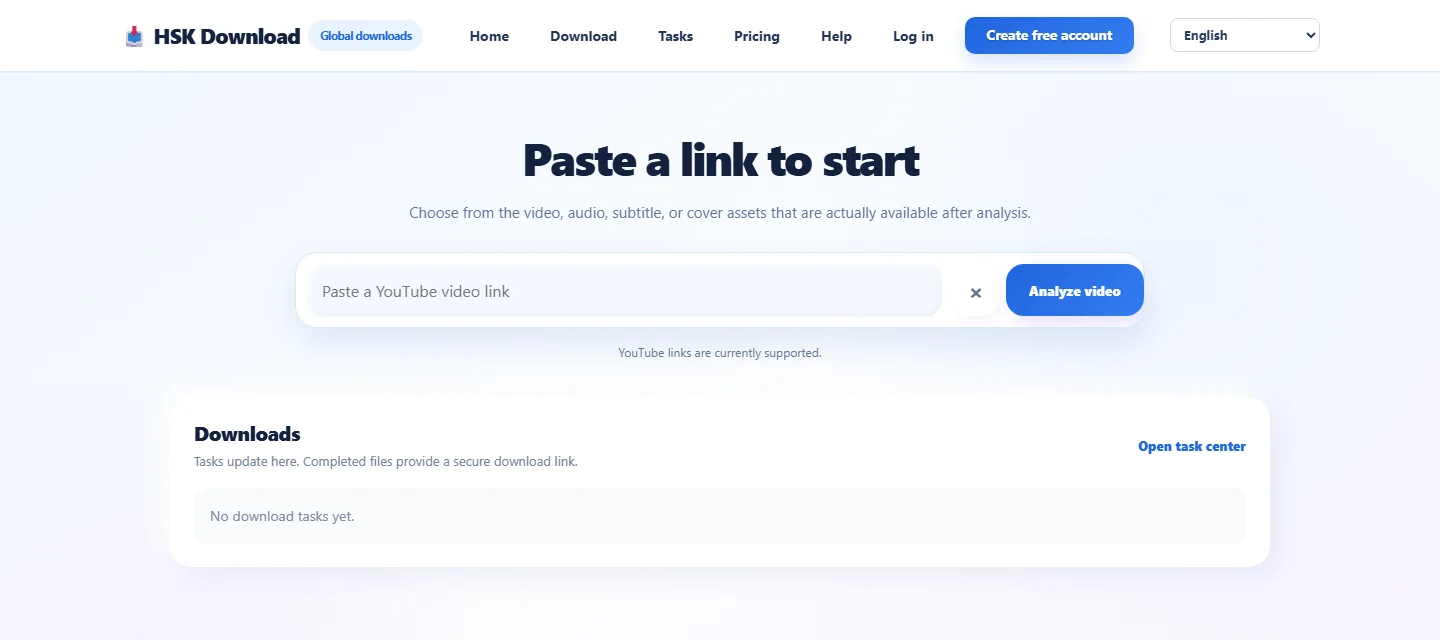
*The real public desktop interface shows the same basic decision point on a wider screen: verify the link in the visible field before starting analysis.*
Choose the device that makes verification easiest. Starting on iPhone does not require finishing there. If mobile storage, network reliability, or file organisation becomes awkward, return to the authorised source on a computer and apply the same rights-first checks.
Verify the completed MP3
Open the MP3 in Files and play the first minute, one section from the middle, and the final minute. Compare its approximate duration with the source video. Confirm that the expected speaker is present, the ending is not truncated, the player can seek to a later timestamp, and there are no unexplained silent sections.
For important speech, listen to names, dates, and numbers rather than testing only an easy passage. If stereo is expected, check both channels with headphones. Close Files, reopen it, and play the file again. If you plan to edit it, import a copy and make a short test export. Keep the verified MP3 and authorised master until the project is complete.
Name and document the study copy
Rename the file with a consistent pattern such as 2026-07-12-topic-speaker.mp3. Do not change the extension, remove creator attribution, or imply that you produced someone else’s recording. If your library supports metadata, use accurate title, speaker, course, and year fields.
Keep a text note with the source URL, download date, permission basis, permitted uses, and any deletion deadline. Version labels such as original, trimmed-v1, and approved-v2 help prevent an accidental edit from replacing the only verified copy.
Troubleshoot common iPhone problems
The link is rejected. Copy the individual public video URL again, remove surrounding spaces, and retry once. Do not work around login, privacy, payment, regional, or protection controls.
No MP3 option appears. Use only formats actually offered by the result. Renaming another extension to .mp3 does not convert its audio. If visuals are essential, retain an authorised video.
The download starts and stops. Use stable Wi-Fi, check free storage, and keep Safari active. Remove incomplete duplicates before retrying.
The file is missing from Files. Check Safari’s download list and the Downloads folders in both iCloud Drive and On My iPhone.
The audio is short, silent, or distorted. Compare it with the source, retry one standard offered option, and test a second reputable player. Higher bitrate cannot repair source defects.
The MP3 works on iPhone but not elsewhere. Check the target player’s supported audio and storage formats, keep a simple filename, and transfer a fresh copy from the verified file.
A final decision checklist
Before relying on the MP3, confirm that you own the content, have permission, are using public-domain material, or may otherwise use it lawfully; the public link points to the intended video; audio is the right output; the selected quality matches the content; the file appears in the expected Files folder; the beginning, middle, and end play; the filename is descriptive; and every licence, attribution, sharing, or deletion requirement is documented.
A careful iPhone workflow is intentionally uneventful: one authorised public link, one suitable output, no unrelated sign-in, no profile installation, a completed-file check, and a clear record of permission.
Frequently asked questions
Where does an MP3 downloaded in Safari go on iPhone?
It normally appears in Safari’s configured Downloads location in the Files app, commonly under iCloud Drive or On My iPhone. Safari’s recent download list can help you open it directly.
Can every public YouTube video be converted legally?
No. Public visibility does not automatically grant copying or reuse rights. Process only content you own, are authorised to use, that is public domain, or that you may otherwise use lawfully.
Which MP3 quality is best for spoken lessons?
A moderate offered setting is usually a practical starting point. Test a representative passage on the device or headphones you will actually use, and choose a higher option only when it provides an audible benefit.
Why can I see the file in Files but not play it?
The transfer may be incomplete, storage may have run out, or the player may have a compatibility issue. Wait for Safari to finish, compare duration, and test the completed file in another reputable player.
Should I keep the video after saving an MP3?
Keep an authorised video or source copy when slides, demonstrations, captions, visual timing, or archive quality matter. Audio alone is appropriate only when it preserves the information you need.
May I share the MP3 with classmates or colleagues?
Only when the copyright owner, licence, institution, and platform rules permit sharing. Permission to make a personal study copy does not automatically allow redistribution.