If you own a lecture recording, have the creator’s permission, or can otherwise use it lawfully, the practical answer is straightforward: confirm your rights, open the desktop tool, submit the authorised link, choose an audio option that suits speech, save the result, and verify it before deleting any source material. The most important choices are not maximum bitrate or the smallest file. They are clear speech, a predictable filename, and a file that plays from beginning to end.
This guide treats “YouTube to MP3” as a legitimate study-copy workflow. It does not cover protected, private, paywalled, region-restricted, or account-controlled material, and it does not offer ways around DRM or platform safeguards. Always respect copyright, licences, creator instructions, and YouTube’s rules.
What a rights-first YouTube to MP3 workflow actually does
An MP3 study copy separates the audio experience from the video page. That can be useful when a lecture is primarily spoken, when you need to listen on a commute, or when an authorised course archive must fit on a device with limited storage. It does not create new usage rights. The permission attached to the original lecture still governs what you may save, share, edit, or redistribute.
Start by defining the intended result. For a one-hour spoken lecture, a moderate audio setting is normally more useful than an oversized file. If the recording contains musical analysis, sound-design demonstrations, or subtle language pronunciation, quality matters more. If slides carry essential equations or diagrams, audio alone is the wrong output; keep an authorised video copy or the original slide deck alongside it.
Confirm ownership, permission, and platform rules first
Use this process only for a recording you created, a lecture whose owner gave you explicit permission, public-domain material, or content you may lawfully use under the applicable licence and law. A public link is not automatically a licence to download or redistribute. Look for the creator’s stated terms, an institutional licence, a course notice, or a direct grant of permission.
Do not continue if access depends on defeating DRM, a paywall, an account control, a private-sharing restriction, a geographic block, or another technical safeguard. The right response in those cases is to use the platform’s authorised viewing or offline features, ask the owner for a copy, or obtain permission through the institution.
Prepare the lecture link and a sensible destination folder
Before opening a tool, play a short portion of the authorised lecture in its normal page. Confirm that the title, speaker, date, and duration match what you expect. Listen near the beginning and somewhere in the middle. If the source itself has clipped speech, background noise, or missing audio, conversion cannot restore information that is absent.
Create a destination folder before processing. A useful structure is Course name > Term > Audio lectures, with filenames such as 2026-07-12-topic-speaker.mp3. Avoid names like audio1.mp3; they become impossible to distinguish after several downloads. If the material has retention limits, add the authorised deletion date to a note in the same folder.
Step 1: Open the desktop tool and submit the authorised link
On the computer where you want to save the file, open the HSK Download tool. The public desktop page presents a field for the source link and an action to begin analysing it. Paste the complete authorised YouTube URL rather than a shortened or partially copied address. Review the pasted text once before continuing; a single missing character can point to the wrong page or produce an error.
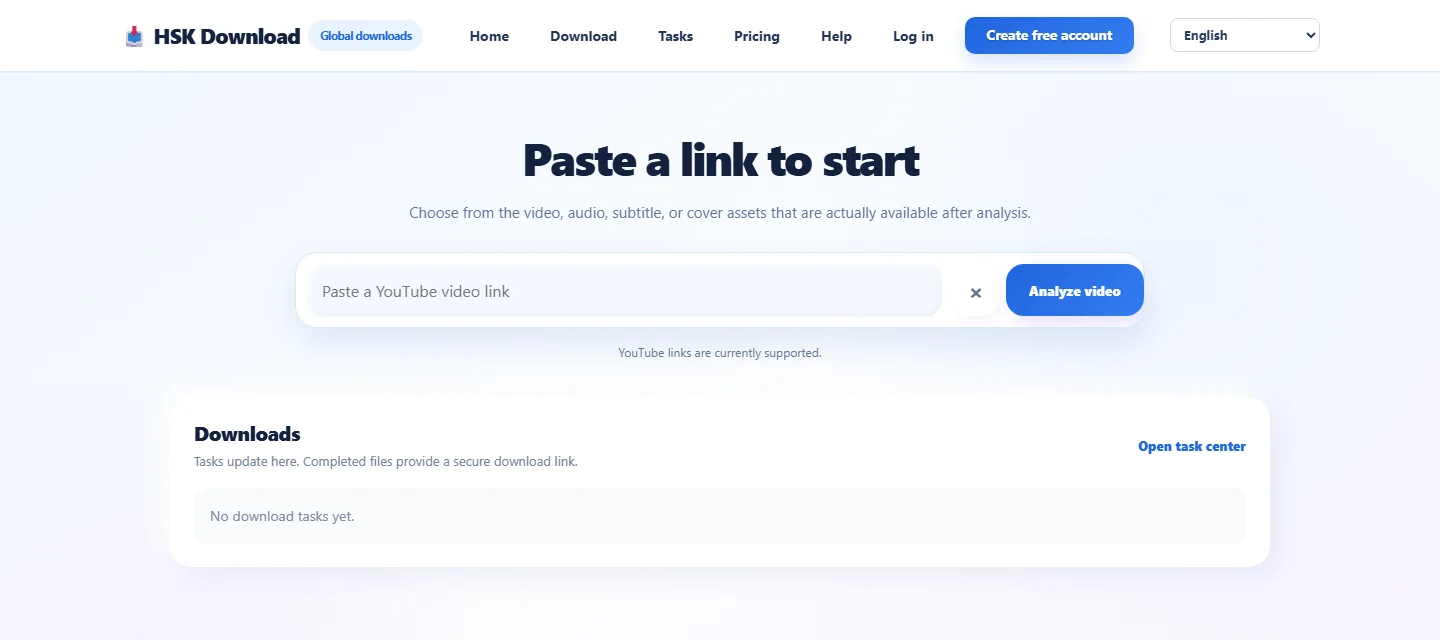
*The real public desktop interface: paste the authorised source link in the visible field, then use the on-page action to analyse it.*
Step 2: Inspect the result before choosing MP3
After analysis, compare every visible identifier with the source: title, thumbnail, duration, and creator or channel name when shown. This is a simple but valuable safeguard against saving a similarly named lecture or a link copied from the wrong browser tab.
Choose an audio or MP3 result only when the lecture works without its visual track. If the page offers several kinds of output, do not assume that the first or largest option is best. A transcript or subtitle file can be more useful for searching quotations, while video is necessary for demonstrations, sign language, slides, or on-screen code. The correct output is the smallest format that still preserves the information you are authorised to use.
Step 3: Choose quality for speech, music, and storage
Where a quality selector is available, read the labels instead of choosing the highest setting by habit. The extension interface shown below is a real HSK quality-selection view. It demonstrates the decision point: select the format and quality that match the listening task, then continue through the visible control.
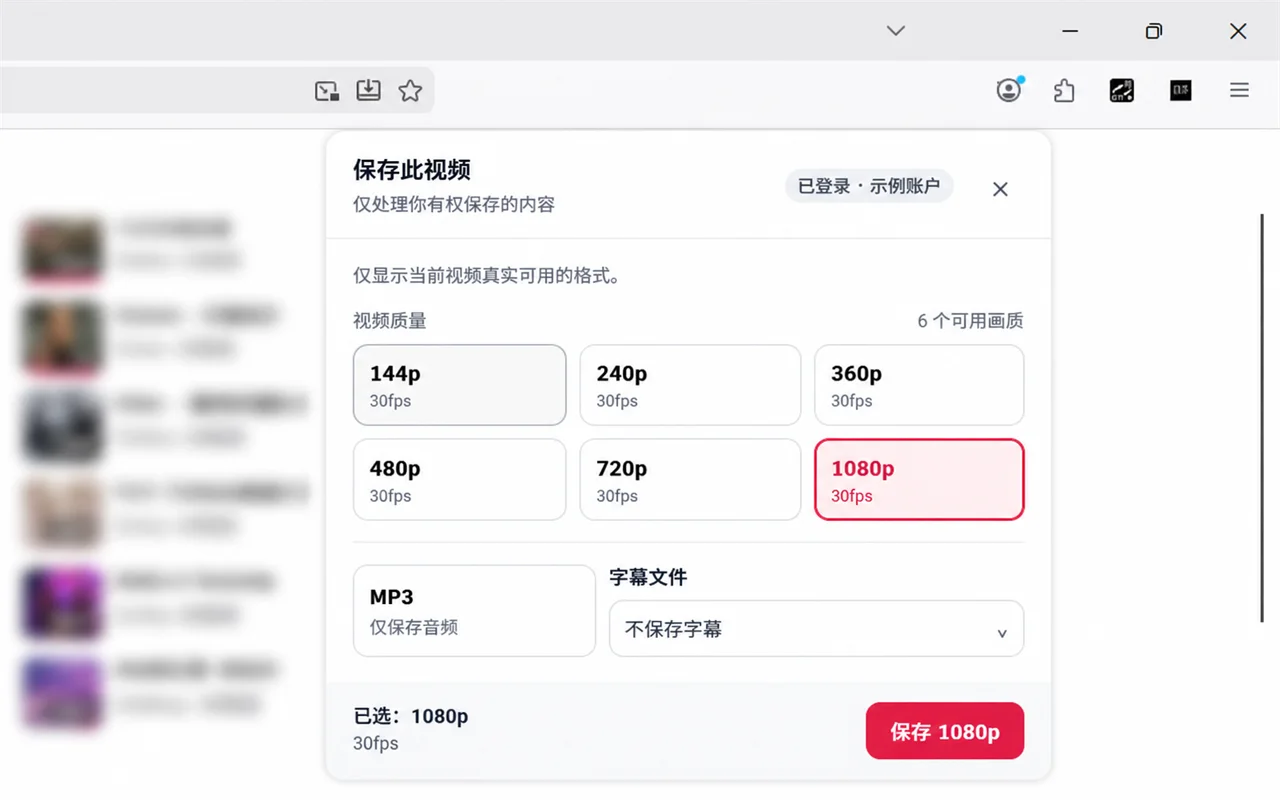
*The real extension quality-selection interface: choose an offered option deliberately rather than treating the largest file as automatically better.*
For ordinary speech, a moderate MP3 bitrate generally balances clarity and size. Dense music, language phonetics, or audio-engineering examples may justify a higher-quality option if one is offered. A low-quality choice can exaggerate metallic consonants and make quiet speakers tiring to understand; an unnecessarily high choice consumes more storage without improving a source that was already compressed.
Bitrate, duration, and file-size decisions for lectures
Bitrate describes roughly how much audio data is stored per second. File size therefore grows with both bitrate and duration. A two-hour seminar at a high setting can occupy several times the space of a speech-focused version, even though both contain the same words.
Use content, not prestige, to decide. For a clear single-speaker lecture recorded close to a microphone, a moderate setting is usually sufficient. For a panel recorded in a reverberant room, more bitrate may preserve ambience but will not separate overlapping voices. For a music-history lecture with listening examples, choose the higher practical option and test the passages that matter.
Name, tag, and organise the finished MP3
Once the save finishes, rename the file without changing the .mp3 extension. Include the lecture date, subject, and speaker in a consistent order. If your audio library supports metadata editing, add a title, lecturer, course or album name, and year. Do not overwrite creator attribution or imply that you authored the recording.
Keep licence or permission evidence close to the file. For example, store a text note containing the source URL, the permission date, the permitted uses, and any expiry or deletion requirement. This is especially helpful when a team or research group shares an authorised archive.
Verify the MP3 before relying on it
A completed download is not the same as a verified study file. First compare the file’s approximate duration with the original lecture. Then play the first minute, a section from the middle, and the final minute. Confirm that speech is present on both stereo channels when expected, that the ending is not truncated, and that the player can seek to a later timestamp.
Troubleshooting common link, audio, and playback problems
If the link is rejected, reopen it in the original browser tab and verify that it is complete, accessible, and within the permitted workflow. Remove accidental spaces before or after the URL. Do not try to work around a login requirement, privacy setting, paywall, regional restriction, or protection mechanism.
If the MP3 is silent or unusually short, compare its duration with the source and download it once more using an offered standard option. Test in a second reputable player. If one player works and another does not, the problem is likely compatibility rather than missing audio.
If speech sounds harsh, watery, or difficult to understand, the selected quality may be too low—or the original may already contain those defects. Compare directly with the source. Choose a better offered setting only when the source sounds clearly better; increasing bitrate cannot repair clipped microphones or missing frequencies.
A practical decision checklist
Choose MP3 when the authorised lecture is mainly spoken, the visuals are optional, and portable listening is the goal. Choose video when slides, demonstrations, captions burned into the picture, or visual timing carry meaning. Choose subtitles or a transcript when search, quotation review, or accessibility is more important than passive listening. Keep the original authorised master when preservation quality matters.
Before you finish, confirm: you have the necessary rights; the displayed source matches the intended lecture; the selected quality suits the content; the file has a descriptive name; the beginning, middle, and end play; the destination device accepts it; and any licence or deletion requirement is documented.
Frequently asked questions
Is a public YouTube lecture automatically free to download as MP3?
No. Public availability does not by itself grant download or redistribution rights. Use material you own, have permission to use, that is public domain, or that you may otherwise use lawfully under the applicable terms and law.
What MP3 quality is best for a spoken lecture?
A moderate offered setting is usually a good starting point for clear speech. Test a representative section on your real headphones or device. Use a higher option only when it produces an audible benefit or the lecture includes important music or sound examples.
Will a higher bitrate repair poor source audio?
No. A higher bitrate can avoid adding more compression damage, but it cannot restore clipped speech, lost frequencies, or a noisy original recording.
Why does the MP3 play on my computer but not in my car?
The car player may support fewer file variations or may require a particular storage format. Test another standard option offered by the tool, use a compatible USB or phone connection, and verify the player documentation.
Should I keep the video after making an MP3?
Keep an authorised video or source copy when slides, demonstrations, captions, or archival quality matter. If audio carries everything you need and the licence allows it, an MP3 may be the more practical study copy.
Can I share the finished MP3 with classmates?
Only if the copyright owner, licence, institution, and platform rules permit that sharing. Permission to make a personal study copy is not necessarily permission to redistribute it.