A silent MP4 is not one problem with one universal fix. The missing sound may come from the selected asset, an incomplete transfer, the player, the device audio route, a later export, or an unsupported source expectation. For an authorised public video, start with the delivered file: confirm that the correct public source was analysed, that the selected option was a video asset expected to include audio, and that the device received the whole file.
Use this guide only for video you own, are authorised to save, that is public domain, or that you may otherwise use lawfully. Respect copyright, licences, creator rights, and platform rules. HSK Download does not bypass DRM, paywalls, account controls, private-content permissions, regional restrictions, or security measures. If the source is not legally available through its public link, obtain an authorised original rather than attempting to defeat the restriction.
Identify the failing stage before trying fixes
Write down the public source title, the option selected, the visible resolution and frame rate, and where the silence was first noticed. Was the MP4 silent in the browser download, in one phone player, after copying to another device, or only after an edit? That timeline prevents a common mistake: diagnosing an editor export when the original delivered file was already silent.
Test three short points: the opening, a section you know contains speech or music, and a point near the end. If audio works in one of those places but not another, the problem may be source-specific rather than a complete absence of an audio stream. If every test is silent, continue with a structured check instead of repeatedly downloading identical output.
Confirm the public source and your authorised use
Open the intended video normally. Compare its title, channel, visible duration, and subject with your notes. Confirm that you have permission or another lawful basis for use. Then recopy the public sharing URL with YouTube's normal share control. Do not substitute a private Studio path, dashboard address, account-session link, or message fragment with surrounding punctuation.
If the returned title does not match the intended source, stop and correct the link. A plausible filename is not proof that the selected item is the right video. If the source is private, deleted, regionally unavailable, or protected by access controls, do not try to work around that restriction. Request an authorised original or a public link that you are permitted to use.
Read the available options rather than assuming every source is identical
In a browser, open the HSK Download tool, analyse the cleaned public link, and read only the options that the analysis returns for that source. A video option may differ in resolution, frame rate, file size, and available streams. MP4 is a container name; it does not by itself guarantee the precise audio and video streams inside every offered asset.
The extension example below visibly separates video quality from MP3 and subtitle choices. It shows six video cards, from 144p to 1080p, each labelled 30fps, with the 1080p card selected. That is evidence about this pictured example, not a promise that every source has the same options, that 1080p means 60fps, or that the extension is required for every device.
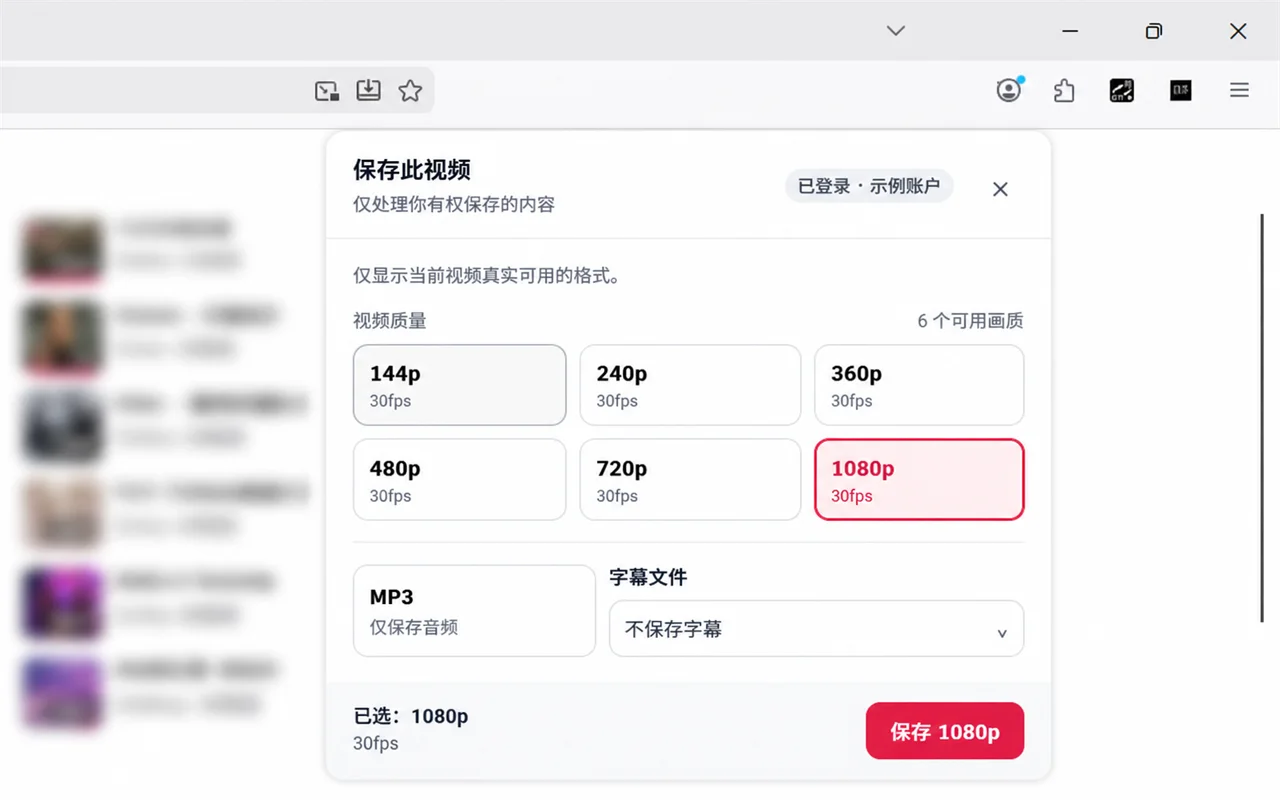
Choose the available MP4 option that fits the authorised need. Do not relabel a file to add a stream or turn a lower resolution into a higher one. If the option expected for a project is absent, choose an appropriate available option or ask the owner for the authorised source file.
Separate service processing from the device transfer
Create one task for the chosen option and record its identifier. A completed task means output is ready through its secure delivery link. It does not prove that the browser has transferred a complete file to the device. Open the link for the recorded task, keep the browser active long enough to establish the transfer, and inspect its download control for progress or errors.
Before playback, compare the resulting file's nonzero size, extension, and timestamp with the task you recorded. A zero-byte item, partial temporary file, or cloud placeholder can appear in a file list without being a usable MP4. If a transfer paused, check available storage, network stability, browser prompts, and cloud quota where relevant. Reuse the valid completed-task link when appropriate rather than creating another processing task.
Use the Help center to distinguish asset and task questions
The HSK Download Help center screenshot shows a search field and separate cards for Downloads and assets and Credits, plans, and payments. Its visible download questions include creating a download task, unavailable 4K, 2K, or 1080p choices, high-resolution playback, and subtitles or covers. This is a useful route when you need to distinguish an available-asset question from a task-status or account question.
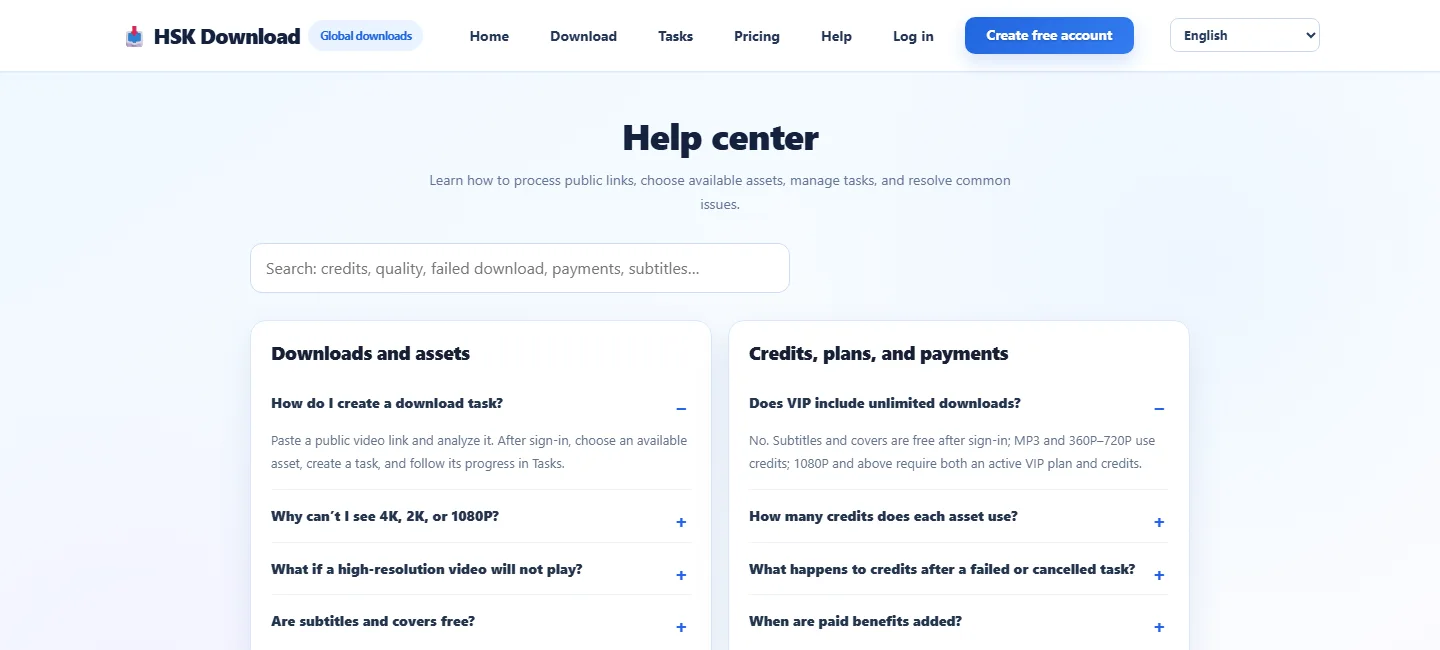
Search for the failing stage using factual terms such as quality, failed download, or subtitles. Do not treat a general help answer as proof that a specific source must have a particular quality or audio layout. The analysis result for the actual public source remains the decision point.
Rule out player volume and the audio output route
Open the delivered MP4 in a second compatible player before concluding that the file has no audio. On a phone, check the media volume rather than only the ringer setting, then verify Bluetooth headphones, speakers, car audio, AirPlay, USB audio, or a dock are not receiving the sound. On a computer, check the application's output device and system mixer. A muted player or a stale output route can make a healthy file appear silent.
Use a known-good local video to test the same player and output route. If that video is also silent, fix the device or player route first. If the known-good file plays normally but the new MP4 does not, compare the new file in another player and proceed to the transfer and asset checks.
Inspect the delivered file without inventing metadata
Use a player or media-inspection view that reports whatever details it actually knows. Confirm duration, file size, and whether an audio track is listed. Do not infer a track merely from the filename, resolution, or an MP4 extension. If a player shows no audio track while another accepted source normally does, the selected asset or incomplete transfer is the more useful hypothesis than a volume control.
Avoid risky "fixes" such as changing the extension. Renaming a file does not create audio, repair an incomplete transfer, or change streams. Keep the delivered extension and preserve the original file until you have verified a replacement. If a project requires exact metadata, document the player and the reported details instead of guessing.
Check whether an editor or export caused the silence
If the MP4 plays with sound before editing but becomes silent after export, the original delivery is not the failing stage. Reopen the editor project, verify the clip is not muted, check track routing and the timeline mixer, and confirm the export includes audio. Test a short export before committing a long render. Compare that export in more than one player.
If the editor imports the file silently while independent players play it with sound, consult the editor's documented supported formats and import behaviour. Use an authorised workflow that fits the receiving application. Do not claim that a container conversion will preserve or create streams without checking the actual source and output.
Choose an available alternative only when evidence supports it
When the source analysis offers more than one appropriate MP4, a second available option can help isolate whether the first asset was the issue. Make a new task only after recording why the first result failed and which available alternative you are testing. Keep the public-source title, quality, visible frame rate, task identifier, and test player with each result.
Do not retry the same action indefinitely. If two complete transfers of available choices are silent in multiple players and the device output route works with known-good media, stop treating it as a simple local setting. Preserve your notes and seek the authorised original or product support with the public-source identity and task information, without sharing private account material.
Troubleshoot by observed symptom
No sound in one player only: test another compatible player and check its mute control, media volume, and selected audio output.
No sound through headphones or a television: disconnect or change the Bluetooth, AirPlay, cable, dock, or system output route, then test a known-good local video.
The file is tiny, unfinished, or missing: inspect browser download progress, local storage, cloud quota, and the correct secure task link before judging audio.
The expected quality is unavailable: use an appropriate returned option or request the authorised original; do not relabel a lower-quality file.
Sound disappears only after an edit: check clip mute, track routing, mixer state, and export audio settings; verify the pre-edit MP4 separately.
The source itself is restricted: stop. Do not bypass DRM, paywalls, account controls, private-content permissions, regional restrictions, or security measures.
Final no-audio decision checklist
Before declaring an MP4 silent, confirm the public source and permission, returned source identity, selected available video option, one completed task, one complete browser transfer, nonzero file size, two playback tests, media volume, active audio output route, and whether the problem begins before or after an editor export. If evidence points to an unavailable stream or authorised-source limitation, use an available option or obtain the original through a legitimate route. Do not bypass access controls or accept an unverified partial file.
Frequently asked questions
Why is my MP4 silent in only one app?
The app may be muted, using another audio output, or handling the imported media differently. Test the same delivered file in another compatible player and test a known-good local video in the first app before blaming the asset.
Does an MP4 extension guarantee an audio track?
No. MP4 is a container name. Check the offered asset, complete transfer, and actual player or media-inspection details rather than inferring streams from the extension.
Can I fix missing sound by renaming the file?
No. Changing an extension does not create audio streams or complete an interrupted transfer. Preserve the delivered extension and verify the file before replacing it.
Why did the task finish before the file worked on my device?
Service processing and browser transfer are separate stages. A completed task makes a secure delivery link available; the browser still must transfer a complete file to the device.
Should I choose another quality when the first MP4 is silent?
Only test another option that the analysis actually offers and that fits your authorised need. Record the first result, then compare the complete alternative in more than one player.
What if sound disappears after editing?
Test the original MP4 first. If it plays with sound, check the editor's clip mute, track routing, mixer, and export audio settings, then test a short export.
Can this process bypass DRM or private-video controls?
No. It must not bypass DRM, paywalls, account controls, private-content permissions, regional restrictions, or security measures.