For an authorized public video, the practical YouTube-to-MP4 workflow on iPhone is: confirm the source and permission, analyze its public link in the browser, choose an MP4 option that is actually available, let the service task finish, save the delivered file, and verify it in Files before deciding whether Photos also needs a copy. The two places serve different purposes. Files preserves the file as a named project asset; Photos makes a compatible video convenient inside the media library.
Use this guide only for content you own, are authorized to download, that is in the public domain, or that you may otherwise use lawfully. Respect copyright, licensing, creator rights, and YouTube’s rules. HSK Download does not bypass DRM, paywalls, account controls, private-content permissions, regional restrictions, or security measures. If a video is not lawfully accessible through its public link, obtain an authorized original instead of trying to defeat the restriction.
Start with the destination, not the download button
Decide what should happen after the MP4 reaches the phone. If it will be renamed, attached to a project, copied to a computer, or retained with permission records, Files is the natural destination. If the verified clip needs to appear in the iPhone media library for viewing or an authorized edit in a Photos-aware app, a Photos copy may be useful.
Confirm the public video and your authorization
Open the intended video normally and compare its title, channel, visible duration, and subject with your project notes. Confirm that you own it, have permission, or have another lawful basis for use. Store the permission record somewhere that will remain associated with the resulting MP4.
Use YouTube’s normal sharing control to copy the public URL. Do not use a private Studio path, a creator dashboard address, a link that depends on an account session, or a fragment copied from a message with punctuation attached. If the video is private, deleted, regionally unavailable, or protected by access controls, stop. An iPhone workflow does not change those boundaries.
Estimate iPhone storage before choosing quality
Open Settings > General > iPhone Storage and note the available capacity. You do not need to predict the exact MP4 size from resolution because duration, compression, frame rate, visual complexity, and included audio all affect it. Use any size shown for the offered asset or the browser transfer when available.
Allow headroom beyond the expected file. The download may need temporary working space, the system needs room to operate, and a later Photos import may create another local copy. If Safari saves into iCloud Drive, check both the iPhone’s local capacity and the cloud quota; cloud synchronization does not make a nearly full phone irrelevant.
Use the mobile page as the browser starting point
In Safari or another supported iPhone browser, open the HSK Download tool. The real mobile view places the language control and public YouTube link field above the blue Analyze video action, with a Downloads area and task-center link below.
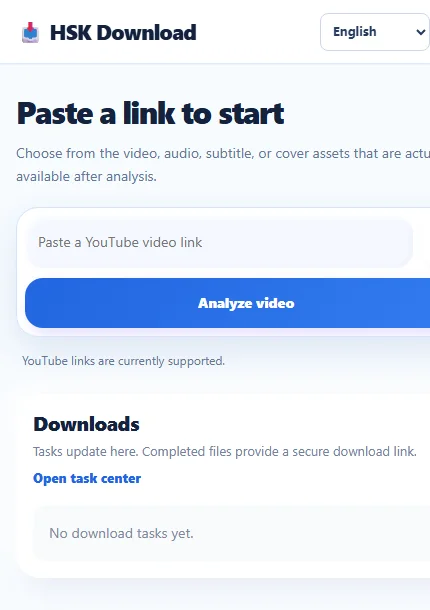
Paste the cleaned public URL once and select Analyze video. Compare any returned title or visible identity information with the source before choosing an asset. If the identity is wrong, correct the link rather than continuing with a convenient-looking filename.
Read quality choices without assuming iPhone support
The browser-extension screenshot below is useful for understanding how an analyzed source can present choices: the example contains six video qualities from 144p through 1080p, every visible card is labeled 30fps, and 1080p is selected. It also separates video choices from an MP3 option and a subtitle selector.
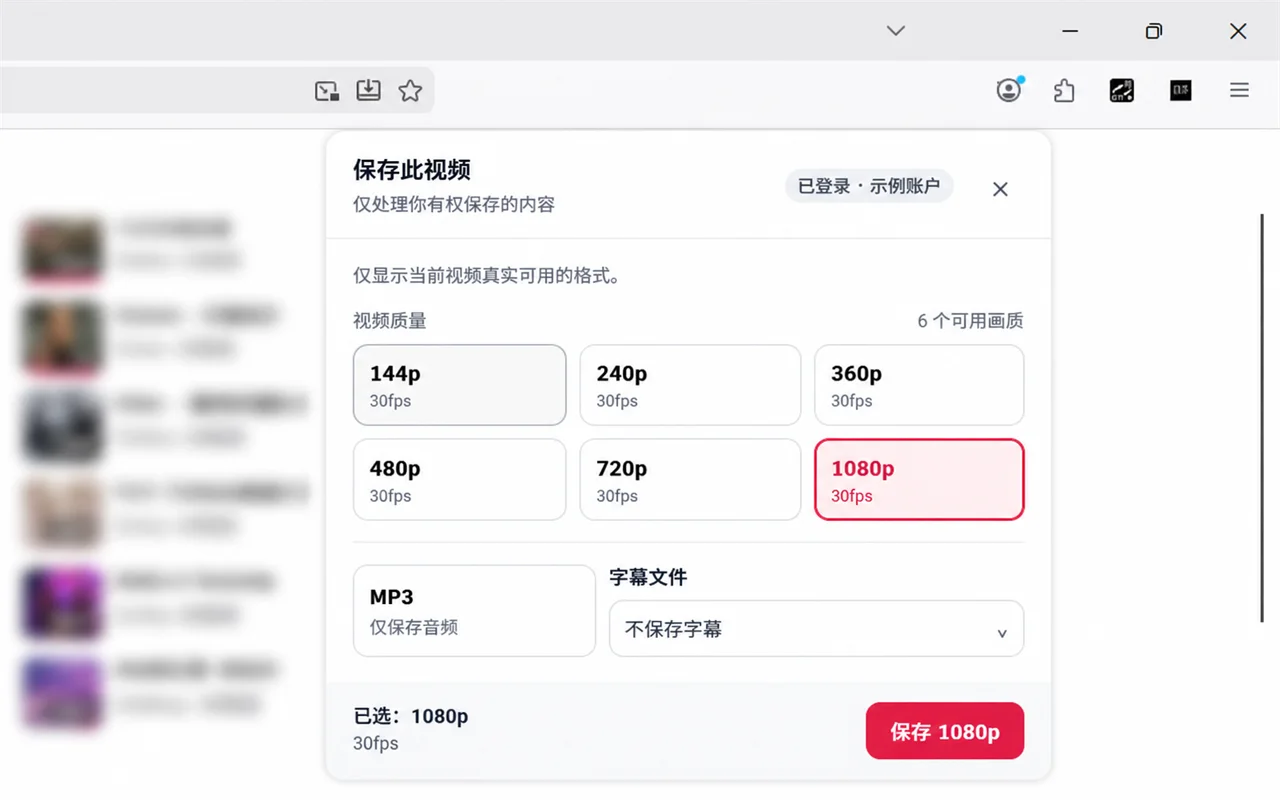
This image documents the available choices for the pictured example; it does not claim that the extension runs on iPhone or that every source includes 1080p. On the phone, use only the options the mobile analysis actually returns. If 1080p is absent, choose an appropriate available MP4 or request the authorized original. Renaming 720p to 1080p cannot add pixels.
Read resolution and frame rate separately. A card labeled 1080p and 30fps does not mean 60fps. Also remember that MP4 is a container name, not a guarantee of the exact video and audio streams inside every offered asset.
Create one task and distinguish processing from transfer
Select the MP4 option that matches the documented need and create the task if the interface asks you to do so. Record the source title, chosen quality, visible frame rate, and task identifier. That short note is especially valuable when several authorized clips have similar names.
Follow the status in the Downloads area or task center. Service processing and iPhone transfer are different stages. A completed task means the output is ready through its secure delivery link; it does not mean the MP4 is already present in Files or Photos.
Complete the browser-to-Files handoff
Open the secure link for the correct completed task. The browser may ask for confirmation or a save location. Accept the handoff only after matching the task with your recorded title and quality. Keep the browser active long enough to establish the transfer, and inspect its downloads control for progress or an error.
If a transfer pauses, check Wi-Fi or mobile-data stability, available local space, iCloud quota when relevant, and any browser prompt. Reuse the valid completed-task link when appropriate rather than creating a new processing task.
When the transfer finishes, open Files > Browse. Depending on the browser and your settings, the destination may be iCloud Drive > Downloads, On My iPhone > Downloads, or a folder you selected. Sort by date or switch to list view to compare the filename and size.
Keep the master in Files
Files is the safest default for a project master because it exposes the name, extension, location, and file-management actions. Rename the result to a project-safe name only after verifying that it is the correct file. Preserve .mp4; changing the extension does not convert media.
Do not delete the browser result immediately after seeing a thumbnail. A zero-byte item, partial temporary file, or cloud placeholder can look like a file without being a valid complete MP4.
Decide whether Photos needs a second copy
Photos is useful when the clip must appear in the media library, but it is not a general project-file manager. First verify the MP4 in Files. Then use the normal share action and Save Video only if iOS offers it for the compatible file and a Photos copy serves the project.
After importing, open Photos and compare duration, orientation, picture, and sound with the verified Files copy. Do not assume the Files item vanished; the import can create a second copy. Check both locations before deleting either one. If the project depends on a stable filename, folder structure, or direct file transfer, keep Files as the master even when Photos holds a convenience copy.
Verify the MP4 on the iPhone
In Files, confirm a plausible nonzero size and the .mp4 extension. Open the file with Quick Look or a compatible player. Test the opening seconds, a point near the middle, and the final section. Compare its duration with the public source and make sure the final scene is present.
Listen to a passage known to contain sound. If the video is silent, check the player’s mute control, iPhone volume, Bluetooth or AirPlay output, and whether the selected asset was supposed to include audio. A filename cannot repair a missing audio stream.
If the receiving app exposes media details, inspect reported dimensions and frame rate there. A landscape Full HD file is commonly 1920 by 1080 pixels, although portrait orientation or source geometry may produce different dimensions. Use actual metadata rather than judging from the size of the phone display.
Test the real destination and offline state
A file that previews in Files may behave differently in a messaging app, editor, browser, television, or managed work application. Test it in the actual destination before deleting the master. Check picture, sound, seeking, orientation, duration, and the ending.
For offline use, make the Files copy locally available and briefly test without a network. An iCloud item that has not been downloaded is not a dependable offline copy. If transferring to a Mac, Windows PC, or another phone, use an approved transfer method and verify the destination copy before removing anything from the iPhone.
Troubleshoot by the failing stage
Analysis does not identify the video: recopy the supported public URL, remove surrounding spaces, and compare the returned identity. Do not work around private or restricted access.
The required MP4 quality is absent: choose a suitable available quality or request the original from the owner. Do not relabel a lower-resolution file.
The task is complete but Files has nothing: open the correct secure link, inspect the browser’s downloads list, and check its configured destination.
The transfer stops: review network stability, iPhone storage, cloud quota, browser prompts, and device-management rules, then retry the valid delivery link if appropriate.
Files shows the MP4 but Photos does not: that is normal. Import with Save Video only when iOS offers it and a library copy is useful.
Photos import fails: verify that the Files copy is complete and playable. Keep it as the master and use a compatible authorized workflow rather than changing the extension.
Playback ends early or seeking fails: compare size, confirm the browser transfer completed, and obtain the delivery again instead of accepting a partial file.
Final iPhone MP4 decision checklist
Before finishing, confirm the public source and permission, correct source identity, available MP4 choice, recorded resolution and frame rate, sufficient storage, one completed task, one completed browser transfer, a verified Files master, and—only if needed—a verified Photos copy. Check duration, picture, sound, seeking, orientation, final scene, and offline or destination playback.
Frequently asked questions
Should an MP4 stay in Files or be copied to Photos?
Keep Files as the default master when you need a visible filename, folder, transfer, or archive. Add a Photos copy only when iOS offers Save Video and the media-library workflow is useful.
Where does an iPhone browser save the MP4?
Check the browser’s download list and Files > Browse. Common destinations include iCloud Drive > Downloads, On My iPhone > Downloads, or a folder selected during the save prompt.
Does choosing 1080p guarantee 60fps?
No. Resolution and frame rate are separate. The illustrated example labels its visible qualities 30fps, so record the values the analysis actually displays.
Why can the same video use space in both Files and Photos?
Saving a compatible video to Photos can create a media-library copy while the Files original remains. Verify both locations before deleting anything.
Why did the service finish before the MP4 appeared in Files?
Service processing and the browser’s device transfer are separate. Open the correct secure link, monitor the browser download, and verify its destination.
Can changing a file extension make an incompatible file into MP4?
No. Renaming an extension does not convert media streams. Preserve the delivered extension and use a legitimate compatible conversion workflow only when you are authorized to do so.
Can this workflow bypass DRM or private-video controls?
No. It must not bypass DRM, paywalls, account controls, private-content permissions, regional restrictions, or security measures.