YouTube Transcript Download Problems: Check Availability, Language, Text, and File Location
When a YouTube transcript download does not work, the useful response is to identify which stage failed. Was the video unavailable, were captions missing, was the wrong language selected, did the text contain errors, or did the file save somewhere unexpected? Treating these as separate questions saves time and prevents risky shortcuts.
This guide is for material you created, own through your organisation, have permission to use, or may lawfully reuse under a clear licence. It does not provide ways to override private pages, paywalls, account controls, DRM, regional restrictions, or other access limits. If an authorised source is unavailable, resolve the rights or access question with the owner.
Start with a permission and source check
Before troubleshooting a tool, confirm that the video is the correct authorised source. Open the canonical YouTube watch URL, compare its title and channel with your project notes, and play a short section. A shortened link, re-upload, compilation, or similarly titled video can produce a confusing result even when the download process itself works.
Then confirm your intended use. Owning a link is not the same as owning rights to the spoken text. Keep a project brief, licence record, or written permission with your notes. This makes it clear whether you may save a transcript for internal review, translate it, or publish an excerpt.
Check whether captions or a transcript exist
A transcript can only reflect text that YouTube or the owner makes available. Look for YouTube's official transcript display and check caption controls on the video. Some uploads have creator-supplied captions, some have automatic captions, and some have neither. Availability can also differ by language.
If there is no text display, do not assume the downloader is broken. For a video you own, open YouTube Studio and review whether captions were uploaded, published, or still being processed. For another authorised owner's video, ask for the approved caption file or confirmation that a transcript exists. Do not attempt to obtain it from a private or restricted version.
Rule out an ordinary browser problem
Refresh the video page once, check your connection, and try the full URL in a current browser. Disable only extensions that you control and that are known to interfere with page loading; do not disable security controls or sign into accounts you are not authorised to use. If the page itself does not play normally, solve that access issue before testing a transcript workflow.
Copy the address from the browser bar rather than a social-media redirect or screenshot. Remove unrelated tracking text only if doing so preserves the same public watch page. Record the exact URL in your project note so a teammate can reproduce the result.
Verify the selected language
The most common “wrong transcript” problem is actually a language mismatch. A video may be spoken in English while offering Spanish subtitles, or it may contain multiple audio tracks. Check the language label in YouTube and in the text display before saving anything. Write down both the spoken language and the transcript or caption language.
Do not call a translated subtitle track a verbatim transcript of the original speech. If you are permitted to translate, retain the original text separately and label the translation with its target language, date, and review status. This simple separation prevents editorial mistakes later.
Submit only an authorised public URL
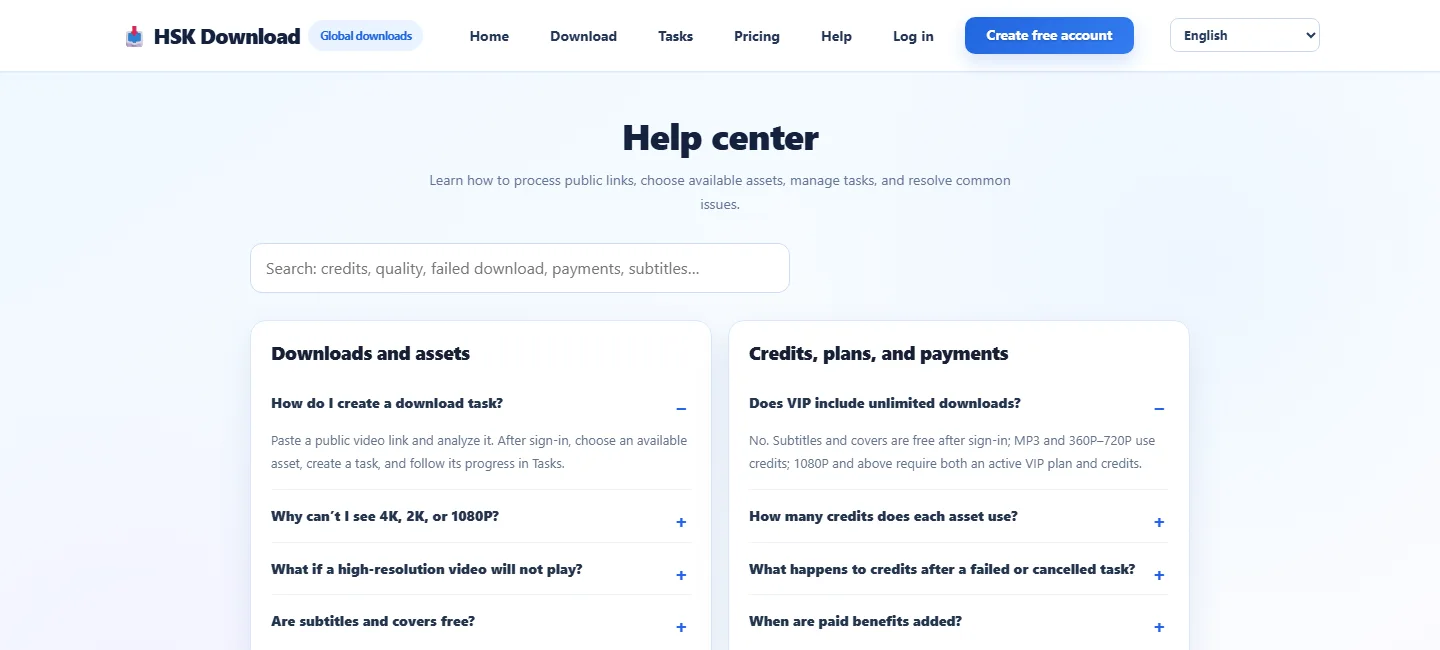
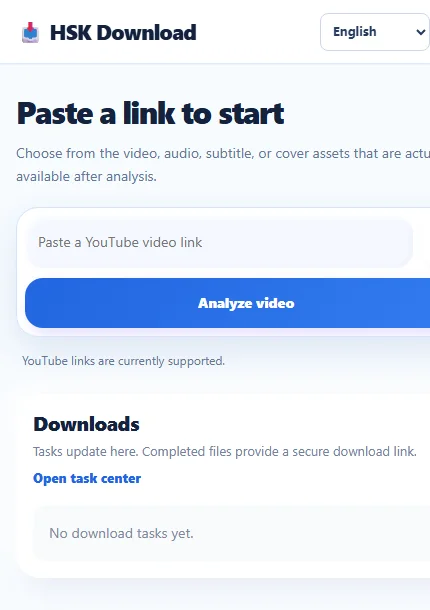
For a permitted, normally available source, use open the HSK Download tool as the workspace entry point and select a transcript-related option only when it is offered for that source. Review the page before you submit the URL. A legitimate workflow should explain what it can do; it should not ask you to supply credentials, defeat access rules, or expose confidential links to an unapproved service.
If the video contains client material, student data, unpublished work, or sensitive discussion, ask whether a third-party service is approved. The correct troubleshooting path may be to use the caption file already held by the production team rather than moving the URL through another system.
Compare a sample before blaming the whole file
After text appears, compare the opening minute and one later section with the audio. Check names, numbers, technical terms, and speaker changes. Automatic speech recognition can confuse accents, overlapping voices, music, and unusual words. A few errors do not always mean the export failed; they may show that the underlying captions need review.
Keep timestamps when verification matters. They let you jump back to the exact spoken passage. If a phrase is unclear, add a note such as “check at 04:12” instead of inventing a correction. A reliable source record is more valuable than an apparently polished but inaccurate transcript.
Distinguish text quality from file delivery
Text quality and file delivery are different problems. If the transcript is readable in the browser but no file appears, look at the download prompt, browser download list, and device storage. If a file exists but the text is poor, return to language selection and caption quality instead of repeatedly downloading the same source.
Name the result immediately with the project, language, date, and version: project-topic-en-source-2026-07-27.txt. Save the video URL and export date in a companion note. That record helps you tell an old file from a corrected export.
Find a missing file on desktop and mobile
On desktop, open the browser's downloads list and use “show in folder” where available. Search by the expected extension, project word, or today's date. Check that the browser did not ask for a destination folder behind another window. On iPhone or iPad, use Safari's downloads list and then search Files, including the Downloads folder and the cloud or device location you selected.
Confirm storage space before retrying. A failed save can be caused by a full device, a disconnected cloud drive, or a folder where you lack permission to write. Do not keep retrying blindly: choose a known project folder, save once, and verify that the file opens before closing the browser.
Repair a sensible workflow, not the evidence
For a video you own, the strongest fix for inaccurate or unavailable text is to improve captions in YouTube Studio. Correct the source, publish the approved caption track, and then repeat your authorised export. This produces a more useful asset for viewers and for your own archive.
For another person's authorised video, report the timestamped issue to the owner. Do not edit their words silently, and do not seek an unofficial copy merely because the caption track is incomplete. If you make an edited reading version for an approved project, preserve the original source copy and label the edit clearly.
Check sharing, privacy, and retention
A working download can still be handled badly. Before you share a transcript, review it for contact details, health information, children's data, confidential business discussion, or other sensitive material. Permission to copy does not remove privacy obligations. Store the file in the approved project location and restrict access to people who need it.
If the text was authorised only for a limited review, follow the agreed retention policy after the review ends. Use the organisation's secure sharing channel rather than public links or personal messaging. A clean access trail is part of a successful transcript workflow.
Escalate with useful evidence
When you need help, send a concise report: the authorised public URL, video title, device and browser, selected language, what you expected, what happened, timestamped examples, and where you looked for the saved file. Do not include passwords, private URLs, or sensitive transcript text unless the approved support process requests it.
This evidence lets a teammate distinguish a caption-availability problem from a browser, language, or storage problem. It also makes a repeatable fix possible instead of creating a one-off workaround.
Final troubleshooting checklist
Confirm the correct authorised source; inspect caption availability; check spoken and selected languages; test a short audio sample; preserve timestamps; inspect the downloads list and destination folder; and keep the source, permission note, and edited copy separate. Work through this sequence and most transcript problems become specific, safe to resolve, and easy to explain.
FAQ
Why is no transcript available for a video?
The uploader may not have supplied captions, automatic captions may not exist, or the selected language may be unavailable. For your own video, review captions in YouTube Studio; otherwise ask the owner.
Why does the text use the wrong language?
The chosen caption or subtitle track may not match the spoken language. Check both labels and save the original and any permitted translation separately.
Where did my downloaded transcript go?
Check the browser downloads list, then Files or the chosen destination folder. Verify storage space and cloud-drive connection before retrying.
Can I correct automatic-caption mistakes?
For your own video, correct the captions at the source. For another owner's video, flag timestamped issues and preserve the original rather than silently changing it.
Does a public video mean I can reuse its transcript?
No. You still need ownership, permission, public-domain status, or a licence that covers your intended use.
What information helps support diagnose the issue?
Provide the authorised URL, title, device, browser, language, expected result, observed result, timestamps, and checked file locations—without sharing credentials.