YouTube Transcript Downloader on iPhone: Find, Save, and Organise Authorised Captions
An iPhone is often where a video idea begins and where a quick transcript check needs to happen. You might be waiting for a train, reviewing a client cut, or preparing notes for your own channel. A workable mobile process is not about collecting text as fast as possible. It is about knowing which version of the text you have, why you may use it, and where it will live when the project returns to a laptop.
This guide covers transcripts and captions for videos you created, your organisation owns, public-domain material, or videos whose copyright holder has explicitly authorised the planned use. A public video is not automatically a reusable script. Do not use a phone workflow to defeat private access, payment requirements, account controls, DRM, or location restrictions.
Decide whether you need captions or a transcript
On a small screen, captions and transcripts can seem interchangeable. They are not. Captions are timed lines intended for viewing alongside a video. A transcript is a text record that can be read, searched, edited, or archived, sometimes with timestamps. Subtitles can be a translation rather than a record of the original language.
Choose the deliverable before you start. If you are reviewing an exact claim, preserve timestamps. If you are drafting a post from your own video, make a clean reading copy but keep the source text separately. If the goal is accessibility, work from the caption file that the video owner approved. This decision tells you which information must not be lost during a mobile copy-and-paste session.
Confirm rights before sharing a link from your phone
Mobile sharing makes it easy to send a URL to a service or colleague without thinking about the audience. Pause first. Confirm that you own the video, have permission from the owner, or are using material under a licence that covers the intended use. Then check the scope: an approval for internal review may not permit publication, translation, or a public handout.
Keep the permission record with the project. A screenshot of an email, a project brief, or a licence note can be enough when it clearly identifies the work. If you cannot explain why the transcript may be copied, ask the owner. Do not treat a technical method as a substitute for permission.
Find the official text display first
For an authorised video, open it in YouTube and look for the official transcript or caption options that YouTube provides. Watch a short section while you read. This confirms that the visible text belongs to the intended upload, uses the right language, and has not confused a name, number, or speaker.
The official display is also useful when you only need one paragraph for an approved review. Copy the selected passage into Notes, include the video URL, and keep its timestamp. A small, accurately sourced note is better than a large text file whose origin no one can verify later.
Prepare your iPhone before exporting
Create a dedicated folder in Files or a dedicated note in your work system. Give it a clear name such as “Transcript review — July 2026.” Check available storage, because a transcript may travel with screenshots, caption files, and review notes. Turn on iCloud Drive only if your project permits that storage location; client or student content may need a managed drive instead.
Also decide which app will receive the first copy. Notes is convenient for a quick annotated review. Files is better for a source text file. A shared document can support collaboration, but only when every collaborator is authorised. Having a destination ready prevents text from being left in the clipboard or pasted into an unrelated chat.
Use a careful iPhone export workflow
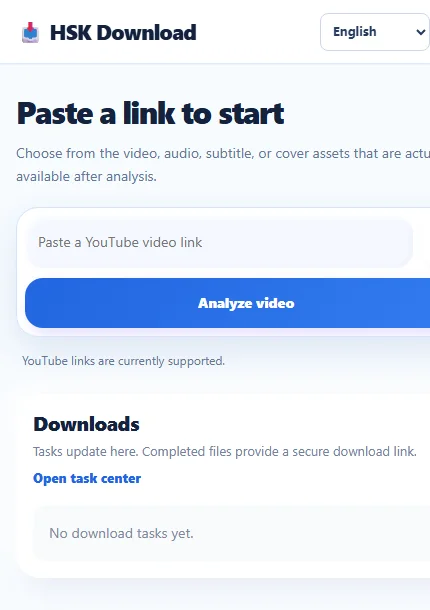
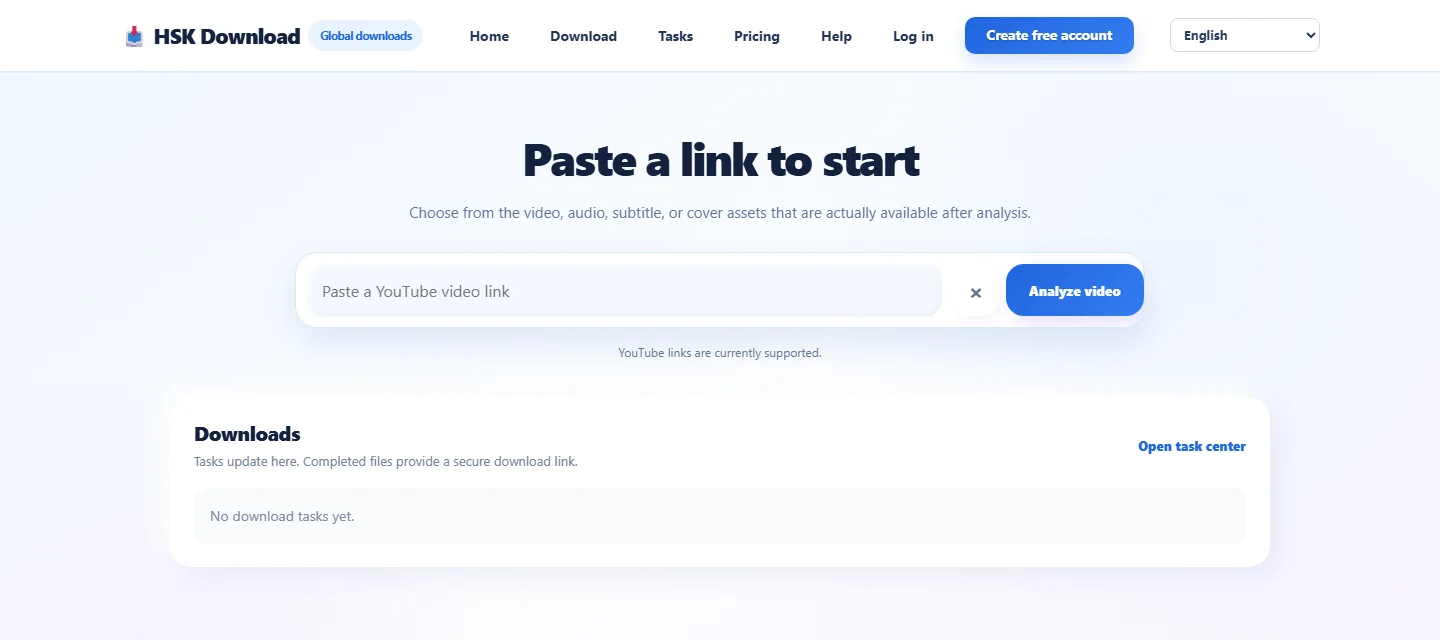
When you are handling a public, authorised source, open open the HSK Download tool in Safari as the workspace entry point and choose a transcript-related option only when it is available for that permitted video. Read the page before submitting a link. The service should not ask you to break access controls or to provide credentials for a video that is not normally available to you.
Use the full watch URL from Safari's address bar, not a cropped screenshot of a link. Before you submit it, compare the title and channel with your project record. After the text is available, review a short beginning and a later section against the audio. This catches the wrong upload, wrong language track, or an automatic-caption error before it moves into your files.
The workflow illustration shows how to check and save an authorised result. It does not mean that every video has captions or that any text can be reused without permission.
Save a source copy before editing
On iPhone, use the Share sheet to save a source copy to Files when the workflow offers a text download. Name it with the channel or project, video topic, language, date, and the word “source.” For example: project-interview-en-source-2026-07-27.txt. Put the original URL and runtime in a companion note.
If you need a more readable version, duplicate the file or create a second note called “edited reading copy.” Do not overwrite a timestamped source just because you removed filler words or corrected punctuation. Keeping both versions protects reviewers and lets you revisit a questionable passage without starting over.
Add phone-friendly review notes
Long text is tiring to inspect on a phone. Break the job into passes. First, verify names and product terms. Second, check numbers, dates, and quotations. Third, identify speaker changes and unclear audio. Use a consistent marker such as [check 03:14] rather than guessing. A teammate can search these markers later and resolve them against the video.
Avoid trying to turn an automatic transcript into a polished article in one commute. Your phone is ideal for collecting evidence and flagging questions. Deeper rewriting, formatting, and approval can happen later in the controlled project workspace. This division reduces accidental meaning changes.
Handle language tracks and translations accurately
Record both the spoken language and the transcript language. A Spanish subtitle track for an English interview is useful, but it is not the English spoken record. If you make a translation under an appropriate permission or licence, store it as a separate file. Include the target language, translator or tool, and review status in its name.
Never replace the original transcript with a translated version. Translation involves judgment, especially for idioms, technical language, and speaker tone. Preserve the source so a bilingual reviewer can compare it. When a video owner supplies an approved caption file, prefer that file over an unofficial machine-generated alternative.
Organise Files so a handoff works
Use one folder per approved project and a simple structure: source, edited, permissions, and review. On iPhone, tap and hold a file to rename or move it immediately rather than leaving it in Recents. Recents is a shortcut, not a project archive; files can become difficult to locate after a busy week.
Save a small readme note containing the video title, canonical URL, upload date, runtime, language, permission basis, export date, and editor. This takes less than a minute and prevents duplicated work when someone opens the folder later. Restrict sharing links to the people approved for the material.
Protect privacy on a personal device
A transcript may expose phone numbers, children's names, health information, financial discussion, or internal product plans. Use Face ID and a device passcode. Do not paste sensitive text into public AI tools, unapproved messaging apps, or personal social posts. If your organisation uses mobile-device management, follow its storage and sharing rules.
When a colleague needs the source, send it through the authorised team drive or secure channel rather than a temporary public link. If the permission says the text may be reviewed but not retained, delete the mobile copy using the organisation's retention policy after the task is complete. Check Recently Deleted as well if the content was sensitive.
Move the work to desktop without losing context
The phone is one step in a broader workflow. When you return to desktop, transfer the source file, its permission note, and any timestamped questions together. Do not send only the cleaned reading copy; the desktop editor needs the evidence behind it. Compare file names, dates, and language labels before merging it into the main project.
At handoff, explain whether the text is an unedited transcript, an edited transcript, captions, or a translation. That label changes how a writer, accessibility reviewer, or legal reviewer should use it.
Solve common iPhone problems safely
If Safari cannot open a page, check your connection, reload once, and verify that the URL is public and authorised. If no transcript is available, check whether the owner provided captions and whether the selected language exists. For a video you own, add or correct captions in YouTube Studio rather than seeking a restricted copy elsewhere.
If text looks inaccurate, flag the location and listen again with headphones. Do not invent a speaker name or repair a number from memory. If saving fails, confirm storage space and the selected folder, then retry. Technical friction is a reason to slow down and preserve the source, not a reason to bypass access restrictions.
Final iPhone checklist
Before you close Safari, confirm the video and language, your permission basis, the saved source location, and the URL in your project note. Before you share anything, confirm that the recipient is authorised. Before editing, duplicate the source. These habits make a phone-based transcript workflow dependable rather than disposable.
FAQ
Can I save a YouTube transcript directly to iPhone Files?
Yes for material you own or are authorised to use, when the available workflow provides a text file. Keep the source URL and permission note with it.
Should I use Notes or Files?
Use Files for a preserved source document and Notes for short review comments. You can use both as long as their storage location is approved for the project.
Can I share an authorised transcript in Messages?
Only if the recipient and the messaging system are approved for that material. Sensitive or client content should use the organisation's secure sharing method.
Why are the captions different from what I hear?
Automatic captions can misrecognise speech. Check the audio, retain timestamps, and flag uncertainty instead of guessing.
Can I translate the text on my phone?
Only when your permission or licence covers translation. Keep the original separately and identify the translated version clearly.
What if no transcript is shown?
For your own video, review or upload captions in YouTube Studio. For another owner's video, request a caption file or explicit permission; do not bypass restrictions.