If you publish videos yourself, manage a course library, or work with material that a creator has explicitly authorised you to keep, the useful question is not “what is the biggest resolution I can request?” It is: which files does the source make available, and which one is right for the job I am permitted to do?
HSK Download helps you inspect a public YouTube link and create a local task for video, audio, subtitles or a cover asset that you are entitled to process. It shows the formats the source actually makes available at that time. It does not grant permission to copy, edit or redistribute someone else’s material.
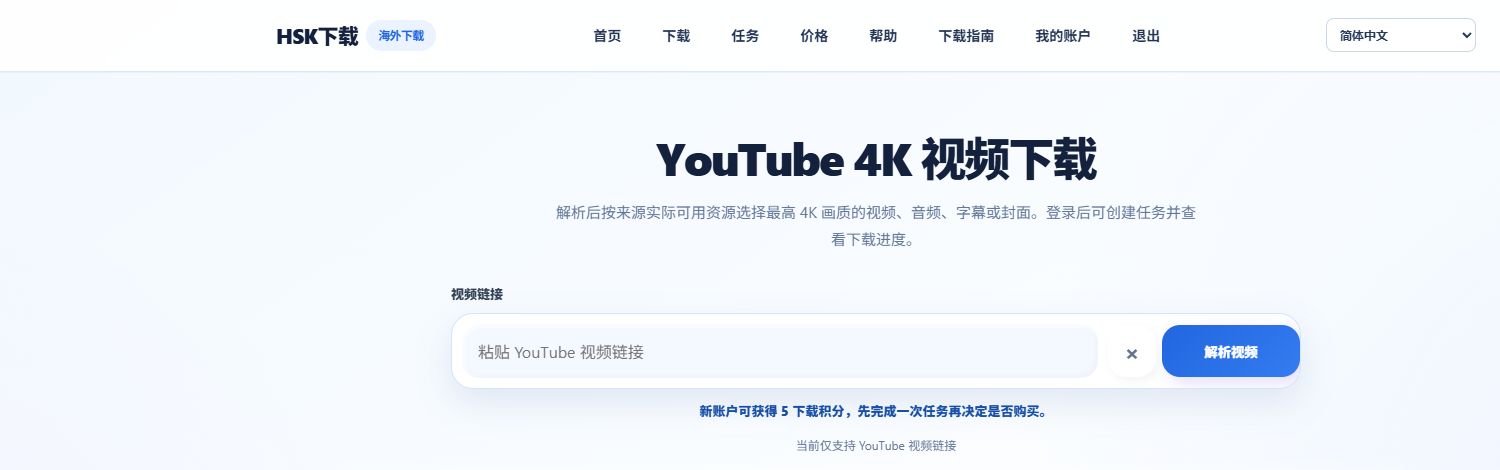
!HSK Download page for pasting an authorised public YouTube link
Before you start: confirm the right to use the file
Use this workflow only when one of these is true:
- you own the channel or the video;
- the copyright holder has given you permission to save it; or
- the source platform expressly permits the intended download and use.
Being able to view a video publicly does not automatically provide rights to reproduce, edit, share or use it commercially. If you are preparing a client asset, retain the permission record with the final file.
Step 1: copy the complete public link
Open the video in YouTube and copy the full address from the browser bar. Short links can work, but a complete link is the best fallback when recognition fails. Private, removed, age-gated, sign-in-only or region-restricted videos may not be available for analysis.
Open HSK Download, paste the address into the video-link field and choose Analyse video.
Step 2: read the available formats before creating a task
The result is an availability check, not a promise that every video has every quality. A 1080p, 2K or 4K choice appears only when the original source provides it. Depending on the video, you may see some combination of:
| Need | What to check before choosing |
|---|---|
| General playback or sharing with an authorised team | Choose a compatible MP4 option if one is offered. |
| Editing a source you own | Choose the highest source quality that is actually available and appropriate for your storage and editing workflow. |
| A small reference copy | Select the available resolution that suits the target device; do not assume “4K” is necessary. |
| Audio, subtitles or a cover image | Use the dedicated resource type rather than making an unnecessary video task. |
High-resolution availability varies by source. If 4K is absent, the original may not include it, the source may temporarily limit access, or it may not be available in the current region.
Step 3: choose MP4, a high-resolution source, or another asset type
MP4 is usually the simplest choice when the file must play on a broad range of computers, phones and editors. Some higher-quality source files use VP9 or AV1. Those formats can be excellent for quality and file efficiency, but a device’s built-in player may not support them.
If an authorised high-resolution file plays with sound but no picture, try VLC, PotPlayer or Infuse. Where a compatible MP4 option is shown and broad playback matters more than the original codec, select that option instead.
Do not repeatedly submit the same task to obtain a quality that the source did not expose. That cannot create a missing format.
Step 4: sign in and create one task
After confirming the format and the expected credit use shown on the page, sign in and create the task. New accounts receive starter download credits so you can complete a real permitted task before deciding whether a larger package is useful.
Video and audio tasks use credits according to the selected resource. Formats at 1080p and above require an active VIP entitlement as well as the applicable credits. Review the current page before creating the task, because the final availability and displayed cost are the authoritative values.
Step 5: save the completed file promptly
Track the job in the task centre. When it finishes, use the secure file link promptly: delivery links may expire. Keep the downloaded file and its permission record in your normal project archive.
If analysis or a download task fails
Work through this short checklist before trying again:
- Confirm the video is still public and that the copied link is complete.
- Check whether the source requires a login, has a regional restriction or has been removed.
- Make sure your browser allows downloads from this site.
- Wait and try once later if the source service is temporarily unavailable.
- Avoid creating duplicate tasks; a task that fails before completion does not consume the final credit charge.
FAQ
Can every public YouTube video be saved?
No. Public visibility is not a licence. Use the service only for content you own, are authorised to use, or are expressly allowed to save by the source platform.
Why is there no 4K option?
The page shows the formats currently provided by the source. The original video may not have a 4K rendition, or that rendition may be temporarily or regionally unavailable.
Is MP4 always the best choice?
It is often the most compatible option. If you need the best available source for an authorised editing workflow, compare the formats displayed after analysis and choose based on quality, codec support and intended use.
Next step
Open HSK Download and analyse a public YouTube link that you are authorised to process.
If your project needs an audio track, a Short, subtitles or a cover image instead of a video file, read the authorised YouTube asset format guide.