youtube downloader: Match the search intent
A search for youtube downloader usually calls for a clear decision, not a page of unexplained buttons. It diagnoses problems in order—link analysis, task state, browser delivery, file location and playback—and identifies the signals worth checking in a tool. This illustrated guide uses real interface screenshots and applies only to public media you own, are authorised to process, or may lawfully use.
A failed download is easier to solve when you identify the stage that failed. Start with the original public link, then check the analysis result, the selected option, the task state, the browser transfer, and finally the local file and player. This order avoids the common mistake of treating every problem as a format problem.
Use this guide only for video or audio you own, are expressly authorised to save, is public domain, or is otherwise lawfully available for your intended use. It does not grant rights to third-party content or explain how to defeat DRM, paywalls, accounts, private material, regional controls, or other safeguards.
Identify the symptom before changing anything
Write down what actually happened. Did the page reject the link? Did analysis finish but omit the option you expected? Did a task remain queued? Did a completed file link expire? Did the browser save a file that your player cannot open? These symptoms have different causes, so a clear observation is more useful than trying random buttons.
Keep the original source open in another tab while you troubleshoot. You can compare the title, public availability, and link with what you pasted. For a work or course asset, also retain the permission context. Troubleshooting should not lead you to use a different, unverified upload simply because it looks similar.
Check the original public link first
Use a complete URL copied from the source's Share control or address bar. A partial address, a title pasted as text, a short fragment from a message, or a link with missing characters can cause an immediate analysis failure. Open the URL normally in the browser before pasting it into the tool.
If the source page is private, deleted, requires an account you do not have, or is not available in your current context, stop there. The correct solution is to ask the owner, use the platform's permitted feature, or choose another authorised source. Repeatedly sending an unavailable link cannot turn it into a public one.
Read the analysis result instead of assuming options
When analysis succeeds, the choices displayed are the only choices you should treat as available for that source. A source may expose video, audio, subtitles, or a cover, but it may not expose every resolution, codec, language, or file type you expect. Avoid treating a generic search term such as 4K or MP3 as a promise that every link will return that exact option.
The desktop workflow below shows where the link, analysis result, and task controls belong in the same sequence.
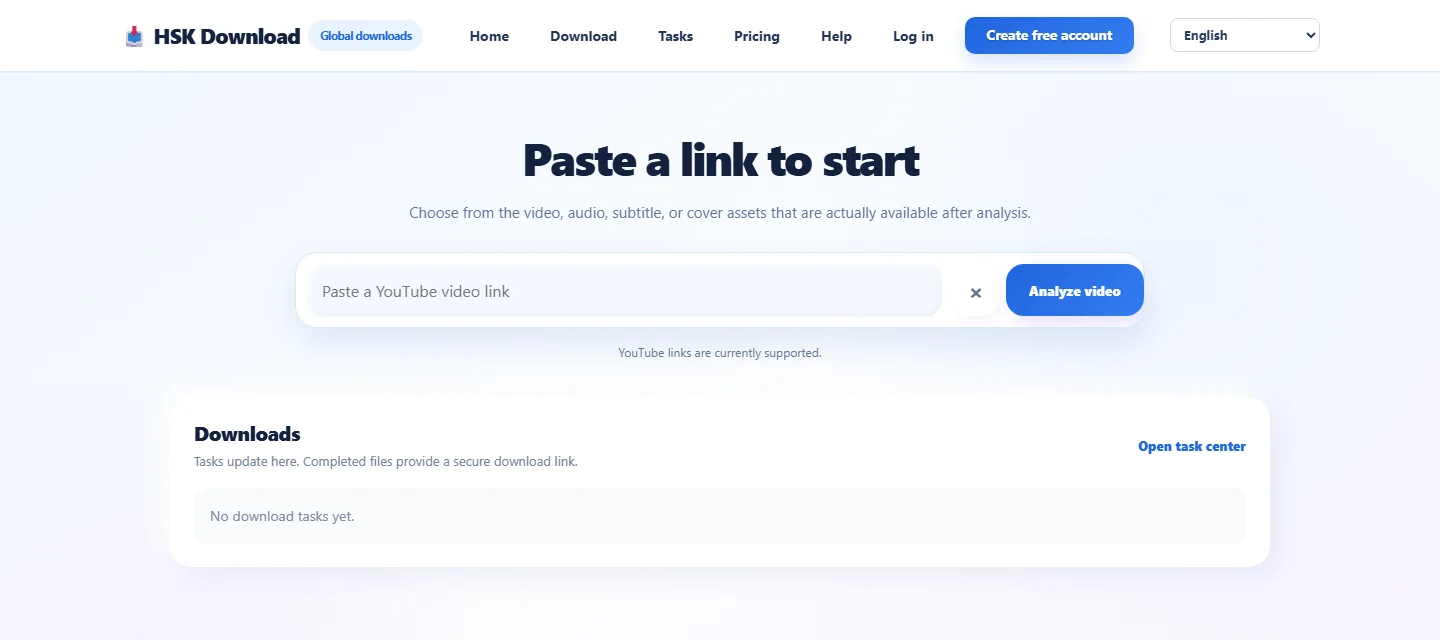
If the expected choice is absent, choose an actually listed alternative only when it suits your lawful purpose. Otherwise, return to the original source. A missing option is not an instruction to manipulate the link or attempt a restricted process.
Check selection details before you create a task
Review the visible format, quality, and size information. Video is useful when you need picture and sound; audio is useful only when sound is the real requirement. A larger option needs more time and storage, and a device may not play every available type equally well.
Check that you selected the intended item once. Users sometimes create a task for an audio choice while expecting a video, or select a short preview while expecting a longer authorised recording. The task system can only process the asset and option you actually chose.
Interpret queued and processing states correctly
A queued state means the request is waiting; a processing state means work has begun. Long recordings, large files, or source layouts that need additional preparation can take longer than a short item. Leave one task running and monitor its status rather than repeatedly creating copies of the same request.
If the state does not move after a reasonable period, refresh the task view once and check whether the original source still opens. Network interruptions, a changed public source, and a browser tab that was closed too early can all affect what you see. Preserve the task number and the exact error message if you need support.
Use the help path for task and file recovery
The help view is designed to separate a task-state problem from a local browser or player problem. Use it after you know whether the issue occurred before analysis, during the task, or after the file action.
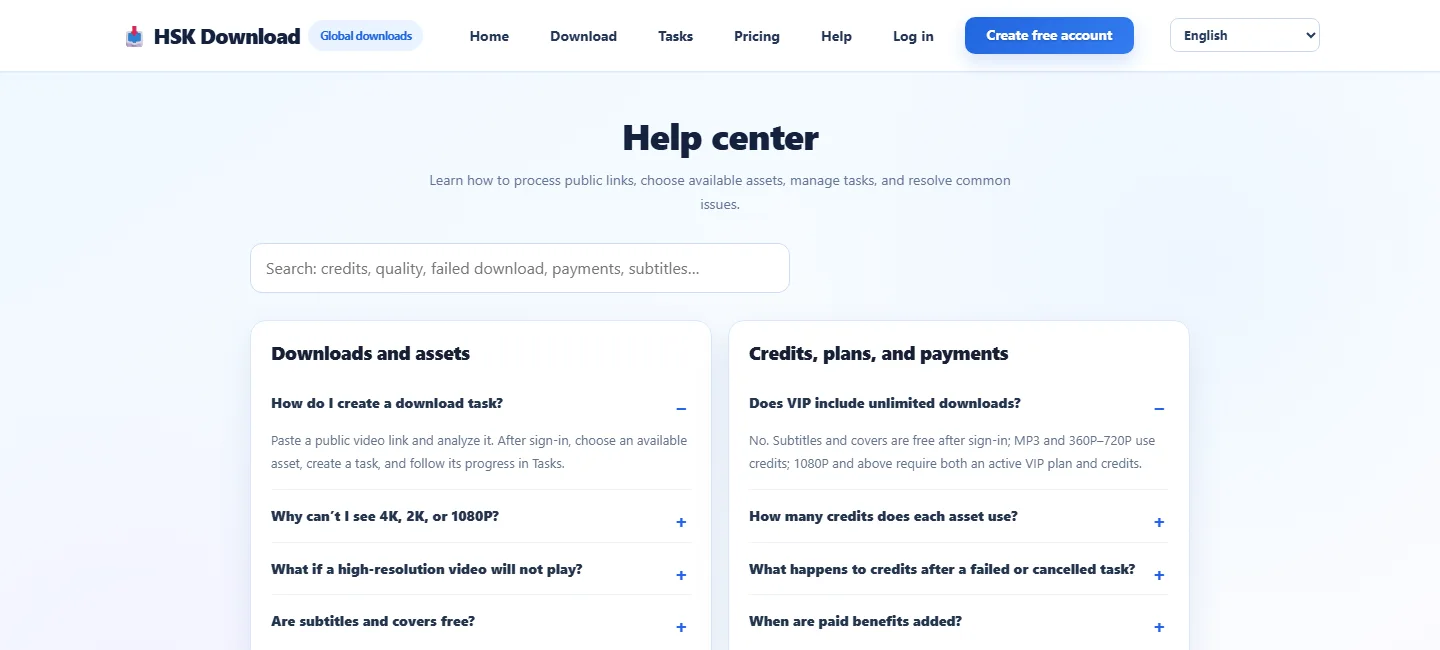
A failed task should be investigated at its source: confirm the link, the public availability, and the option. Do not describe a failed task as a completed file, and do not retry an unchanged unavailable source indefinitely. When the message identifies an expired file link, the source and permission check must be repeated before a new task is appropriate.
Find a completed file in the browser and file system
After a task reports completion, use the provided file action and watch the browser's download list. Most desktop browsers can open the containing folder. On Windows this is often Downloads; on macOS it is commonly Downloads; on mobile Safari it is normally handled through Files. The configured destination, not a guess, is the authoritative location.
Sort the folder by date or search for the filename. A temporary item or a very small file can indicate that the browser transfer is not finished. Wait for the transfer indicator to finish before moving, renaming, or sharing the result. If cloud synchronisation is involved, wait for that copy to complete too.
Resolve a file that has no sound or will not play
First confirm the task completed and the browser transfer finished. Then inspect the selected asset type. A player may not support a particular video codec, audio format, subtitle attachment, or high-resolution stream even though the file itself is complete. Test a compatible player before assuming the source is broken.
Do not change a file extension to make it look like another format. Renaming a file does not convert its contents and can make diagnosis harder. If the result has no sound, compare the chosen option with the task details, test from the local file system, and consider a different option only if it was genuinely available and matches your authorised use.
Check storage, network, and device limits
Large files need enough free space not only for the final item but also for the browser transfer and any later copy. Check available storage before rerunning a large task. A nearly full phone or computer can cause a transfer, move, or playback operation to fail even after the task itself completed.
Use a stable connection when possible. Switching networks repeatedly during a browser transfer can leave a partial file. On a managed device, company or school rules may also determine which folders, players, or cloud services are approved. Follow those rules rather than moving authorised content into an unapproved location.
Handle an expired link without losing the diagnosis
Completed file links may be time-limited. An expired link does not mean the original source was necessarily removed, but it does mean you should return to that source rather than rely on an old task tab. Confirm that the public source still opens and that your permission still applies, then analyse it again and create a new task if appropriate.
If the original page is now unavailable or restricted, do not attempt to restore access through technical workarounds. Record the outcome and contact the owner or use a permitted platform path. This protects both the content owner and your own workflow.
Use a repeatable troubleshooting checklist
The practical order is: confirm rights, open the original link, analyse it, select a real listed option, inspect the task state, complete the browser transfer, locate the file, and test it in a compatible player. With an authorised public link ready, you can open the HSK Download tool.
This checklist prevents circular troubleshooting. It tells you whether the problem is a link, a source option, a task, a browser destination, storage, or playback. Each answer points to a lawful next step instead of a guess.
Frequently asked questions
Why can the link not be analysed?
Confirm it is complete, public, and still available. Private, deleted, restricted, or malformed links cannot be processed.
Should I keep retrying a queued task?
Check the task state and wait for a reasonable period. Duplicate tasks do not normally solve a source or availability issue.
What does an expired file link mean?
File links can be time-limited. Return to the original authorised public source and create a new task only if it remains available.
Why is there no sound in my file?
Confirm the transfer completed, inspect the selected option, and test a compatible player. Do not change extensions as a substitute for conversion.
Where should I look for a missing file?
Start with the browser download list, then open its configured folder and search by name or date.
Can I process a private or region-restricted video?
No. Use only material you own, are authorised to use, is public domain, or is otherwise lawfully available without defeating restrictions.