download youtube video: Match the search intent
A search for download youtube video usually calls for a clear decision, not a page of unexplained buttons. This guide shows how to confirm the resolution supplied by the source, then verify frame rate, sound and the completed file. This illustrated guide uses real interface screenshots and applies only to public media you own, are authorised to process, or may lawfully use.
A trustworthy YouTube-to-MP4 1080p workflow begins by proving that 1080p is actually offered for the authorized public source. Then confirm the displayed frame rate and selected asset, allow enough space for the transfer, and test the finished MP4 for duration, picture, sound, and a complete ending. The filename “1080p” is not proof of resolution, and service completion is not proof that the browser has finished saving the file.
Use this process only for public videos you own, are authorized to download, that are in the public domain, or that you may otherwise use lawfully. Respect copyright, licensing, creator rights, and YouTube’s rules. HSK Download does not bypass DRM, paywalls, account controls, private-content permissions, regional restrictions, or security measures. When access or permission is unclear, obtain an authorized original rather than trying to defeat a restriction.
Define what 1080p must accomplish
1080p usually matters because the project needs readable interface text, fine visual detail, or a full-HD review frame. Write down that reason before analysis. If the real deliverable is a phone-sized reference, an audio review, or a subtitle document, a large MP4 may add transfer and storage cost without improving the decision.
Confirm the public source before checking quality
Open the intended public video in a normal browser tab. Confirm its title, channel, visible duration, and your authorization. Keep the permission record with the project. Copy the public sharing URL rather than a private Studio path, account-management address, session-dependent link, or a message fragment with punctuation attached.
Treat 1080p as source-dependent
The extension screenshot shows six video-quality choices for one example, ranging from 144p to 1080p. Every visible quality card is labeled 30fps, and the 1080p card is selected. The panel also says that only formats available for the current video are shown.
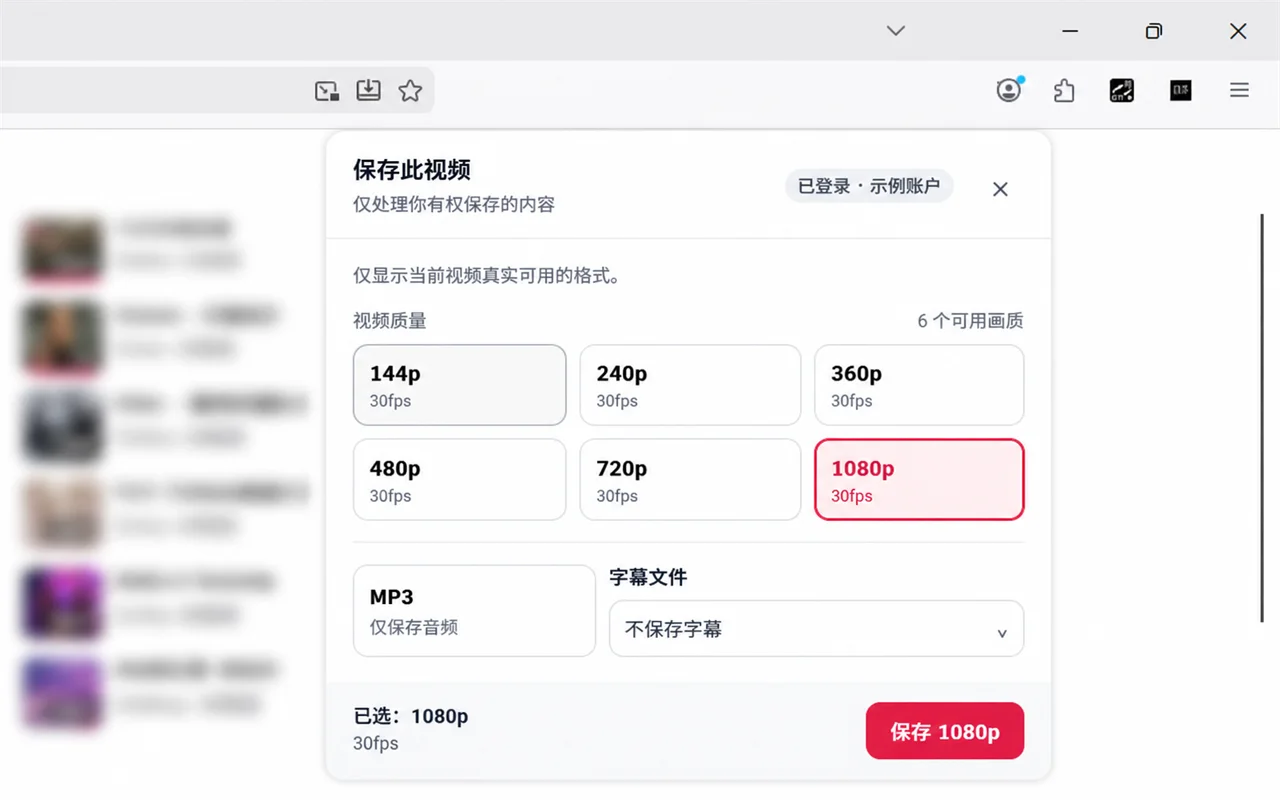
This is evidence that 1080p at 30fps is selectable in the pictured example, not a promise that every authorized source has it. Another video may present a different list or no 1080p option. If 1080p is absent, choose a legitimate available quality that serves the project or request the original from the rights holder. Renaming a lower-resolution file cannot supply missing pixels.
Read resolution and frame rate separately
Resolution describes the image dimensions; frame rate describes how many frames are presented per second. They answer different questions. A 1080p 30fps option can preserve more spatial detail than 720p while retaining the same visible frame-rate label shown in the example. It does not imply 60fps.
Before creating the task, read the entire selected card or label. Record both 1080p and 30fps when those are the values actually shown. Do not infer a higher frame rate from smooth-looking playback, and do not add “60fps” to a filename when the interface did not offer it.
Check whether the selected MP4 includes audio
MP4 is a container, and the label alone does not guarantee the exact streams inside a particular offered asset. If the project needs sound, verify that the selected video choice is intended to include it. The example panel visibly separates video-quality cards from an MP3 audio-only option, which reinforces that video and standalone audio are different choices.
After delivery, play a section with known speech or sound. Check the player’s mute state, system volume, output device, and track behavior before declaring the file silent. If the selected asset genuinely lacks required audio, return to the authorized source and choose an appropriate available option; changing the filename will not pair streams.
Estimate storage and transfer cost
A 1080p MP4 is often larger than a lower-resolution alternative, but resolution alone cannot predict an exact size. Duration, compression, frame rate, visual complexity, and the supplied streams all matter. Use the size shown by the interface or browser when available rather than inventing an estimate from the resolution label.
Match the transfer to the deadline. A smaller available file that can be downloaded and verified in time may be more useful than a 1080p transfer that remains incomplete. Do not start duplicate processing tasks merely because the local browser transfer appears slow.
Analyze the link and preserve the selected state
The public desktop page shows a YouTube link field beside a blue Analyze video button. Below it, the wide Downloads area says tasks update there and completed files receive a secure download link. An Open task center link is also visible.
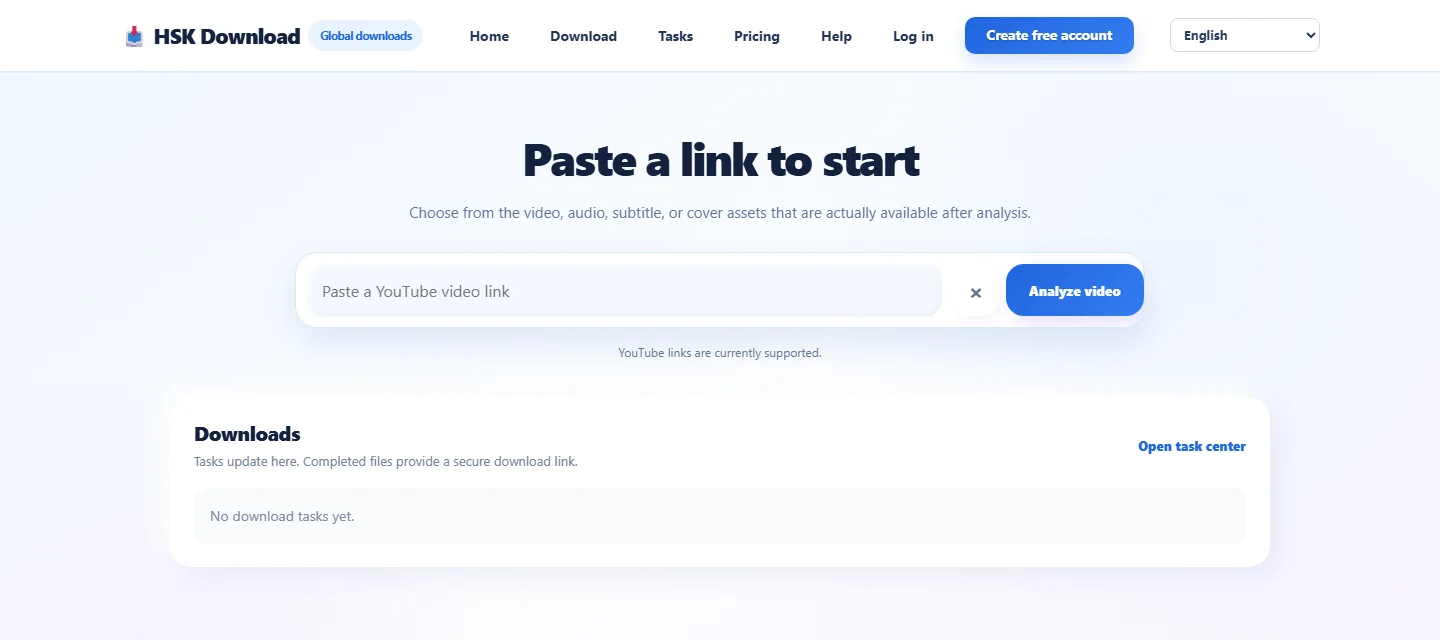
After source verification, open the HSK Download tool, paste the cleaned public URL once, and select Analyze video. Compare the returned title or other visible identity details with the source. Review only the assets actually listed, then select 1080p only if it appears and fits the documented purpose.
Record the video title, selected resolution, displayed frame rate, and task identifier. This small audit note prevents later confusion between a 1080p task and a lower-quality test, especially when several authorized videos are processed in sequence.
Separate service completion from browser saving
Analysis, service processing, secure delivery, and local browser transfer are distinct stages. A completed service task means its output can be delivered through the appropriate secure link. It does not mean the browser has already written every byte to disk.
Open the secure link for the correct completed task and watch the browser’s downloads panel. Look for a save-location prompt, a paused transfer, a blocked action, or a destination you did not expect. If the browser asks where to save, choose an approved project folder with enough free space.
Avoid rapid repeated clicks. They can produce multiple browser transfers even when only one service task exists. When a valid completion link can be retried, fixing the network, storage, or browser prompt is more precise than submitting the source again.
Verify the MP4 before relying on the name
Locate the result by recent time, expected extension, and plausible size. Confirm that it is not zero bytes, a partial temporary item, or a cloud placeholder. Preserve .mp4; adding or changing an extension does not convert the file.
Open the file in a compatible player. Test the beginning, a point near the middle, and the final section. Compare the duration with the public source. Confirm that the final scene is present, the picture is visible, and required audio plays. A transfer that stops early may still produce a filename, so the ending check is essential.
When your player exposes media information, inspect the reported frame dimensions. A full-HD landscape file is commonly reported as 1920 by 1080 pixels, although orientation and source geometry can affect dimensions. Use the actual metadata rather than judging resolution from window size or a filename.
Test playback in the destination browser or app
A file that plays in one environment may fail in another because of application support, an incomplete transfer, organization policy, or a cloud-only state. Test the MP4 in the environment that will actually receive it. For browser playback, open the local file through the browser’s normal file-opening path and check picture, sound, seeking, and completion.
If the browser shows video but no audio, confirm the tab is not muted, the correct output device is active, and the selected asset includes audio. If seeking fails or the ending is absent, verify that the download completed and compare file size. If only a cloud icon is present, make the file locally available before an offline test.
Do not claim that a different browser creates source quality that was not offered. Switching players can resolve compatibility or playback-state issues; it cannot add pixels, frames, or streams missing from the delivered file.
Compare quality with the authorized source
Quality verification is comparative. Inspect a frame containing small text or fine detail in both the authorized public source and the local file at a sensible display scale. Look for unexpected softness, block artifacts, missing edges, or incorrect aspect ratio. Avoid enlarging a small playback window and calling the result “1080p” based on appearance alone.
Check motion at a representative point and remember the displayed 30fps label in the example. Do not expect 60fps behavior from a 30fps selection. Check sound at a known passage and compare duration. Document any mismatch using the selected option, task, filename, size, and player—not an unsupported assumption.
If the delivered result matches the offered asset but not the project’s requirement, revise the selection or request a better authorized original. The downloader cannot invent source detail.
Troubleshoot the exact failing stage
1080p is not listed: the source-dependent menu does not offer it. Choose an available suitable option or request the original; do not relabel a lower-resolution file.
The task has the wrong quality: verify the recorded selection and create a corrected authorized task only if needed. Avoid accidental duplicates.
The task completed but no local file exists: open the correct secure link, inspect the browser’s downloads panel, and check the configured destination.
The transfer stops: check network stability, local space, cloud quota, browser prompts, and managed-device restrictions. Retry the valid delivery link when appropriate.
The MP4 is silent: verify the selected asset, player mute state, system output, and audio-track presence.
Playback ends early: confirm transfer completion and file size, then retry delivery rather than treating a partial file as valid.
The file reports less than 1080p: compare the actual selection and metadata. A renamed filename does not alter frame dimensions.
Final 1080p verification checklist
Before delivery, confirm public source, authorization, source identity, visible 1080p availability, displayed frame rate, selected task, secure link, completed browser transfer, plausible size, MP4 extension, frame dimensions, duration, picture, audio, seeking, and complete ending. Test in the receiving environment and retain permission and task records according to policy.
If any required check fails, return to the stage that produced it. Do not compensate with a filename change or an unsupported quality claim.
Frequently asked questions
Does selecting 1080p guarantee a 1920 by 1080 file?
The selection should correspond to the offered asset, but verify the delivered file’s actual frame dimensions in a compatible player or media-information view.
Does the example’s 1080p option mean 60fps?
No. The visible example labels its quality options 30fps. Resolution and frame rate are separate properties.
Will every 1080p MP4 contain audio?
Do not assume so from the container name alone. Confirm the offered asset and test a known audible section after delivery.
Why is the 1080p file larger than expected?
Size depends on duration, compression, frame rate, visual complexity, and included streams, not resolution alone. Use the actual reported size.
Why did the task complete without a saved browser file?
Service completion and browser transfer are separate. Open the correct secure link, watch the browser download, and verify the destination.
Can renaming a 720p file to 1080p improve it?
No. Renaming changes neither frame dimensions nor source detail. Choose an actually available 1080p asset or request an authorized original.
Can this workflow bypass DRM or private-video controls?
No. It must not bypass DRM, paywalls, account controls, private-content permissions, regional restrictions, or security measures.