youtube video download: Match the search intent
A search for youtube video download usually calls for a clear decision, not a page of unexplained buttons. The workflow connects format selection, browser delivery, file location and playback while highlighting the practical differences between mobile and desktop. This illustrated guide uses real interface screenshots and applies only to public media you own, are authorised to process, or may lawfully use.
A reliable mobile workflow has five stages: verify the authorized public video, analyze its clean link, choose an available asset that suits the phone, complete the task, and locate the delivered file in the browser’s configured destination. On both iPhone and Android, the two details most likely to cause confusion are the separation between service completion and local transfer, and the difference between a browser download folder and a photo library.
Use this workflow only for public videos you own, are authorized to download, that are in the public domain, or that you may otherwise use lawfully. Respect copyright, licenses, creators’ rights, and YouTube’s rules. HSK Download does not bypass DRM, paywalls, account controls, private-content permissions, regional restrictions, or security measures.
Prepare the phone before opening the link
Decide what the project actually needs: a video reference, audio for authorized listening, timed text, or a cover image. This choice affects file size, transfer time, storage, and the app used to inspect the result. A large video is unnecessary when the deliverable is a subtitle document, while a cover image cannot replace the motion and sound of a video.
Check battery level, available local space, and the browser’s download destination. If the destination is cloud-backed, check that quota too. Leave more space than the estimated file size because a browser may need temporary working room during transfer.
Verify the public source and permission
Open the intended video in a regular browser tab. Confirm its title, channel, duration, and public availability. Keep the relevant permission or ownership record with the project. If the video belongs to someone else and authorization is unclear, stop and obtain permission or an appropriate original.
Copy the public YouTube video URL from the normal sharing path. Do not copy a private Studio address, account-management URL, session-dependent link, or a message that includes punctuation after the URL. Before analysis, remove accidental spaces and line breaks.
Use the responsive mobile page
On a narrow screen, the HSK Download page places the language selector above a large Paste a link to start heading. The YouTube link field is followed by a full-width blue Analyze video button. Below it, the Downloads section states that tasks update there and completed files provide a secure download link; an Open task center link is also visible.
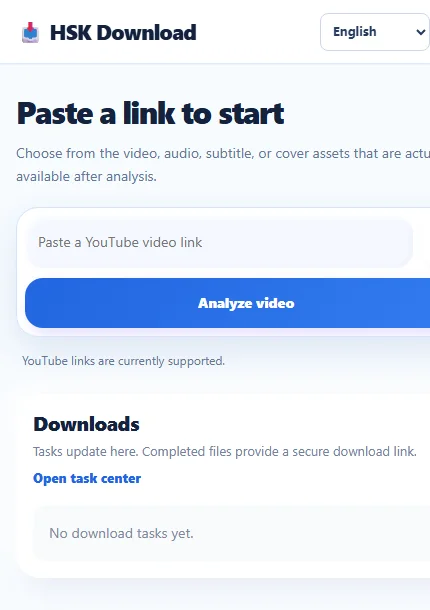
The supporting text says that video, audio, subtitle, or cover assets can be chosen when they are actually available after analysis. This wording matters: the page presents source-dependent choices rather than promising every resolution, language, or type for every video.
Analyze the link without duplicate submissions
In the phone browser, open the HSK Download tool, paste the clean public URL once, and select Analyze video. Give the page time to respond. Repeated taps can make it harder to determine whether a request was accepted, especially on a slow cellular connection.
If analysis does not begin, verify that the link still opens as the correct public video, reload the page, and try the cleaned URL once. Do not try to force private, deleted, restricted, or unsupported material through the workflow.
When the result appears, compare its visible identifying details with the source. On a small display, scroll deliberately and make sure a control belongs to the current result before selecting it. If sign-in is required to create a task, use your own account and the normal login process.
Choose an asset for the mobile situation
Select according to purpose and constraints, not simply the largest number. A moderate-resolution MP4 can be easier to transfer, preview, and share within an approved project. A higher available resolution may be appropriate when fine visual detail is genuinely required and the phone has sufficient storage and network capacity.
Choose audio only when an audio-only result matches the authorized use. Choose SRT or WebVTT for timed text such as caption review or translation preparation. Those formats are documents, not playable video. Choose a cover when a still visual reference is the intended asset.
Only the options actually listed after analysis can be selected. If a required resolution, subtitle language, or media type is absent, use a legitimate suitable alternative or request the original from the rights holder. Renaming a lower-quality file cannot create missing detail.
Control cellular data before starting the transfer
Separate analysis from the final file transfer when planning data use. Page loading and analysis may be light compared with receiving the selected media file. A service task can finish while you are on cellular data, but opening its secure link may begin the larger device transfer.
If your plan has a strict cap, wait for trusted Wi-Fi before using the completion link for a large asset. Avoid switching repeatedly between Wi-Fi and cellular service during an active transfer. If your phone offers a per-app mobile-data control or a low-data setting, follow the device’s standard controls and your organization’s policy.
Follow the task from processing to delivery
After choosing an available asset, create the task if the interface requests it. The visible Downloads area and task-center link provide places to look for updates. Record the video title, selected asset, and task identifier so you do not confuse it with another mobile request.
Wait for the correct task to complete. Completion means the service can provide the resulting file through its secure link; it does not mean the browser has already saved the file. Open the correct secure link and watch the browser’s own download indicator or panel.
Keep the tab available until the local transfer clearly begins. If the browser asks for confirmation or a destination, review it before accepting. Avoid rapid repeat taps, which can create multiple browser transfers even when only one service task exists.
Find the file on iPhone
Safari downloads ordinarily appear in the Files app rather than automatically joining the Photos library. Open Files > Browse and check the destination configured for Safari. Common destinations include a Downloads folder in iCloud Drive or an on-device Downloads folder, but the actual setting on the phone is authoritative.
Use list view to compare recent date, name, and size. A cloud symbol can indicate that an item is not fully local. Before relying on the file offline, make sure it has been downloaded to the device and test it without a network connection.
If iOS offers a standard Save Video action for a compatible authorized clip and a Photos copy is useful, use that device control only after verifying the file. Check Files and Photos before deleting anything, because importing a library copy does not necessarily remove the original download.
Find the file on Android
Chrome and other Android browsers commonly expose completed items through their Downloads view and save them in a Downloads location accessible through the system file manager. Open the browser’s download list first, then use the phone’s Files or file-manager app to inspect recent items.
Compare the same page on a larger screen
The desktop view uses the same visible stages but arranges them horizontally: a YouTube link field beside the Analyze video button, followed by a broad Downloads panel and an Open task center link. The navigation bar and wider spacing are desktop layout differences, not evidence of a different asset catalog.
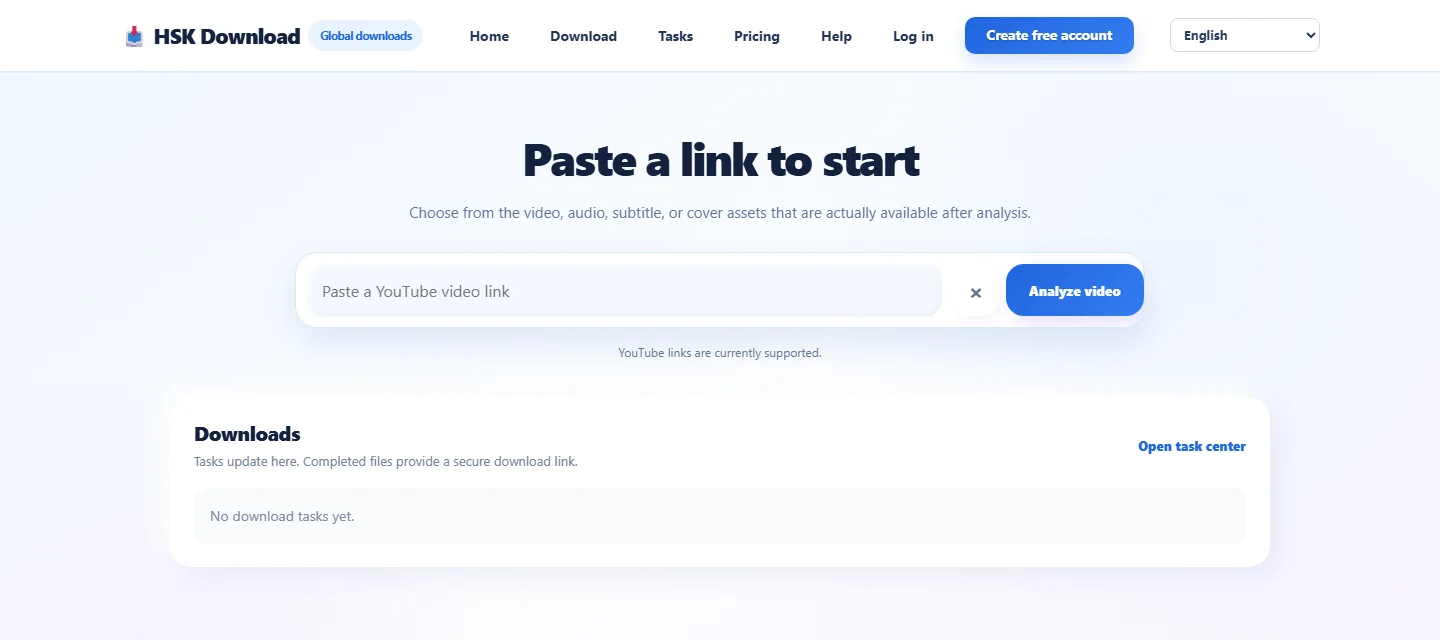
If a phone screen feels cramped, you may switch to a computer for easier task review, but do not assume that doing so creates unavailable source formats. Choose the device that makes verification, storage, and final use easiest. A phone can be a convenient destination for one file, while a computer may be more practical for multiple authorized project assets.
Verify the downloaded result
Do not count a filename as proof of success. Confirm that the file has a plausible size, retained its expected extension, and finished transferring. A zero-byte entry, a file that ends early, or a cloud placeholder is not a verified result.
For video, inspect the beginning, a middle point, and the end; check expected duration, picture, and sound. For audio, listen beyond the opening seconds and compare the duration. For SRT or WebVTT, open the text and look for readable cues and timing lines. For a cover, inspect the visible image and dimensions.
Preserve the extension. Changing .srt to .mp4 does not turn subtitles into video, and changing a media suffix does not convert its streams. Give the verified file a project-safe name, then retain permission and task records according to policy.
Troubleshoot common mobile failures
The Analyze video button appears inactive: verify the clean public URL, dismiss the phone keyboard if it covers controls, reload the page, and submit once.
The desired quality is absent: select an available option that meets the real need or request the original. The interface cannot invent source quality.
The task completed but no file is visible: open the correct secure link, inspect the browser’s Downloads view, and check the configured local or cloud destination.
The transfer stopped: check Wi-Fi or cellular state, data-saving controls, storage, cloud quota, and browser prompts. Retry a valid completion link instead of duplicating the task.
The video has no sound: confirm that the selected asset includes audio, check volume and output, and test a compatible player.
The file will not open: verify size, extension, completed local availability, and app compatibility. Timed-text documents do not behave like videos.
Final mobile checklist
Before considering the workflow complete, confirm permission, public URL, source identity, selected asset, task state, secure link, browser transfer, destination, file size, extension, and successful verification. If the file will be used offline, test it offline. If it will be moved to another device, verify the destination copy before deleting the phone copy.
Frequently asked questions
Can I use this workflow on both iPhone and Android?
Yes. The analysis and task stages are similar, while the final file location depends on the browser and device settings. Use Files on iPhone or the browser download list and file manager on Android.
Where does the finished file go on iPhone?
Check the Files app and Safari’s configured download destination, commonly a Downloads folder in iCloud Drive or on the iPhone. Do not assume it automatically appears in Photos.
Where does Chrome save the file on Android?
Check Chrome’s Downloads view and the Downloads location shown by the device’s file manager. Exact paths vary by device, Android version, browser, storage, and work-profile policy.
Should I choose the highest resolution on mobile?
Only when the project needs it and the source offers it. Consider display purpose, file size, mobile data, storage, transfer time, and device compatibility.
Why did the task finish without a local file?
Service completion and device transfer are separate. Use the correct secure completion link, then inspect the browser’s download state and destination.
Can I download over cellular data?
You can use the phone’s normal network controls, but first consider the asset size and your data allowance. Trusted Wi-Fi may be the better choice for a large authorized video.
Can this workflow bypass private access, DRM, or regional restrictions?
No. It must not bypass DRM, paywalls, account controls, private-content permissions, regional restrictions, or security measures. Process only public content you are entitled to use.